
If you started patching Macs, iPhones and iPads in Intune in the last year or so, you’re probably already using Apple’s declarative device management (DDM) update policies in favor of the old MDM-based software update policies. Apple has deprecated those and Microsoft has said Intune will soon end support for them, but if you’ve moved to DDM update policies (and in 2026 you should have), they might not be doing what you think they’re doing...
Here’s the thing: DDM is great. The controls Apple exposes, and that Intune surfaces in the settings catalog, have changed how we approve and roll out specific macOS and iOS versions across a fleet.
With the release of macOS and iOS 27 this year, I saw a wave of confusion about what these policies were actually doing to people’s fleets, including a few of my own devices. The question I saw more than any other: “Why is Enforce Latest not following my deferral?”
Plenty of admins had layered these policies for months without a problem, then the macOS 27 release exposed the misconfiguration: a 30-day major deferral, Enforce Latest assigned, and the new major landing within a week of release.
Most of that confusion comes from the same place: we know Windows Update rings and Autopatch really well, and we expect Apple’s controls to behave the same way. They don’t.
The Windows timeline we’re used to
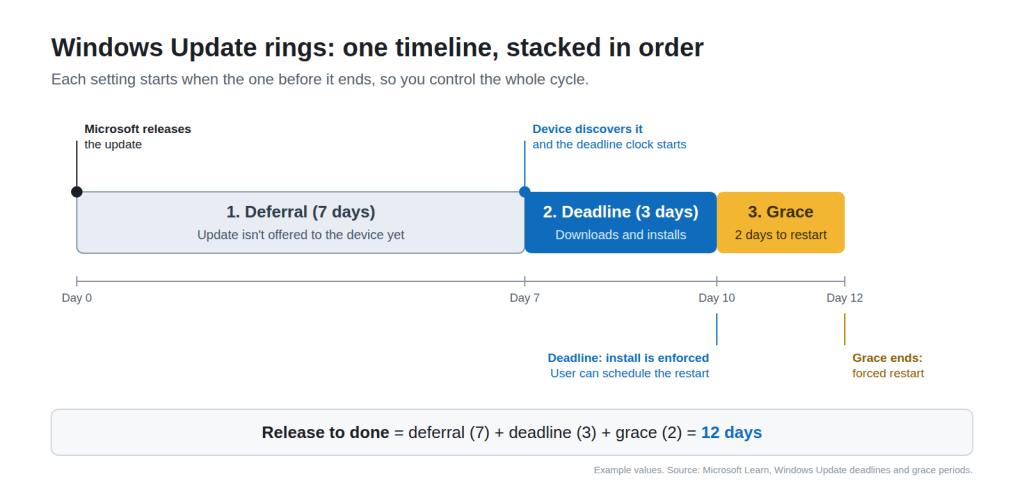
On Windows, an update ring gives you a timeline you control end to end:
- Deferral: the update isn’t offered to the device until the deferral period passes.
- Deadline: the countdown to a forced install starts after the device actually discovers the update.
- Grace period: the user gets extra time to restart after the install.
Those three stack. Microsoft’s own guidance describes the total time from release to a completed update as “deferral + deadline + grace period.” If you want to push the reboot all the way to the end of the cycle, you can control that
How DDM actually works
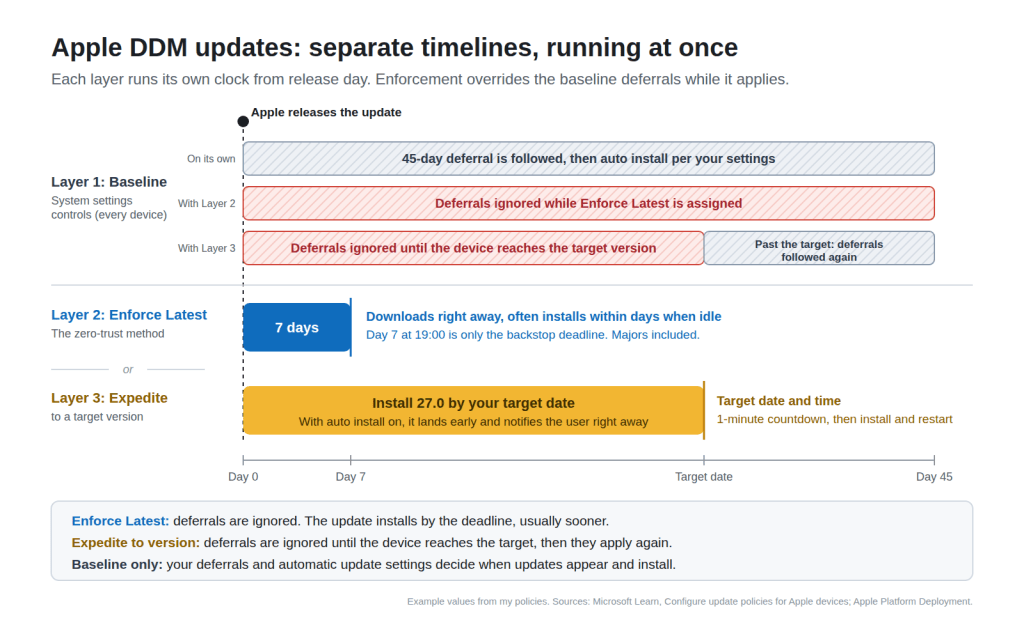
DDM doesn’t give you that stacked timeline. The best way I’ve found to think about it is three layers, each running its own clock.
Layer 1 is a long-running baseline. It sets your general major and minor deferrals, and your automatic update actions: whether Macs download and install updates on their own, or stay more manual and just notify the user when something new is out.
Layer 2 is Enforce Latest, the zero-trust method. It enforces the newest release Apple ships, majors included, by a deadline counted in days. While it’s assigned, the baseline deferrals are ignored. It behaves much more like a Windows quality update expedite policy than an update ring: it exists to get an update onto devices as soon as possible.
Layer 3 is expedite to a version. This is the Targeted Version policy: you pick the version and the date, and the device installs it by then. Deferrals are ignored until the device reaches that version. Once it’s past the target, the baseline deferrals apply again to anything newer.
So you’re not building a timeline the way you would on Windows. You set a general cadence in the baseline, then pick one enforcement method, Enforce Latest or expedite to a version, when you want a release on devices.
Let’s walk through the three policies I run, then look at where admins get burned and which combinations fit which situations.
Policy 1: The baseline (Software Update Settings)
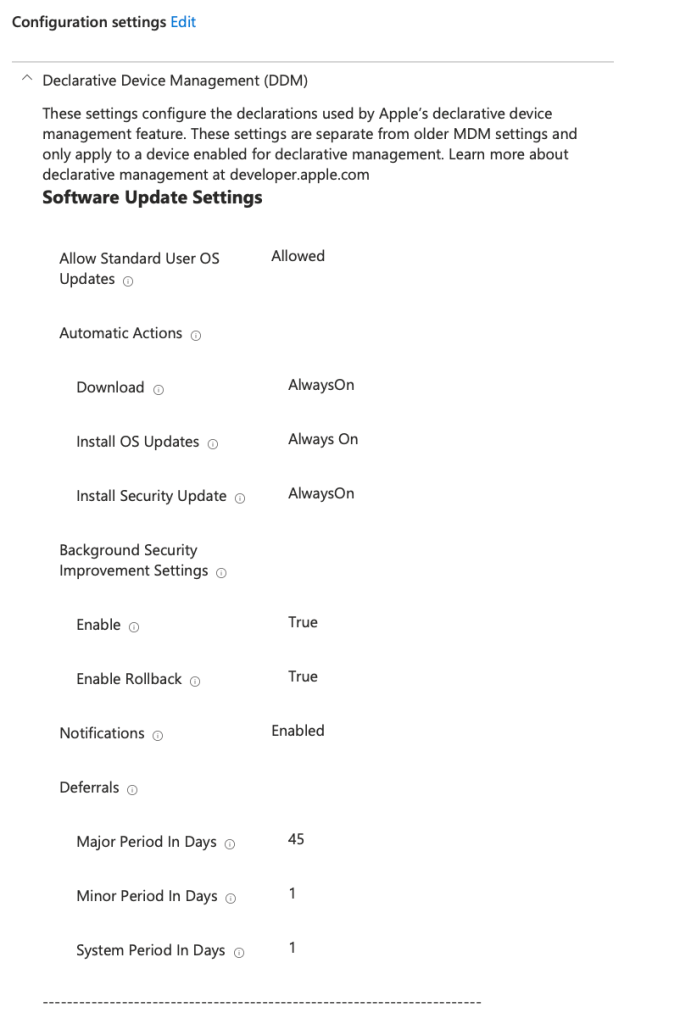
In the settings catalog this is Declarative Device Management > Software Update Settings. Here’s what mine sets:
| Setting | My value |
|---|---|
| Major update deferral | 45 days |
| Minor update deferral | 1 day |
| System (non-OS) update deferral | 1 day |
| Automatic download | Always On |
| Automatically install OS updates | Always On |
| Automatically install security updates | Always On |
| Allow standard users to update the OS | Yes |
| Rapid Security Response (and rollback) | Enabled |
| Notifications | On |
This policy goes on every device. The part people misread is the deferral. Apple’s documentation says that with a deferral set, “software updates only appear after the specified delay.” The key word is appear. A deferral controls when the user can see and start an update in System Settings. It doesn’t schedule an install, and it doesn’t hold back an enforcement policy.
Two more details worth knowing:
- Automatic installs being Always On means that once a deferral ends and the update appears, the Mac downloads and installs it on its own. On a Mac with only this baseline assigned, updates land quickly.
- If you assign more than one Software Update Settings policy to the same Mac, they merge instead of one winning. Apple’s schema takes the longest deferral, and if any one policy turns notifications off, they’re off for every Mac it overlaps.
Policy 2: Enforce Latest (the zero-day lane)
In the settings catalog this is Declarative Device Management > Software Update Enforce Latest. Mine has two settings: Delay in Days set to 7, and Install Time set to 19:00.
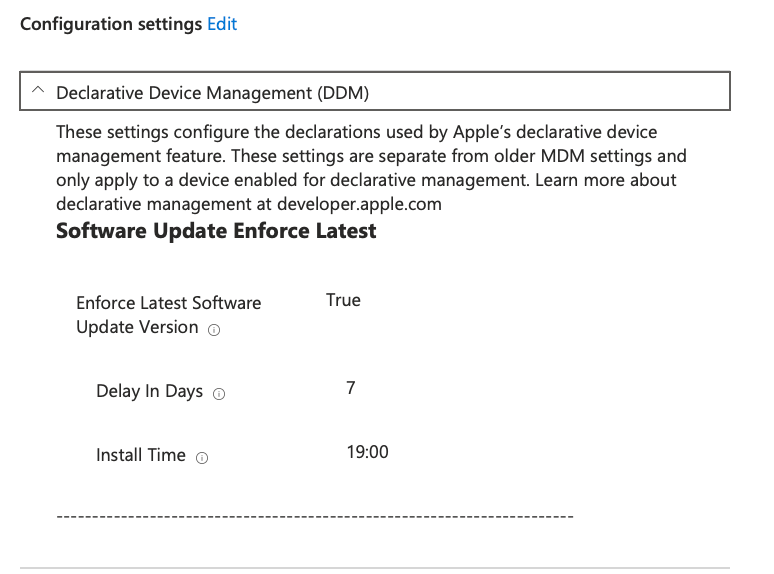
Microsoft’s documentation is precise about what that delay means: it “only determines the target enforcement date and not the date that the update is offered to users.” The clock starts from Apple’s posting date, or from when you configure the policy.
Three things to know about this policy:
- It includes major upgrades. In my testing it staged and enforced a major release, not just point updates within the current version. My 45-day major deferral in the baseline didn’t hold it back.
- It ignores the baseline. Microsoft: “When an update enforcement is assigned, the device ignores software update settings, including automatic update actions.” Apple says the same: enforcement applies “regardless of configured deferrals.”
- The deadline is a backstop, not a schedule. Microsoft again: “The update may install before the deadline if the device is idle.” In practice my Macs usually updated well before day 7. The deadline is the latest an install can happen, not the date it will.
Policy 3: Targeted Version by Date (the version lock)
In the settings catalog this is Declarative Device Management > Software Update. Mine targets macOS 27.0 with a Target Date Time of October 30, 2026 at 6:00 PM, in each Mac’s local time zone.
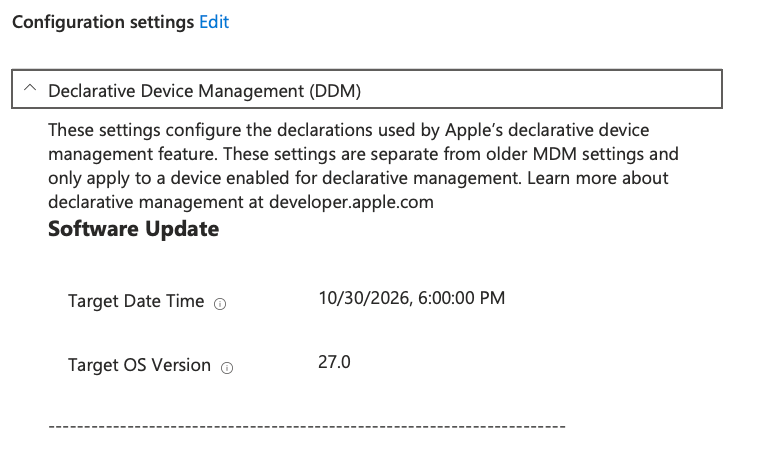
If the user hasn’t installed it by then, macOS shows a one-minute countdown, then installs and restarts. If the Mac is off at the deadline, it gets a one-hour grace period after it powers back on.
Here’s the part that catches people. With automatic installs set to Always On in the baseline, the Mac doesn’t sit quietly until October 30. It downloads the update, installs it fast, and starts notifying the user right away. The deadline is still accurate, but the notifications start as soon as the policy lands, and a lot of admins (and users) don’t see that coming. Once that clicks, it changes how you plan every rollout.
This is the policy for “everyone on this version by this date.” It also goes stale faster than people expect:
- Apple won’t install a patch release if you only set the minor version. Target 27.0 and you get 27.0, not 27.0.1.
- If the version you target drops out of Apple’s available-updates feed, the Mac keeps the policy active but can’t update.
- Once a Mac is past the version you targeted, Intune reports an error, because the device reads the policy as an attempt to downgrade. Microsoft recommends removing the old policy from those devices.
So targeted policies need upkeep. Retire them once their version is done.
What changes on iPhone and iPad
The same three policies are in the settings catalog for iOS and iPadOS, and the same rule applies: enforcement ignores your deferrals. A few differences are worth knowing before you copy your Mac policies over:
- Software Update Settings needs iOS and iPadOS 18 or later. Enforce Latest and Targeted Version work from iOS and iPadOS 17.
- Deferrals and automatic actions in the baseline only apply to supervised devices. Enforcement policies also work on devices enrolled through Device Enrollment.
- There’s no separate major deferral on iOS. Apple’s schema says the minor deferral “also defers major updates for iOS.”
- At the deadline, an iPhone or iPad prompts for the passcode, if one is set, and installs. A Mac force-quits apps and restarts.
Where admins get burned
These are the misreadings I see most:
- Expecting the deferral to protect you from an enforcement. It won’t. A 45-day major deferral plus an Enforce Latest policy means the major lands in about a week.
- Treating the deadline as the install date. It’s the latest possible date. Idle Macs install earlier.
- Putting a Mac in both enforcement lanes. Apple processes the configuration with the earliest target date first and queues the rest. My Enforce Latest policy was created on October 5, so a Mac in both groups would get 27.x around October 12 at 7:00 PM, not on my October 30 date.
- Leaving old targeted policies assigned. They stop doing anything useful and start reporting errors.
- Stacking baseline policies and expecting the last one to win. They merge. The longest deferral wins, and a single notifications-off setting silences the rest.
Which combination fits which situation
The rule I follow: every device gets the baseline, and an enforcement policy only goes on when I have a release to push. These policies push to online devices fast, so I always test in a small group first, and I don’t leave Enforce Latest assigned in perpetuity. A device never sits in both enforcement lanes.
General knowledge workers. Baseline all the time. Once a release has cleared your pilot, assign Enforce Latest with a delay you’re comfortable with (I use 7 days), let it land, then pull the assignment back. Users can install early on their own terms, and the deadline catches anyone who doesn’t.
Your IT or pilot group. This is your small bubble. Assign Enforce Latest here first with a short delay, watch how fast it lands and what users see, and get comfortable before it goes anywhere else.
Teams with app compatibility risk (finance plug-ins, engineering toolchains, anything a vendor has to certify). Baseline plus a Targeted Version policy. Keep the major deferral in the baseline so users can’t jump ahead, validate the release, then set a version and a date once it’s approved.
A zero-day security fix. Assign Enforce Latest with a short delay, or a targeted policy for the fixed version with a near date. Either one ignores your deferrals, which is exactly what you want here.
Kiosks and shared Macs. Turn notifications off in the baseline. Apple then only shows notifications in the last hour before the enforcement deadline, plus the restart countdown.
A group with no enforcement at all. This is the only place the deferral is your brake. It controls when users can see an update, and with automatic installs on, when the Mac installs it. That’s the full extent of your control without an enforcement policy.
Wrapping up
If you come from Autopatch, the adjustment is this: on Windows the deferral moves the starting line, and the deadline counts from there. On Apple devices the deferral only controls what users can see, and an enforcement policy ignores it completely. Pick your enforcement lane first, then decide whether a deferral still earns a spot in your baseline.
You don’t get many controls with DDM updates. Knowing exactly what each one does is how you stay in charge of your patching instead of the other way around.
One small ask. If this post saved you a surprise upgrade or a few tickets, please consider a donation to something close to home for me. My son communicates a little differently than most kids his age, and The Third Space Saratoga is raising funds for a communication board at East Side Rec Park in Saratoga Springs, so kids like him can ask, join and be understood on the playground. If you have a few dollars, you can donate here. Our family would really appreciate it!
References
- Microsoft Learn: Software updates planning guide for managed macOS devices
- Microsoft Learn: Configure update policies for Apple devices
- Apple Developer: SoftwareUpdateEnforcementSpecific
- Apple Platform Deployment: Software Update declarative configuration
- Apple Platform Deployment: Install and enforce software updates
- Microsoft Learn: Windows update deadlines and grace periods


Leave a comment