

Autopatch picks your Edge channel, and that’s about it. Here’s how to control when Edge checks for updates, how users are told to restart, and when that restart actually happens.
One thing Intune’s native Autopatch groups and policies still lack is real control over the Microsoft Edge update deadline and the notification experience your users get. Don’t get me wrong, Autopatch groups are a great way to modernize your traditional scheduled patching deadlines. You get dynamic group distribution for controlled rollouts, and Microsoft 365 Apps and Edge ride along in the same place.
But when it comes to Edge, the configuration is minimal. Here’s the policy Autopatch created for one of my rings:
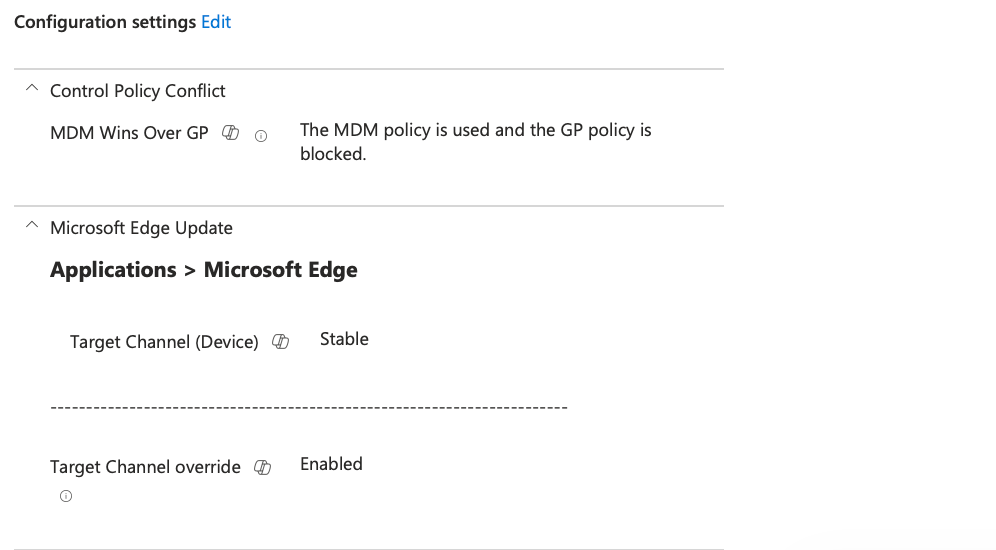
Two settings. MDM Wins Over GP, so Intune beats any leftover Group Policy, and Target Channel set to Stable. That’s the whole thing. No restart deadline, no control over what the user sees, and nothing about when the browser checks for updates.
What that Autopatch config isn’t telling you
Edge downloads a new build in the background, but the update doesn’t apply until the browser restarts. With no relaunch policy in place, your users get a small restart icon in the toolbar and nothing else. If they never close Edge (and plenty of people don’t), they keep running the old build. Turn on required restarts without setting a deadline, and Edge gives them a default of 7 days.
That gap got bigger this year. Starting with version 152, Edge Stable moved to a new major release every two weeks, so a 7-day grace period is half a release cycle.
On top of that, anything you leave unconfigured is open to change. Someone on the service desk troubleshooting a broken web app, or a local admin on the machine, can turn Edge updates off, and without a policy in place nothing turns them back on. That’s less than ideal in a Zero Trust framework.
If you haven’t taken a close look at the full set of controls you have for enforcing Edge updates, read on. I break it down like this:
- The basics: update channel, auto-update behavior, and targeted rollback if your organization needs a specific version of Edge
- Update checks: how often Edge checks for updates (the default is every 10 hours) and when it should NOT check
- The user experience: the restart notification, the restart deadline, and when that restart is allowed to happen
- Optional: expediting updates for browsers that have fallen behind
Edge doesn’t update through Windows Update
One quick thing before we get into the settings. Edge isn’t patched by Windows Update or your update rings. It has its own updater, the Microsoft Edge Update service, which runs on its own scheduled tasks. None of the deadlines in your Windows update ring policies do anything for the browser.
The settings live in two different places in the Settings Catalog:
- Microsoft Edge Update controls the updater: which channel, whether updates are allowed, and how often it checks. These land in
HKLM\SOFTWARE\Policies\Microsoft\EdgeUpdate. - Microsoft Edge controls the browser: how the user is told to restart, and when that restart is forced. These land in
HKLM\SOFTWARE\Policies\Microsoft\Edge.
Keep that split in mind. It matters when you go to troubleshoot.
Part 1: Channel, auto-update behavior, and rollback
The first basics are choosing which update channel your computers subscribe to (most of us should be on Stable) and setting the right auto-update behavior (which we typically want set to always allow). Together these do two things. First, they lock devices into the right channel, and updates happen whether Edge is running or not: if the browser is closed, the update just installs, and if it’s open, the update is staged for the next restart. Second, they make sure auto-updates are never turned off by anyone, from the service desk to a local admin on the machine.
Three settings from the Microsoft Edge Update category make up the foundation.
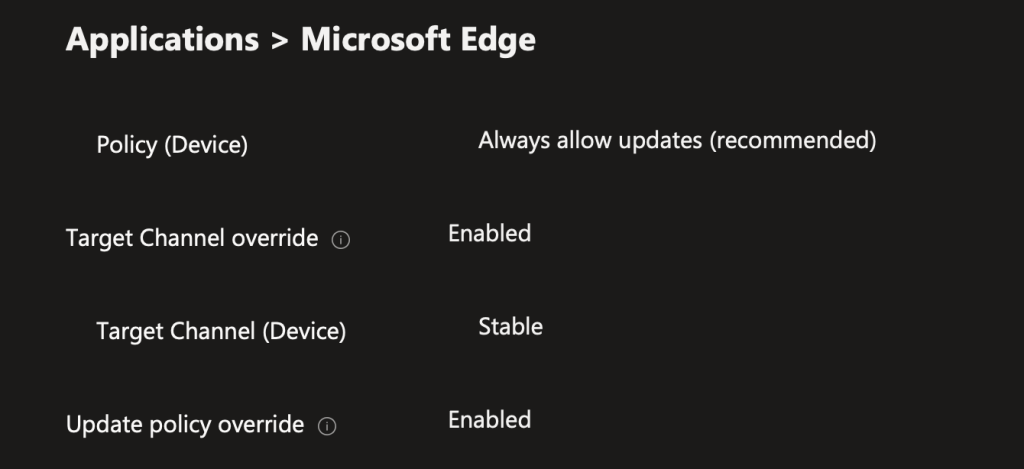
Target Channel override: Stable. Your options are Stable, Beta, Dev, and Extended Stable. Stable is right for most of the fleet. Extended Stable is worth a look if you need more time to test: it moves to a new major version every eight weeks instead of every two, and still gets security fixes in between.
Allow installation: Always allow installs (recommended). This one’s easy to skip, but set it. If installs are blocked, rolling back to an earlier version won’t work either.
Update policy override: Always allow updates (recommended). This is where you decide how updates get applied. There are four options:
- Always allow updates: applied whenever they’re found, by the automatic check or a manual one
- Automatic silent updates only: applied only when the automatic check finds them
- Manual updates only: applied only when the user checks for updates themselves
- Updates disabled: never applied. Only use this if you’re packaging and deploying Edge yourself.
Unless you have a specific reason not to, stick with Always allow updates.
Targeted rollback and version pinning
Another unique feature here is targeted rollback. It’s great for larger organizations and enterprises that need to quickly roll back from a new release and downgrade their Edge clients. It takes two settings working together:
- Target version override: the version to hold at, either a major version like
153.or a full build number - Rollback to target version: Enabled. Without this one, Edge won’t go backward. A device that’s already past your target just stays where it is.
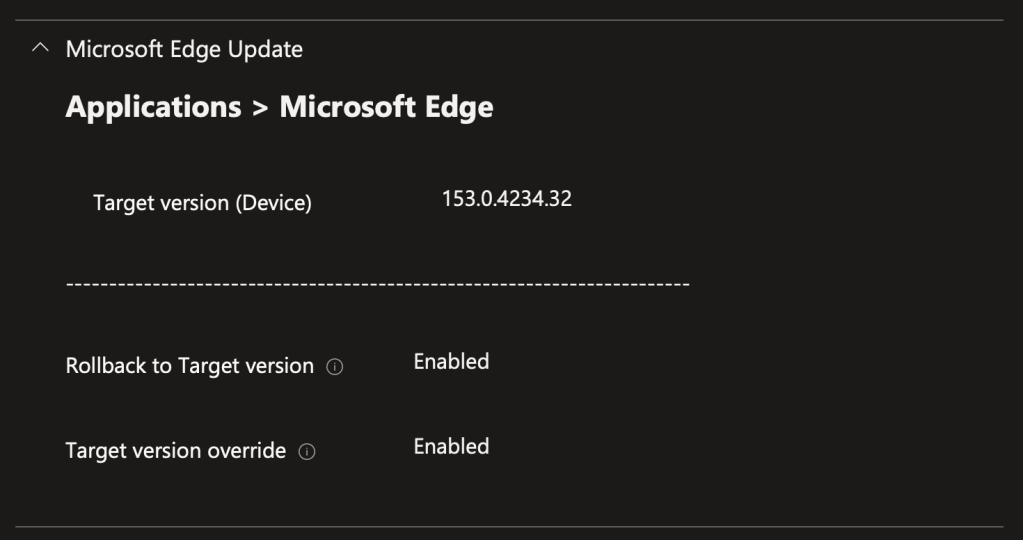
You can also use this to version-lock Edge and keep devices on a validated build while you validate the next release. Know that Microsoft doesn’t really recommend running this long term in production. It’s meant as a rollback for when there’s a problem. That said, I’ve seen organizations run it as a ceiling on which Edge version gets pushed, and then constantly test and move that ceiling forward. If you go that route, remember that a pinned version stops getting security fixes once Microsoft stops servicing it, and on a two-week release cycle that happens fast.
One more caution: turn on browser sync before you roll anyone back, because a downgrade can lose browsing data. It’s a really nice feature, and one you should know about for when you’re in a pinch.
Part 2: How often to check for updates, and when not to
This part is pretty self-explanatory. If you don’t configure anything, the client checks for updates once every 10 hours and doesn’t care much about anything else. Most IT admins want control over when updates are checked, installed, and enforced. Two settings in the Preferences section of Microsoft Edge Update give you that.
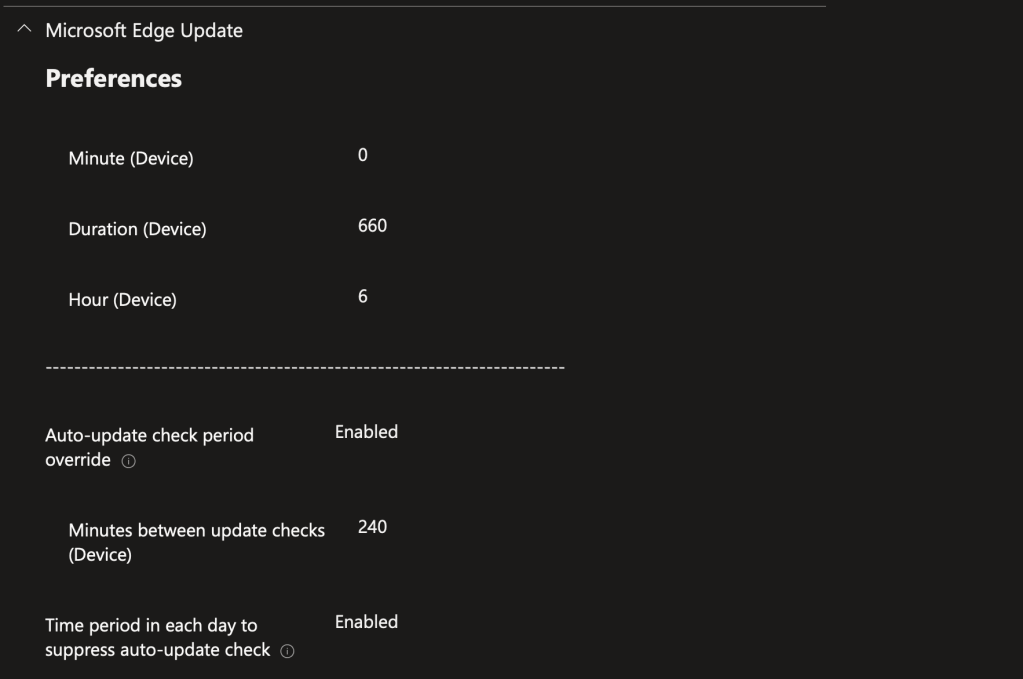
Auto-update check period override: 240 minutes. That’s a check every 4 hours instead of every 10. The setting accepts anything from 0 to 43,200 minutes. Don’t set it to 0, though: that turns off all updater network traffic, including updates to the updater itself.
Time period in each day to suppress auto-update check: Hour 6, Minute 0, Duration 660. This stops update checks from 6:00 AM to 5:00 PM every day. Duration is in minutes and maxes out at 960 (16 hours), and daylight saving time doesn’t shift it.
Why bother? I don’t want an update check and download kicking off in the middle of someone’s workday while they’re deep in a browser-based app or process. And as we adopt features like hotpatch, where Windows updates install without a reboot, we invite persistent, long-running user sessions where people may not close their apps for a long time. Setting guardrails around when we check for updates and when we allow them to install helps stabilize your production environment even further. That’s a win for both your IT team and your end users.
Part 3: The restart prompt and the deadline
This part goes hand in hand with the one above, and it’s the part your users will actually notice. All three settings are on the browser side, in the Microsoft Edge category under Relaunch.
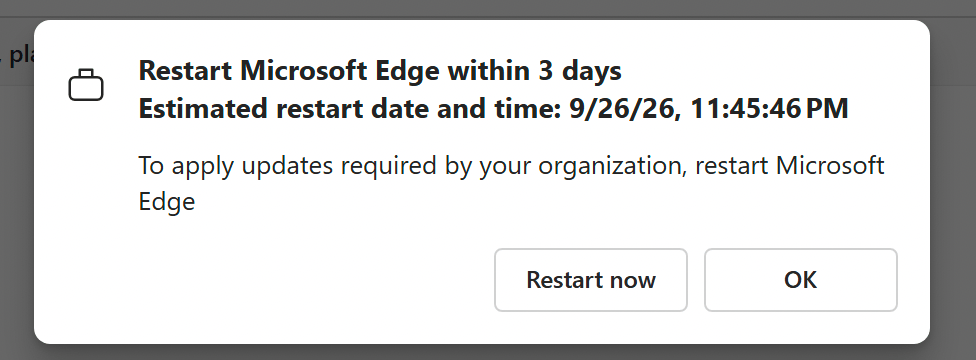
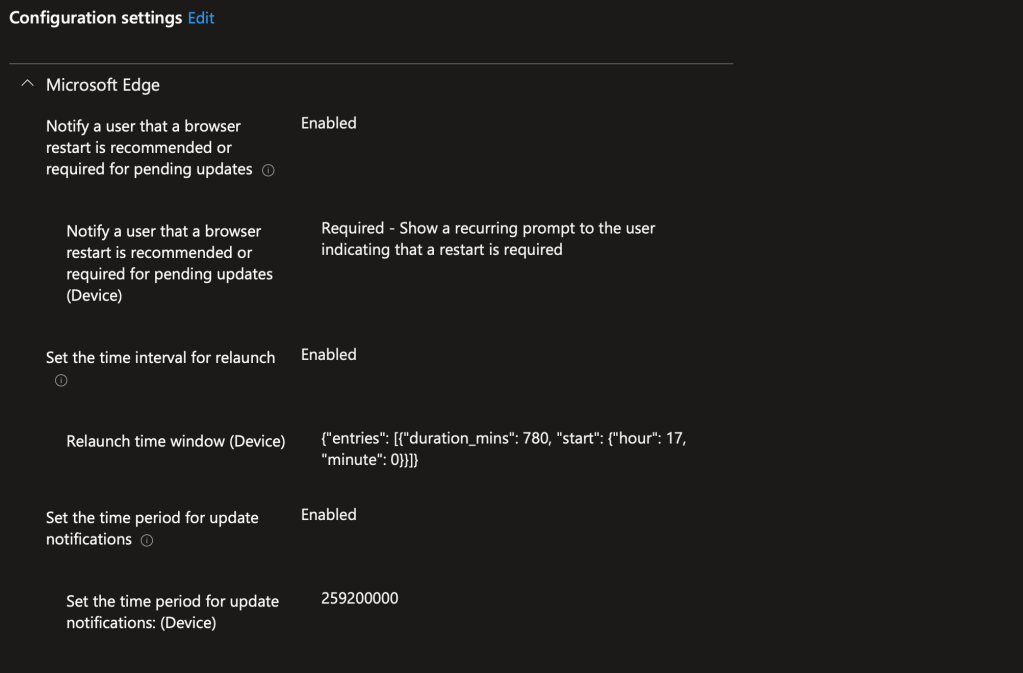
Notify a user that a browser restart is recommended or required for pending updates: Required. Do we want to enforce restarts? Most likely, yes. Recommended shows a recurring prompt that the user can dismiss forever. Required shows the same prompt, then restarts the browser when the notification period runs out. Tabs come back after the restart, so users don’t lose their session.
Set the time period for update notifications: 259200000. Yes, that’s in milliseconds. 259,200,000 ms is 3 days. If you set Required and leave this one blank, the default is 604,800,000 ms, which is 7 days.
You can be as aggressive with this setting as you like. What I like to do is match the grace period in my Windows update rings, so I chose 3 days. That’s also in line with Microsoft’s Autopatch guidance, which recommends a 3-day grace period for update restarts. It gives users enough time to close out their session without feeling rushed or worrying that they lost any work, and it’s one restart expectation to explain to them instead of two.
As soon as the update is staged, users get a prompt telling them to restart within 3 days, with the exact date and time Edge will do it for them. An Update button also shows up in the toolbar, and the Edge menu offers “Restart to update” with a reminder that tabs will be restored. From there, the notifications get more and more persistent: the menu indicator escalates after the first day, changes color after the second, and when the 3 days are up, the browser restarts.
Set the time interval for relaunch: 17:00 for 780 minutes. What’s even better is that we also get a blackout window for the restart itself, similar to the check window above. With Required turned on, the forced restart happens whenever the notification period runs out, and you don’t want that landing in the middle of someone’s Teams call. This setting moves the end of the period into a window you choose. It takes a small bit of JSON:
{"entries": [{"duration_mins": 780, "start": {"hour": 17, "minute": 0}}]}
That’s 5:00 PM to 6:00 AM, which mirrors the suppression window from Part 2.
Here’s where it all lines up. Automatic update checks only run between 5:00 PM and 6:00 AM, so that’s when new builds get staged. Three days is exactly 72 hours, so the deadline lands at the same time of day the update was staged, back inside that same off-hours window. You can see it in my own testing above: the prompt showed up at about 11:45 PM, and the estimated restart is 11:45 PM three days later. The check window and the 3-day period keep forced restarts out of the workday on their own, and the relaunch window is the safety net for anything that breaks the pattern, like a user checking for updates manually in the middle of the afternoon.
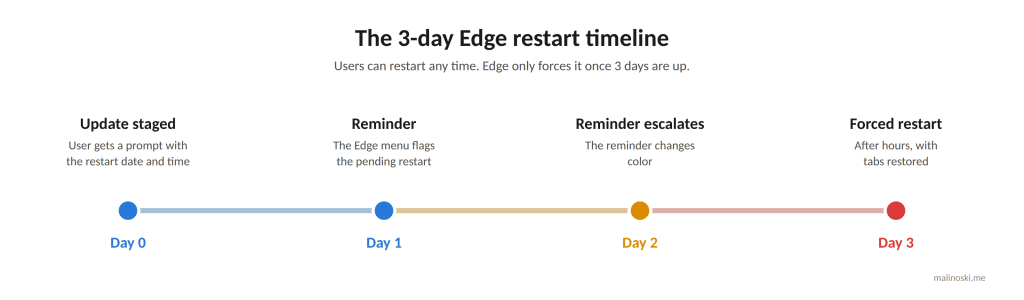
This works really well to keep forced restarts outside of normal production hours while still enforcing them. It strikes a balance between usability and Zero Trust that can be really hard to get to.
Three days is still a tradeoff, though. If Microsoft ships a fix for a zero-day that’s being exploited in the wild, three days is a long time to wait. The notification period applies without a browser restart, so when that happens you can shorten it in the policy temporarily and set it back once your fleet has caught up.
Part 4 (optional): Expedite updates for browsers that fall behind
This last one is pretty interesting if you want to make sure all your bases are covered. Think about the devices that get turned on after sitting in a drawer, or the ones you didn’t even know were out there. Without the settings above, Edge only checks every 10 hours and nothing forces a restart, so you end up with some really old Edge clients in your environment.
Relaunch browser quickly when the current version is outdated fixes that. It’s available in Edge 141 and later. You give it a number of days. If a device has an update waiting and the version it’s running has been outdated for longer than that (counted from the last time Microsoft was still serving that version), Edge puts it on an expedited path: it ignores your notification period and shortens it to 2 hours. With Required set, the browser is forcefully restarted and updated at the end of those 2 hours.
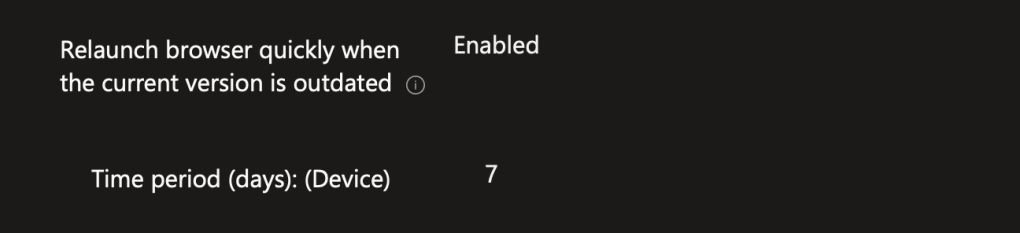
You can’t set this value lower than 7 days in Intune, but you can set it higher. Keep that in mind if you have computers that behave a little differently, or if you don’t care about that 7-day threshold as much and want to extend it. It only does anything when an update is pending and the restart notification policy is configured.
It pairs well with a 3-day notification period. Picture a laptop that sat in a drawer for two weeks while its owner was on vacation. When it comes back online it’s likely more than 7 days behind, so instead of giving that user another 3 days on an outdated browser, Edge shortens the deadline to 2 hours. Windows update grace periods are designed to go easy on devices that have been away. This setting does the opposite for Edge, and for the app your users open every link in, that’s the right call.
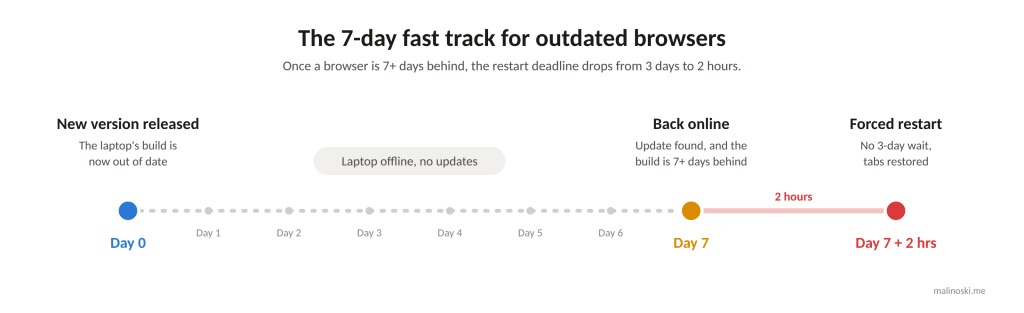
The important thing is that this option and all the others sit in a deliberate, logical timeline with each other. The two timelines above show how they play out in the normal case and the forgotten-laptop case.
Check that it actually applied
Open edge://policy on a test device. Every policy Edge has received is listed there with its value, source, and status, and it’s the quickest way to confirm your profile landed. If something’s missing, check the two registry keys from earlier. I’ve been running this configuration on both hybrid joined and Entra joined devices, and it’s been working well on both.
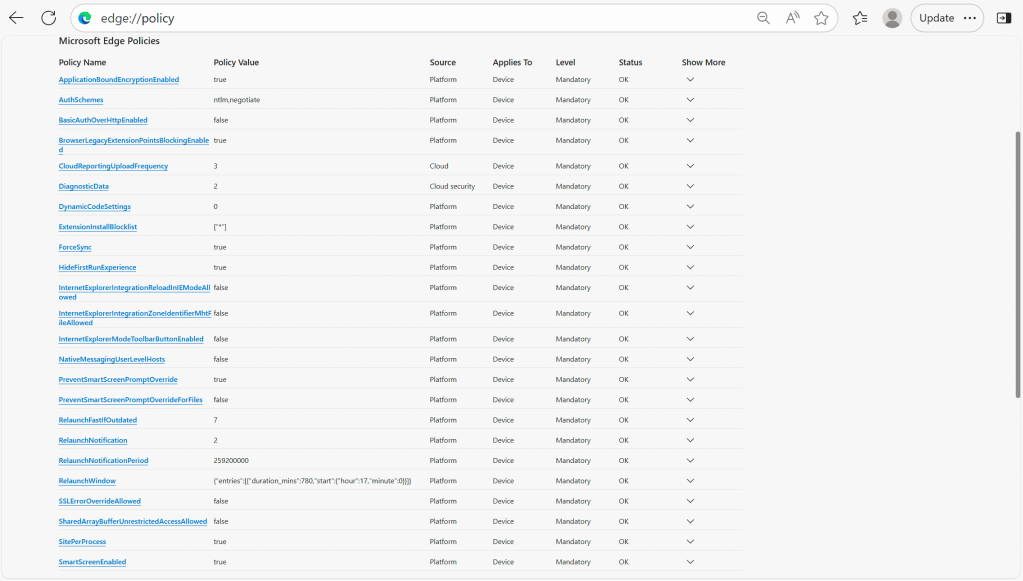
One more thing you might notice if you export your policy: some of the Edge Update settings have Cat_Google~Cat_GoogleUpdate in the path. That’s expected. The Edge Update template was originally forked from Google Update’s, and Intune kept several versions of it in the Settings Catalog. They all write to the same EdgeUpdate registry key. When you build your profile, try to pull all your updater settings from the same version so your exports are easier to read later.
Quick reference
| Setting | Where to find it | Value I used |
|---|---|---|
| Target Channel override | Microsoft Edge Update > Applications > Microsoft Edge | Stable |
| Allow installation | Microsoft Edge Update > Applications > Microsoft Edge | Always allow installs (recommended) |
| Update policy override | Microsoft Edge Update > Applications > Microsoft Edge | Always allow updates (recommended) |
| Auto-update check period override | Microsoft Edge Update > Preferences | 240 minutes |
| Time period in each day to suppress auto-update check | Microsoft Edge Update > Preferences | Hour 6, Minute 0, Duration 660 |
| Notify a user that a browser restart is recommended or required for pending updates | Microsoft Edge > Relaunch | Required |
| Set the time period for update notifications | Microsoft Edge > Relaunch | 259200000 (3 days) |
| Set the time interval for relaunch | Microsoft Edge > Relaunch | {“entries”: [{“duration_mins”: 780, “start”: {“hour”: 17, “minute”: 0}}]} |
| Relaunch browser quickly when the current version is outdated | Microsoft Edge > Relaunch | 7 days |
| Optional: Target version override + Rollback to target version | Microsoft Edge Update > Applications > Microsoft Edge | Only when you need to roll back or pin |
Final thoughts…
I hope that after reading through these settings you feel more in control of how Edge behaves with updates for your end users. It’s a very different experience from Windows updates and the deadline settings built into your update ring policies. Without some digging through Microsoft Learn, Edge update enforcement is out of sync with your expectations at best, and a risk to your production environment at worst. More and more of the operating system is moving to this auto-update model, and understanding how these events are timed helps you tune your Intune baseline for both production stability and Zero Trust security.
Stability and zero-day security aren’t often thought of as complementary. But once you understand the controls at a foundational level, you can build a stronger, more resilient environment for your team and your end users.
If you’ve seen these settings behave differently in your environment, let me know in the comments. And if this saved you some digging, share it on LinkedIn or Reddit or wherever you pick up your IT tips!


Leave a comment