
Have you ever bought a new machine for your organization, set everything up cloud native and cloud first, and then watched a user log in for the first time only to find their primary security software is McAfee with a one year free trial? Loaded at the OEM level, of course. And you didn’t buy these for the old enterprise wipe and reload, because you’re drop shipping them and letting Autopilot image the machine the moment the user signs in, with no IT hands on it at all.
This is one of the most common oversights I see when organizations move to cloud native Windows 11 deployment. It stings more than it should, because you’ve already done the work: validated that every app installs in the right sequence out of the box, confirmed the user gets exactly what they need and nothing they don’t. Then McAfee shows up anyway.
We spend a lot of energy hunting shadow IT. Unapproved SaaS, someone’s personal Dropbox, a browser extension nobody vetted. Then a machine arrives with software already running on it that nobody in your organization evaluated, approved, or asked for. It came from the factory, so it doesn’t feel like shadow IT. It absolutely is.
And look at how it behaves once it’s there. It arrives without anyone asking. It’s difficult to remove on purpose. It guards its own service so that even SYSTEM can’t stop it. It leaves pieces of itself behind after you’re fairly sure it’s gone. If an unfamiliar program on a corporate endpoint did those four things, you’d open a ticket and start an investigation.
I started this blog last year partly because of this problem. My first post covered staging McAfee as an Intune uninstaller, and it was really a compilation of the community’s methods arranged into a sequence that worked for me. A year later I’ve had enough devices through it to know where it was weak, so I’ve published a version 2.
The part we all glossed over: the reboot
If there’s one thing I’d change about my 2025 post, and about most of the community scripts I learned from, it’s this. We all treated the reboot as housekeeping that happens afterward. It isn’t. The reboot is the last step of the uninstall, and once you understand why, most of the confusion around McAfee removal disappears.
Here’s what actually happens. MCPR walks through McAfee’s products removing files, services and registry keys. When it reaches a file that’s open in a running process, or one McAfee’s own driver is protecting, Windows refuses the delete. MCPR doesn’t give up. It queues that file for deletion on restart, using the same PendingFileRenameOperations mechanism Windows Update uses, and carries on.
In the log it looks alarming:
DEBUG DeleteFile() failed. Error: 32FAIL _RemoveSingleFileIgnoreCase::failed to remove ...\trsclean.datPASS ...\trsclean.dat is locked by user, delete on reboot
Error 32 is a sharing violation, meaning something has the file open. Error 5 is McAfee’s driver denying access. But read the third line: every one of those FAIL entries is immediately followed by a PASS saying the deletion was deferred. Nothing was abandoned. The removal was staged.
At the end MCPR reports Incomplete uninstallation and returns a non-zero exit code, which looks like failure and isn’t. It means “I did everything I could without a restart.”
That single misunderstanding explains most of the pain people have had with this. The machine sits in a half-removed state where McAfee’s services are stopped but its files are still on disk, which is why systems feel sluggish, why Company Portal installs afterward sometimes hang, and why administrators conclude the uninstaller is broken and start over. It isn’t broken. It’s waiting for a restart that nobody told it was coming.
Why one pass was never enough
The other thing worth saying plainly: running MCPR once was never going to be enough, and now we understand why.
Each pass changes the conditions for the next one. Services still running during the first pass are stopped and disabled by the time the second starts, which releases the file handles that caused those sharing violations. Files that were locked on pass one are often deletable on pass two. Version 2 runs MCPR up to three times, with a short pause between passes so terminated processes actually release their handles, and it stops early the moment MCPR returns a clean result. A machine with nothing left to remove still only pays for one pass.
Between the passes and the restart, a device now goes from preinstalled McAfee to clean in a single cycle instead of drifting through several.
A note on the MCPR build
One thing that surprised me while working on this, and it’s worth knowing even though the repo already handles it for you.
Starting with the 2024 builds, mccleanup.exe checks which process launched it. If the answer isn’t McClnUI.exe, McAfee’s interactive wizard with the EULA and the Next button, it writes this and exits:
INFO ValidateParentProcess begin...FAIL failed to validate parent moduleFAIL ValidateParentProcess failed.
It returns in under a second having removed nothing. From PowerShell’s point of view the program ran and came back, so there’s no error to catch and nothing in Intune to tell you.
| MCPR build | Checks parent process | Runs unattended |
|---|---|---|
| 10.4.123.0 | No | Yes |
| 10.5.374.0 (Nov 2024+) | Yes | No |
The legacy build is what makes an unattended removal possible at all, and it’s the one in my repository. The reason I’m mentioning it is that if you go and download MCPR fresh from McAfee, you’ll get the newer build and this stops working with no obvious symptom. Version 2 now logs the engine version before it runs, so you can confirm it at a glance:
[INFO] MCPR build : 10.4.123.0
SMB to the Cloud documented this behavior first, and their write-up is what pointed me at the parent process to begin with. What I’ve added is the specific build where it changes, which took a while to pin down.
What changed in version 2
Not a rewrite. The core approach is the same as 2025, and if you’re running my 2025 package it still works. This is refinement, not rewrite.
The multi-pass run and the restart handling, both covered above. Those are the two changes that actually shortened the time from deployment to a clean machine.
Logging. The old script had a brace in the wrong place in the service loop, which meant every service reported “not found or error occurred” whether it succeeded or not, and the real error text was thrown away. Fifty-three identical lines per run telling you nothing. That’s fixed, plus severity levels, per-step counts, the MCPR build version, and log rotation at 5 MB so repeated retries stop growing one file until you can’t open it.
Removed WMIRemover from the product list. This one annoyed me. McAfee lists WMIRemover in master.ini, but the folder isn’t in any MCPR package I’ve pulled apart. So every single run logs:
ERROR Internal Error. Could not locate ini file "...\WMIRemover\WMIRemover.ini"FAIL Product WMIRemover was not successfully removed.
One guaranteed failure was enough to force Incomplete uninstallation and a non-zero exit even when all 45 other products removed cleanly. Dropping it means a clean machine can now actually report clean.
Scheduled tasks are removed before MCPR runs. The TaskCache registry keys belong to the Task Scheduler service and can’t be deleted directly, even as SYSTEM. MCPR’s LAM module failed on them three times per run. Clearing the tasks properly first means LAM finds nothing left and passes.
A real detection script. A registry rule can only test one key. The detection script in the repo tests three, in both the 64-bit and 32-bit registry views, six checks total: the McAfee parent key, McAfee\WebAdvisor (which MCPR never removes explicitly), and McAfee Safe Connect (which lives outside the parent key entirely, so a parent-key rule misses it). If any one of them is present, McAfee is still installed. The goal is to sanitize the system completely, not leave a little bit over.
The Intune restart settings
This is what made it click, and it’s new for 2026.
On the Program page, set Device restart behavior to Intune will force a mandatory device restart. Intune then restarts the device after the uninstall runs, PendingFileRenameOperations completes, and the next detection pass comes back clean. Overnight, in one cycle, no second reboot.
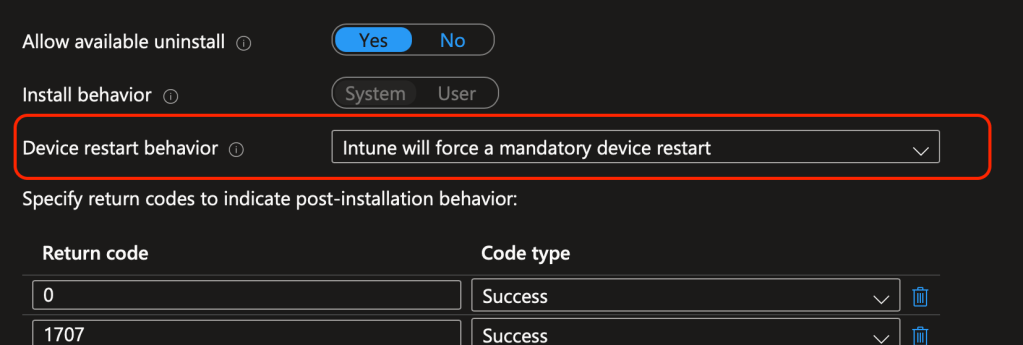
The alternative, Determine behavior based on return codes, only restarts when the app returns 3010. The mccleanup.exe returns 0 or 1, so it never asks for one, and the device sits with a half-staged removal until the user reboots on their own. That’s the lag people have been fighting.
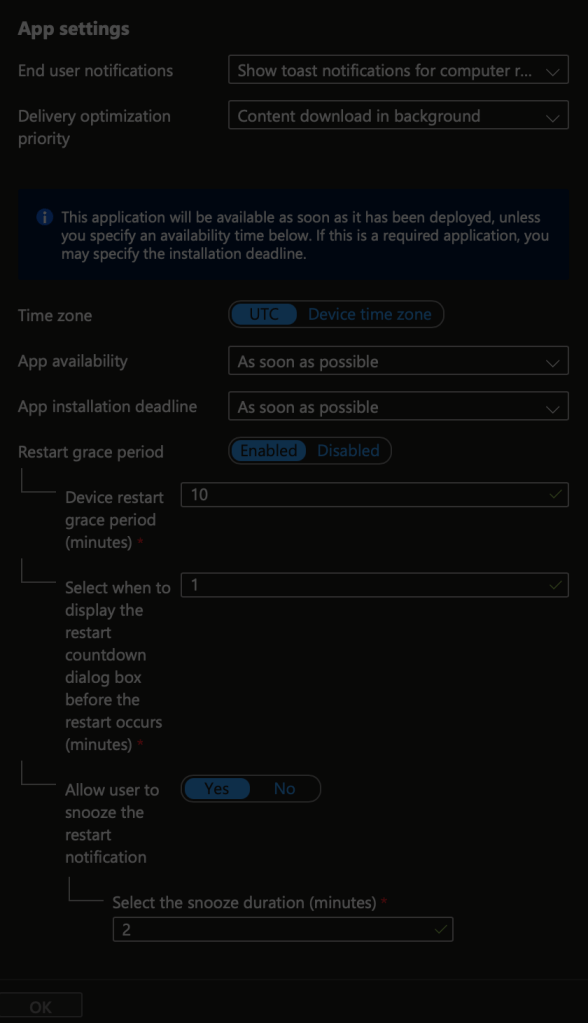
On the assignment, enable the restart grace period and set the toast, countdown, and snooze to something your users can live with. The values in my screenshot are lab values. One minute of warning is fine on a test VM and hostile to somebody in a meeting.
Where to get it
Everything is in my GitHub repository, including the legacy MCPR build, both scripts, and a README with the full packaging and Intune configuration steps.
Credits
None of this exists without Tbone and SMB to the Cloud. Both of them were solving this in public long before I wrote a word about it, and every version of my script traces back to their work. Andrew Taylor’s bloatware removal script is well worth a look if McAfee isn’t the only thing you’re stripping off these machines. It covers a lot more ground than mine does. I’ve stayed narrow and gone deep on McAfee alone, so the two solve different halves of the same OEM problem.
I’ll be honest: I wouldn’t bank on this long term. If your endpoints keep arriving with McAfee preinstalled, the better answer is a different imaging strategy. But you can’t always control what you can’t control, and this is a genuine zero touch approach that should hold for a while.
McAfee was a trailblazer once, and it’s a shame to see a company that mattered in the early days of internet security spend its engineering effort on making its own removal tool harder to automate.
If you hit problems deploying this, comment below. The repository has changed a fair amount since I first posted, the detection script included. And if this saved you some time, share it on LinkedIn or Reddit or wherever you pick up your IT tips.


Leave a Reply