
Intune Suite Features Started Activating in Tenants This Week — Remote Help, Enterprise App Management, and EPM. Is It Time to Rethink Parts of Your Stack? Below we take a look at these new capabilities that are activating in your tenant and how to start piloting them now.
If you run Intune day-to-day, you’ve probably had the Intune Suite E5 enablement on your radar for a while. This week my tenant saw core pieces start activating. You can expect to see these features become available in early July, if they have not already started to activate in your tenant. These are real, usable capabilities that might be able to reduce parts of your IT stack, so they’re worth getting hands-on with now.
Remote Help —Native Attended Support Done Right
Remote Help is Microsoft’s native, cloud-based remote assistance tool. It uses Entra ID sign-in and Intune RBAC, so everything stays inside your tenant with proper auditing and least-privilege controls. It handles attended screen sharing and full control (including UAC elevation) across Windows, macOS, and Android.
In practice, this is a strong option for a lot of helpdesk support that currently happens through Teams, Quick Assist, or lighter RMM tools. The security model is cleaner and it ties directly into the roles and Conditional Access policies you already manage across Inune and Entra ID.
One note on the current state: Unattended access works today for Android dedicated devices. Wider unattended support (especially on Windows) is on the roadmap. Even limited to attended Windows sessions, it’s solid for many real-world support scenarios.
Tenant-level configuration
Before you can use it, you need to enable and configure it at the tenant level.
- Go to the Microsoft Intune admin center.
- Navigate to Tenant administration > Remote Help.
- Review the available settings and enable the feature.
- Set your preferences (for example, whether to allow support for unenrolled devices).
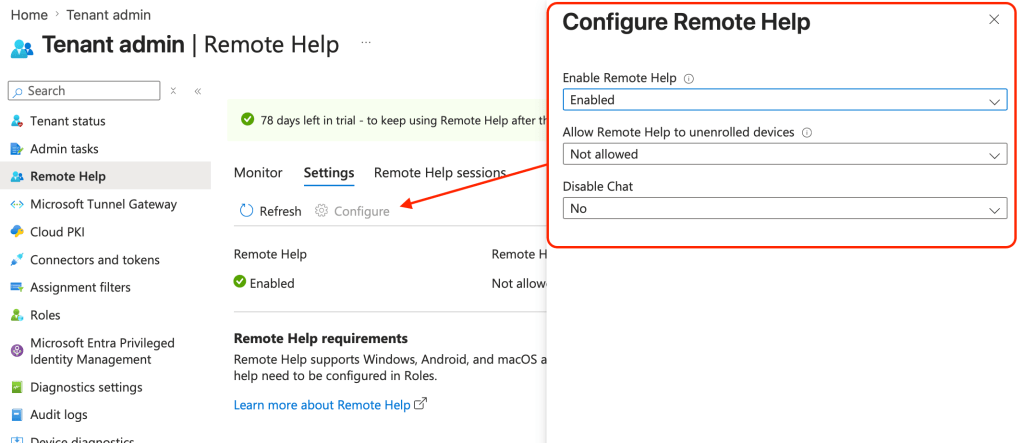
Once the global tenant pieces are in place, the cleanest way to get the Remote Help app deployed to devices is through the Enterprise App Catalog… lets take a look.
Enterprise Application Management — Finally, Some Help With the Packaging Burden
This is one of the more practical additions for most Intune admins. The Enterprise App Catalog gives you a Microsoft-hosted collection of Win32 apps with pre-configured installation commands, detection rules, and requirements. Many of the apps are self-updating, which reduces the ongoing maintenance work.
If you’ve ever spent hours packaging and testing third-party applications (or paying for a tool primarily to handle that), this can take a meaningful chunk of that work off your plate. It won’t have every obscure app on day one, but the coverage for common titles is already useful and growing.
Deploying Remote Help via the Enterprise App Catalog (practical example)
Instead of manually creating a Win32 package, use the catalog:
- Go to Apps > All apps > Add > Windows > Windows app (Win32).
- Browse or search the Enterprise App Catalog.
- Find Remote Help and select it.
- Review the pre-filled settings; install command, detection rules, requirements. (You can adjust them if needed, for Remote Help we can set enableAutoUpdates=1 if we want the app for auto-update.)
- Assign the app to a pilot group of devices or users

This same approach works for other apps in the catalog. Pick a couple of applications you currently package manually, add them through the catalog, and compare the effort and results. Even partial adoption can reduce packaging time noticeably.
Endpoint Privilege Management (EPM) — A Realistic Path to Least Privilege
EPM lets you keep users as standard users while creating controlled, just-in-time approval, for administrative elevation requests. You can set rules to allow automatic elevation, require user confirmation (with optional justification or re-auth), or route requests for support approval. It also gives you additional reporting on what’s actually being elevated in the environment.
For teams trying to move away from persistent local admin rights, this removes one of the biggest practical blockers without completely breaking user workflows. Like the other features, it works best when you start small and deliberate.
Don’t start by creating strict rules. Begin by enabling the client and collecting data.
- In the Intune admin center, go to Endpoint security > Endpoint Privilege Management > Policies tab.
- Select Create Policy.
- Choose Windows platform and Windows elevation settings policy.
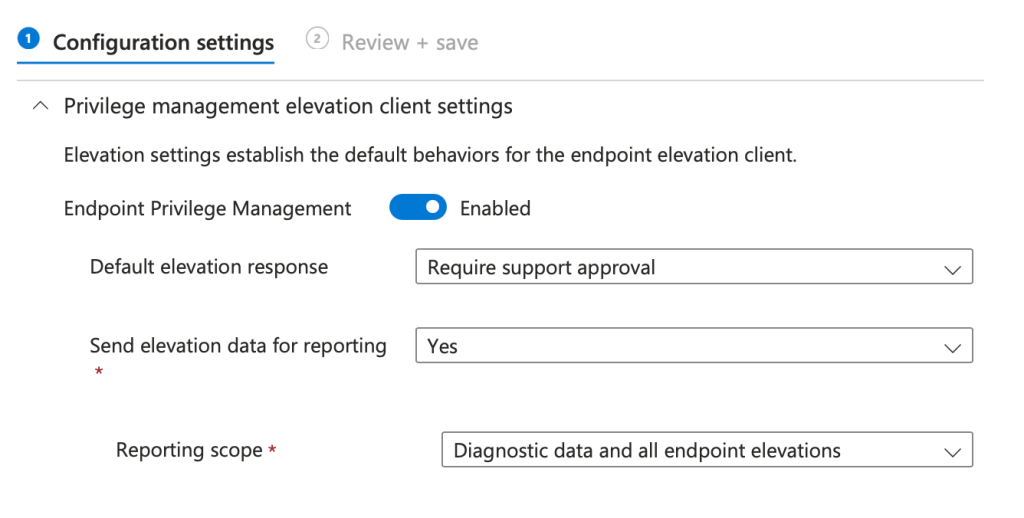
- On the Configuration settings page, use these settings for a safe initial pilot:
- Endpoint Privilege Management: Enabled
- Default elevation response: Require support approval (or Deny all requests if you want stricter control out of the gate)
- Send elevation data for reporting: Yes
- Reporting scope: Diagnostic data and all endpoint elevations (you can tighten this later)
- Assign the policy to a small pilot device or user group.
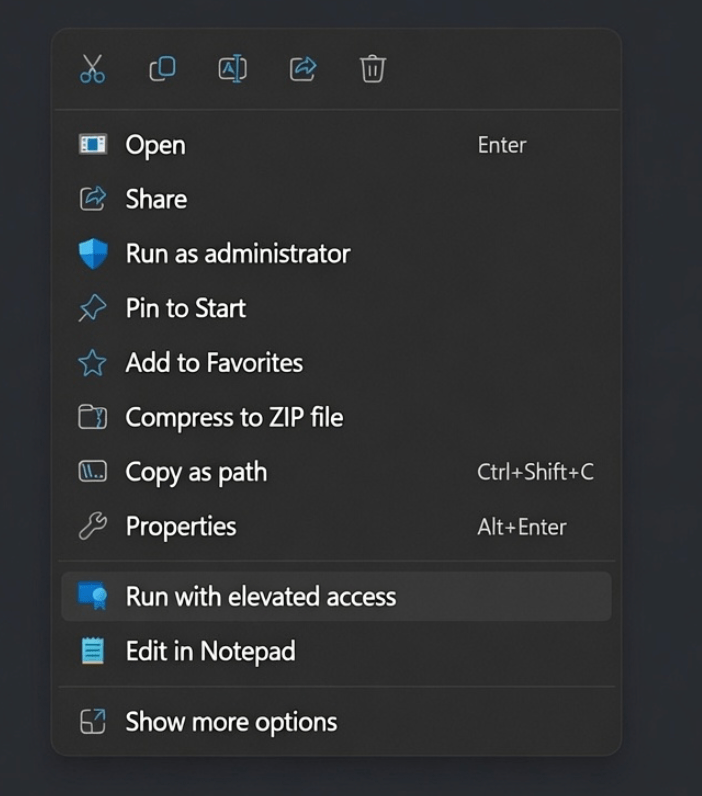
After the policy applies, the EPM agent shows up on those devices and users get a new Run with elevated access context menu option.
Elevation activity starts appearing in the EPM reports and dashboards. From there you can analyze what’s actually happening before building targeted rules. The licensing for this feature still appears to be rolling out globally, so do not stress if you run into configuration policy errors!
Where This Leaves Us…
Remote Help, Enterprise Application Management, and Endpoint Privilege Management are now live for many tenants and represent genuinely useful native capabilities which once required additional licensing to take advantage of in your Intune environment. Now, Microsoft has provided us with multiple cloud-native solutions which can reduce friction in support workflows, cut down on manual packaging, and give you a practical way to move toward least privilege and zero-trust posture for end-user elevation requests.
While they’re not a complete replacement for every third-party tool you may be using today — unattended remote access is still maturing on Windows, enterprise application catalog coverage isn’t a fully complete and universal app catalog yet, and EPM requires real work to implement well.
But the solutions included in the Intune Suite are strong enough that piloting them in controlled groups makes sense right now, especially if you’re already on Microsoft 365 E5 licensing.
The most useful things you can do this week is stand up a small pilot and see how these new features behave in your environment. Comment your thoughts on the Intune Suite below – what are you most excited for?


Leave a comment