
If you’ve been following along, you know I’m all about diving into the Microsoft ecosystem in ways that make our IT lives easier, more efficient, and honestly, a bit more fun. After that AI-packed Microsoft Ignite last week, I’ve been geeking out over all the new features rolling out—especially those paving the way for agentic AI native on Windows 11, plus the slick updates to Windows management and reporting via Autopatch. It’s crystal clear now: Intune isn’t just a “nice to have” anymore; it’s straight-up non-negotiable for modern Windows endpoint management.
Organizations that have jumped on Intune—particularly with Autopilot provisioning—are setting themselves up to be AI-ready. What we’ve known as a modern computer operating system is evolving into something truly agentic. As we start deploying the next-gen Windows 11 + Copilot AI machines, full management and control of these assets will depend heavily on our Intune setups. Taking all this into consideration, and with Thanksgiving bringing a quieter week for many of us in the US (hello, well-needed rest and family time), I figured this is the perfect moment to review our baselines and look ahead to 2026. These holiday lulls are prime for auditing what we’ve got, planning upgrades, and ensuring our endpoints are approachable for users while maintaining rock-solid controls and best practices.
So, here’s my general best-of approach for baselining any Intune environment—whether you’re building from scratch or tweaking an existing one. You might already have a lot of this configured, but we’ll dive into each area, why it’s considered a best practice by Microsoft and the broader Intune community, and how to make it work for you. Let’s get into it.
Why Autopilot?
A question that pops up from time to time is, “Why even bother with Autopilot?” And the short answer? Autopilot has become the gold standard for modern Windows imaging and deployments. A solid Autopilot setup delivers a smooth, controlled enrollment process for your end users—all without admins ever touching the device.
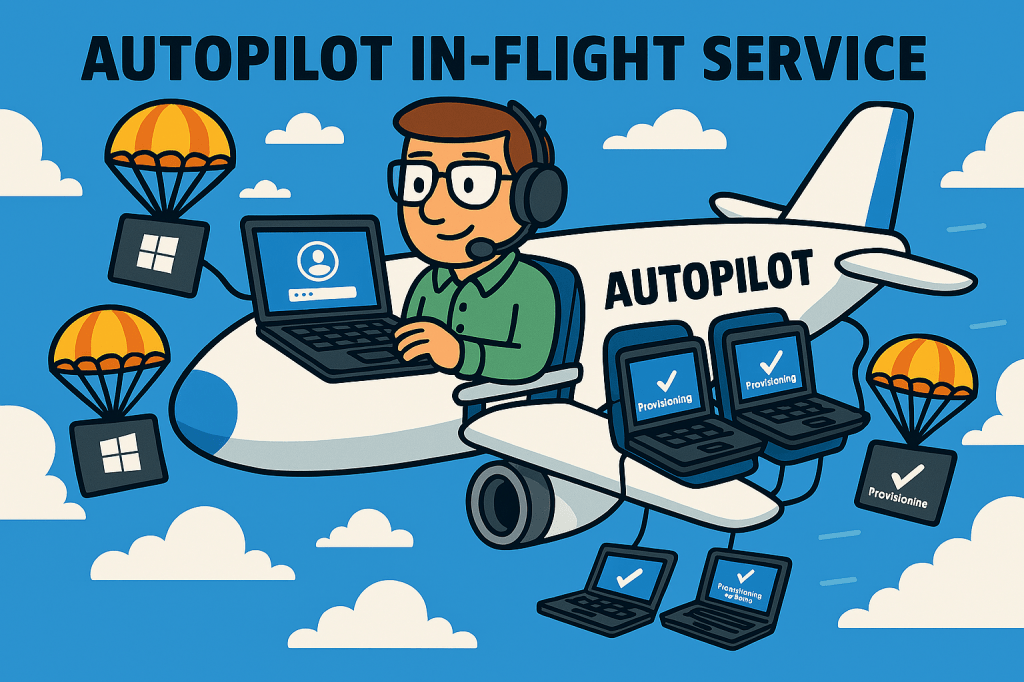
I remember when this tech first hit production environments; it was a total game-changer. Gone were the days of maintaining physical server infrastructure, juggling multiple device images, dealing with regulatory validations, and wrestling with device model compatibility. Autopilot lifted such a massive burden off IT departments and turned setting up new machines into a night-and-day better process. Even sweeter: Partner with a reseller, and the device gets uploaded to Intune, configuring itself to an IT-approved state while literally in-flight to the user.
Well, in theory, that’s what happens. But if you’ve worked with Autopilot, you know error messages can crop up and block progress—often in environments that skip Microsoft’s and the community’s best practices. That’s why we’re breaking this down into key areas below.
Enrollment Configuration
Enrollment Configuration covers the foundational settings that govern how devices join your Intune-managed environment. This includes restrictions on who can enroll, deployment profiles that define the provisioning experience, and the Enrollment Status Page (ESP) that tracks progress during setup.
Without tight enrollment configs, you risk uncontrolled device joins, which can lead to security gaps or inconsistent user experiences. Microsoft emphasizes this as a core pillar because it ensures only approved devices and users can onboard, aligning with zero-trust principles. The community agrees—proper setup here prevents headaches like failed enrollments or rogue devices.
Recommended Configurations
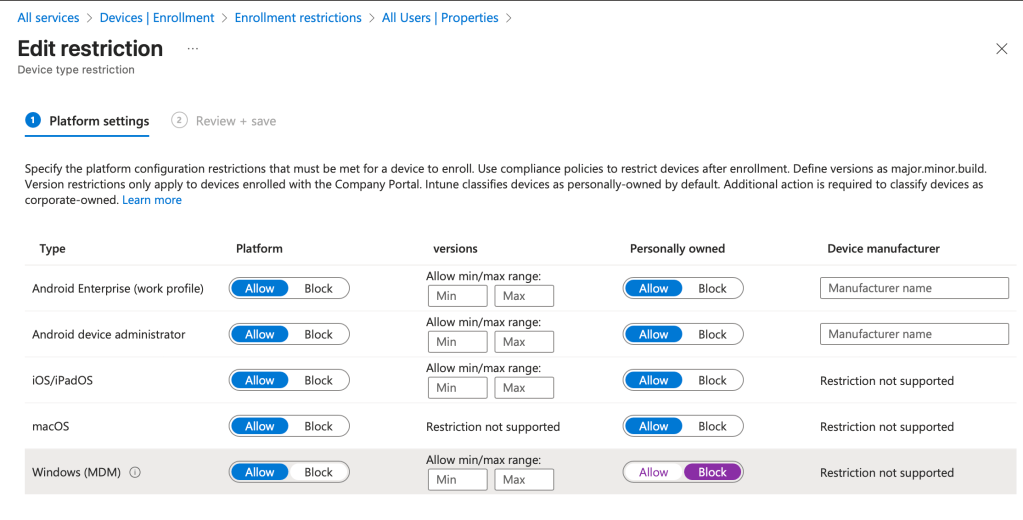
- Restrictions – Personal Windows Devices: By default, Intune allows personal devices to be enrolled; turning this setting off ensures that only authorized devices will be allowed into our tenant.
Validate your settings at: Devices > Enrollment > Device Platform Restrictions > All Users > Properties > Edit > Windows (MDM) > Personal owned (Block)
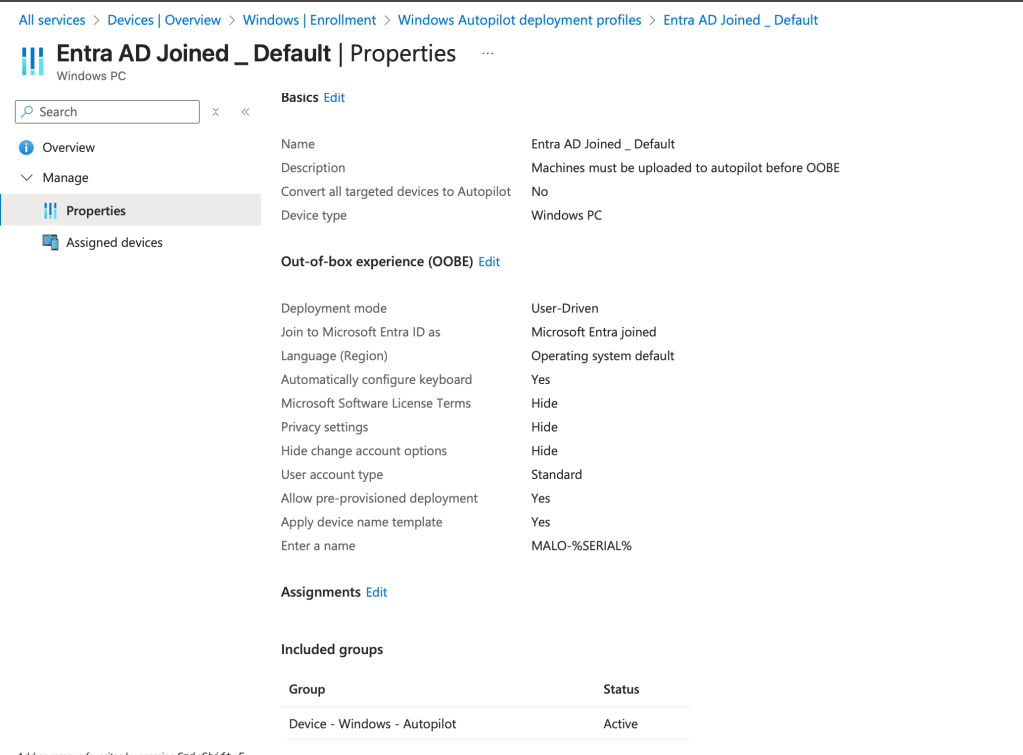
- Deployment Profile: Confirm that you have a deployment profile scoped to a dynamic Entra Group, this will ensure that your new machines will be assigned a profile when they are uploaded to your tenant by your reseller.
Validate your profile at: Devices > Enrollment > Windows Autopilot deployment profiles
Deployment mode should be set to User-Driven for end user machines.
Join to Microsoft Entra ID should be set to Microsoft Entra Joined as our stated goal is to be cloud native.
User account type should be Standard in most cases for end users.
Allow pre-provisioned deployment – setting this to ‘Yes’ will allow you to stage the devices from the out-of-box experience, to help reduce device provisioning time – very nice to have configured!
Entra Group Name: Device – Windows – Autopilot
Dynamic Group Rule Syntax: (device.devicePhysicalIDs -any (_ -startsWith “[ZTDid]”))
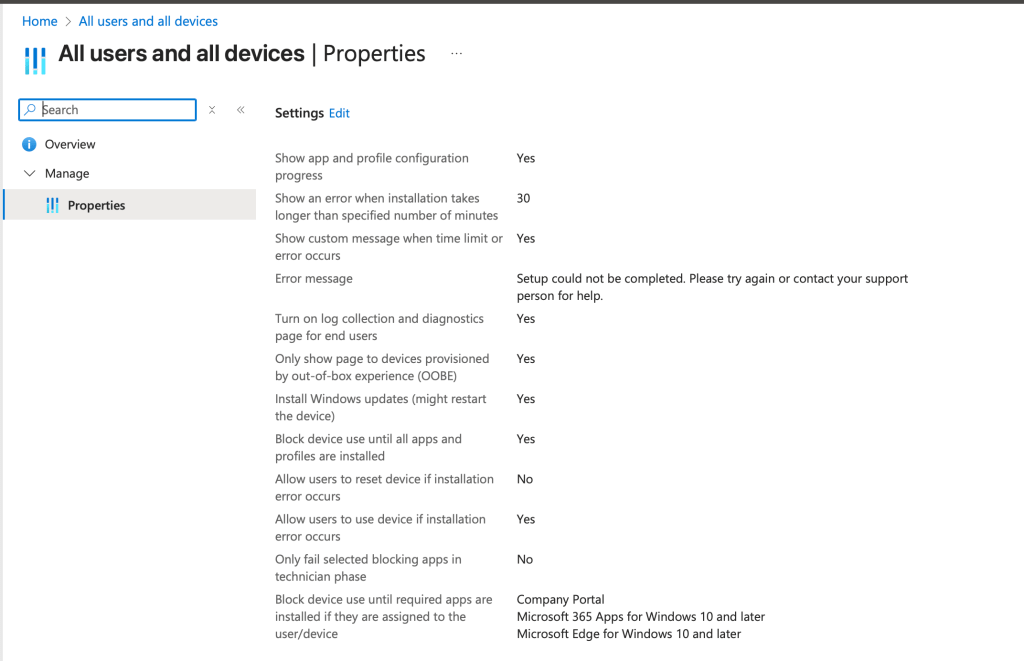
- Enrollment Status Page (ESP) Configuration: This configuration is often overlooked, or simply forgotten about. All Intune tenants will have a default ESP that must be configured for Autopilot to work optimally, which can be found at Devices > Enrollment > Enrollment Status Page > All users and all devices
Show app and profile configuration – Yes
Show and error when installation take longer… – 45 minutes
Install Windows Updates – Yes (this setting will be enforced starting early 2026 according to Microsoft)
Block device use until the require apps are installed if they are assigned to the user/device – The general recommendation around this setting is to only assign mission critical applications as “blocking apps”. Assigning too many applications (or no applications) will cause a heavy processing of application payloads during the initial device provision. Often times this can prevent our end users from getting to a usable desktop as applications install one at a time.
Finding the balance of security and ease-of-use is essential with the ESP configuration – I highly recommend trimming back your applications to speed up the initial device set up process. I have seen this approach eliminate so many headaches for organizations – I cannot emphasize how important this configuration is for any successful Intune deployment!
Device and User Configuration
By the time a device’s hash is uploaded to Autopilot and your enrollment pieces are in place, you’ve already won more than half the battle. A clean, well-baselined enrollment flow is the foundation of painless Autopilot provisioning.
That said, there’s one pain point the Intune community has been vocal about for years: the user portion of the Enrollment Status Page (User ESP).
Here’s what happens out of the box:
- Device-assigned policies, apps, scripts, and security baselines are applied first (this is the “Device ESP” phase).
- Once the device prep phase completes, the process moves to the User ESP phase.
- During User ESP, every user-targeted app, policy, PowerShell script, and Win32 package is installed — and by default the ESP will block the user from reaching the desktop until every single one reports success.
The problem? Many of those user-targeted payloads require a reboot, take a long time, or occasionally hang. The result = angry users staring at a spinning ESP wheel for 30–90 minutes (or worse, a timeout error and a support ticket).
The community’s near-universal fix? Skip the User ESP entirely and let background provisioning finish after the user is already logged in. Users get to the desktop in minutes instead of hours, productivity skyrockets, and help-desk calls plummet. It’s one of those rare “everyone wins” configurations.
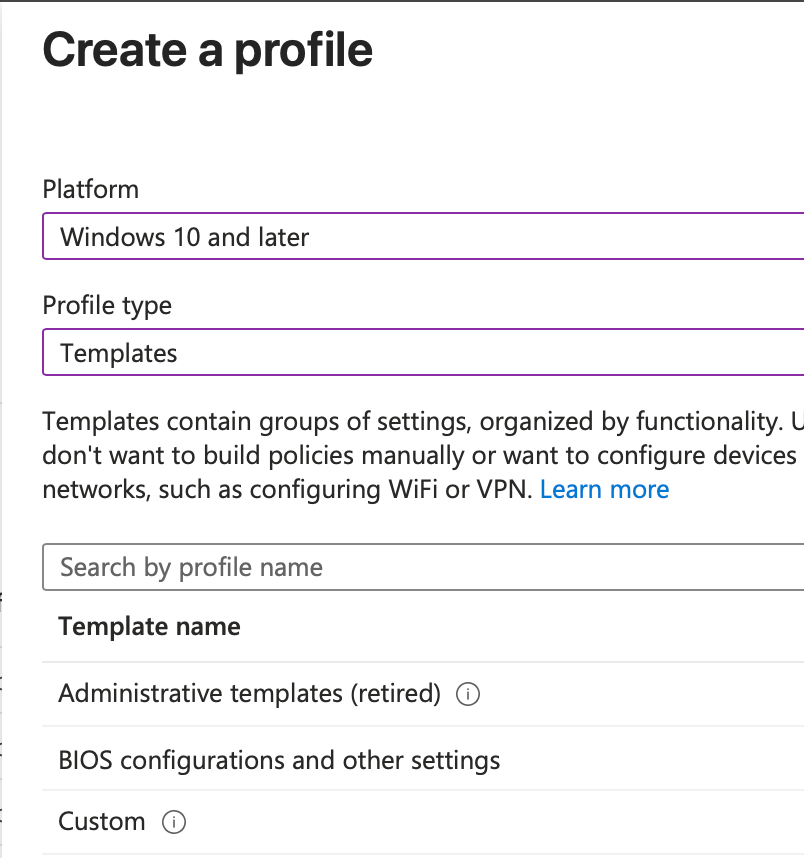
To configure, navigate to Devices > Windows > Configuration > + Create > New Policy > Custom
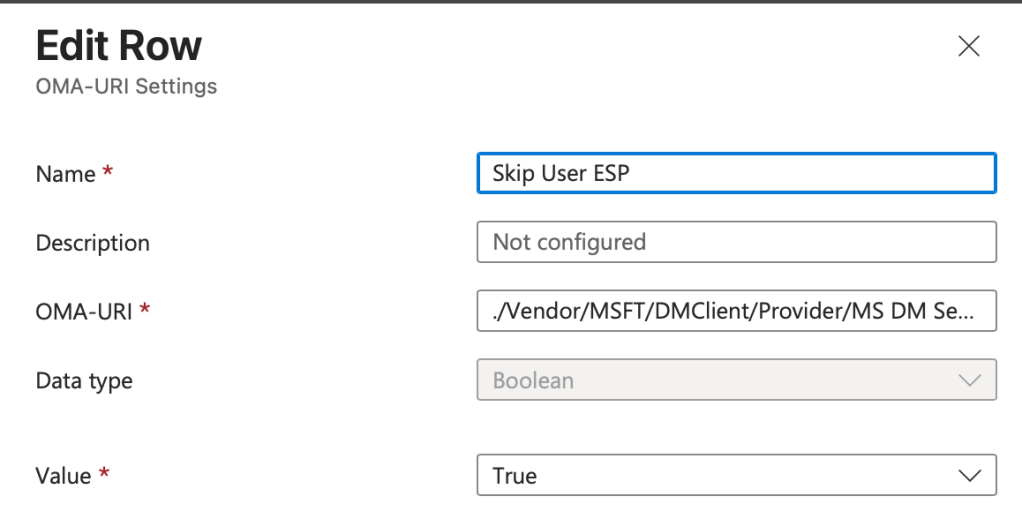
OMA-URI Settings:
Name: Skip User ESP
OMA-URI: ./Vendor/MSFT/DMClient/Provider/MS DM Server/FirstSyncStatus/SkipUserStatusPage
Data Value: Boolean
Value: True
Recommended Additional Device Configurations:
As a bonus – here are some of my “best-of” configuration settings that you can enable through a Settings Catalog configuration profile. They really can add some polish to the set up process and I would recommend testing them out!
- Hello for Business: Enforce it as non-negotiable—it’s phishing-resistant auth. Configure via Identity Protection profile: Require PIN or biometrics, integrate with Azure AD for seamless SSO.
- Enable Web Sign In – Enabled. Web Sign-in will be enabled for signing in to Windows
- This setting gives you an option to sign in using SSO from the windows lock screen – mirroring the web authentication context. Very helpful for federated identities as well!
- This setting gives you an option to sign in using SSO from the windows lock screen – mirroring the web authentication context. Very helpful for federated identities as well!
- Microsoft Edge – Hide the First-run experience and splash screen
- Stops the first-run Edge splash screen – launches much faster without lag for the first time.
- Stops the first-run Edge splash screen – launches much faster without lag for the first time.
- Microsoft Office 2016 – Automatically activate Office with federated organization credentials (User)
- Automatically licenses and activates Microsoft 365 desktop applications for the end user silently.
- Automatically licenses and activates Microsoft 365 desktop applications for the end user silently.
- OneDrive – Silently move Windows known folders to OneDrive & Silently sign in users to the OneDrive sync app with their Windows credentials
- Silent provisioning of OneDrive application and folder redirection for quick file access and setup.
- Silent provisioning of OneDrive application and folder redirection for quick file access and setup.
- Windows Logon – Enable First Logon Animation (Disabled)
- Say goodbye to the first time logon message “We’re getting everything ready for you…”
Windows Compliance Policy
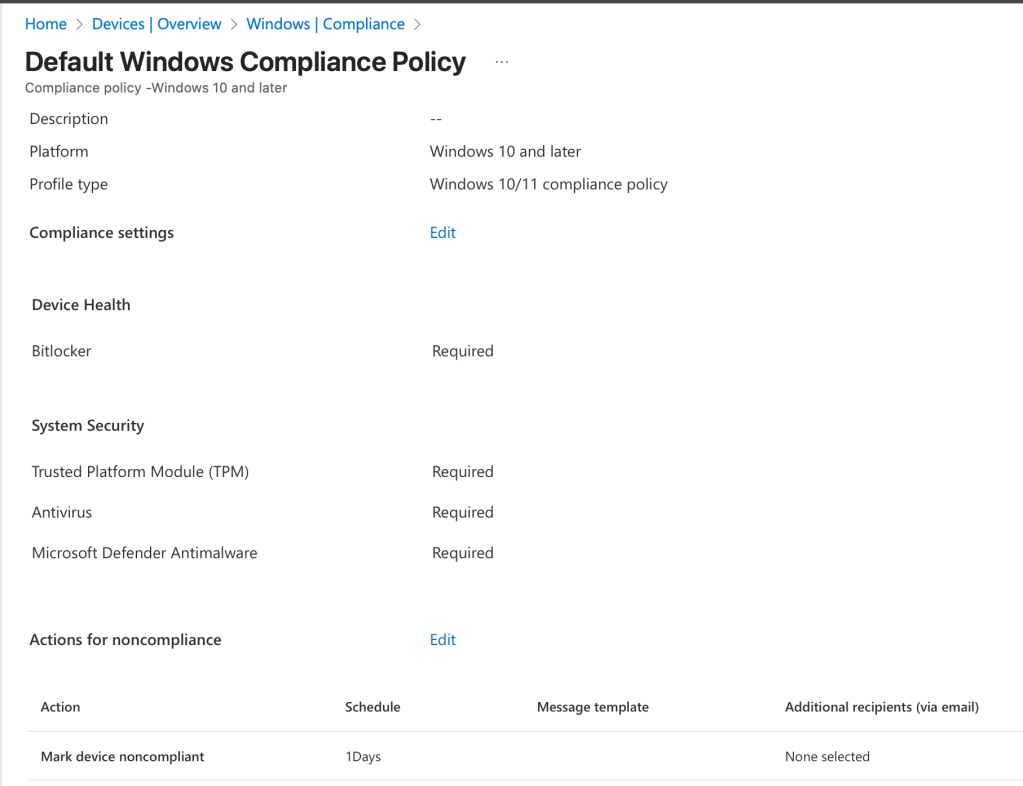
The final (and often overlooked) piece of a rock-solid Autopilot deployment is Windows Compliance Policy. This is usually where IT and SecOps shake hands — and where things can quietly go sideways if you’re not careful.
Here’s the scenario I see all the time: A freshly provisioned Autopilot device finishes enrollment, BitLocker kicks in and encrypts the drive… which requires a reboot to fully enable and report compliance back to Intune. If your compliance policy has zero grace period, the device immediately flips to Noncompliant the second it restarts. Result? Intune stops syncing new policies, apps stop installing, Conditional Access blocks access to email/OneDrive, and the user ends up with a half-baked machine and a ticket in your queue. We call this the “failure-to-launch” anti-pattern — and it’s 100% preventable.
For BitLocker specifically, I recommend a minimum 24-hour grace period, this single change has saved countless devices from the noncompliance death spiral.
Bottom line: Compliance is critical, but it should protect the environment — not break the onboarding experience. A little grace goes a long way.
Wrapping It Up – Your Autopilot Baseline for an AI-Ready 2026
And there you have it, folks: a complete, community-vetted checklist to get your Intune + Autopilot environment running like a well-oiled machine heading into 2026.
We started with the big-picture “why” (Autopilot isn’t just convenient anymore; it’s the foundation for the agentic, Copilot-powered Windows devices that are already shipping), and then drilled all the way down to the nitty-gritty settings that separate a frustrating rollout from one your users actually thank you for.
Quick recap of the biggest wins you can take away today:
- Lock down enrollment restrictions and scope profiles with dynamic groups
- Tune your Enrollment Status Page for speed without sacrificing the essentials
- Skip the User ESP (seriously, just do it)
- Sprinkle in those polish settings (silent OneDrive, no first-logon animation, etc.)
- Give new devices breathing room with sensible compliance grace periods
Implement even half of these and you’ll cut provisioning time in half, slash help-desk tickets, and—most importantly—hand your users a modern device that feels magical instead of painful.
The beauty of all this? Once the baseline is solid, everything Microsoft is pouring into Windows Autopatch, Copilot+ PCs, Intune security agents….. just works. You won’t be fighting fires; you’ll be sipping coffee while the platform does the heavy lifting.
So if you’re reading this over the Thanksgiving break (or whenever you finally get a quiet moment), open that Intune tenant, pick one section, and knock it out. Future-you will be grateful, your users will be happier, and your SecOps team might even send you a thank-you note.
Thanks for hanging out with me on this deep dive. If you try any of these tips, drop a comment below and let me know how it went—I read every single one.
Here’s to smooth Autopilot deployments, zero ESP timeouts, and a very AI-ready 2026.
Happy Thanksgiving, happy provisioning, and I’ll catch you in the next post!


 Kevin Malinoski
Leave a reply to supernaturally24848cc73e Cancel reply