
The modern workspace approach for detecting & remediating HP Wolf Security Antivirus through Microsoft Intune application packaging.
This week we’re diving into HP Wolf Security antivirus, which comes preinstalled on all HP systems. If you’ve been following along, this is very similar to what we did in our previous blog posts on automating McAfee removal.
The key difference with HP Wolf Security compared to McAfee is that HP actually provides us an uninstall command that supports a silent and clean removal. That’s a huge win, but it falls short on the reporting and error checking side, which is crucial if we want to automate this application remediation properly.
Remember, the ultimate goal with every Intune & Autopilot deployment is to deliver a seamless experience for both the user and the admin, empowering the end user self-service their laptop setup with zero frustration.
These OEM antivirus removals are non-negotiable because for many companies, paying for the OS re-image is just simply not in the budget or sometimes not fully understood at the higher levels of management. Additionally, I have even seen resellers forget to wipe the OEM Windows install even when a company was paying for it – remember the old adage trust, but verify.
Still not convinced this is important? Well here are a few more tidbits on HP Wolf Security that might catch you off guard as an admin…
In my testing, with Defender for Endpoint as the primary AV, HP Wolf would keep popping up notifying me that my system is running dual AV products and even offered the user the choice prompt HP Wolf Security to primary – just one click away. And it wasn’t a one-off; it happened multiple times!
We can’t hand that kind of control to end users. We’ve poured in the late nights, dealt with failed enrollments, BSODs, policy tweaks, and rollbacks – we can’t let OEM bloatware sneak in vulnerabilities or teach bad habits.
The Powershell Win32 Approach
To keep things straightforward, I’m going to break down my logic for a PowerShell script we can package up as a Win32 app and schedule the uninstall through Intune. This ensures that before any device lands in an end user’s hands, we’ve nuked any unapproved third-party stuff, especially competing antivirus engines. So, let’s get into the PowerShell script – which you can find on my GitHub Repo!
# Script to uninstall specific HP security packages
# Optimized for Intune Win32 app deployment
Install-PackageProvider -Name NuGet -Force -Scope CurrentUser

# Define log file path for Intune
$logPath = "$env:ProgramData\Microsoft\IntuneManagementExtension\Logs\HP_Uninstall_Log.txt"

# Function to write to log file
function Write-Log {
    param (
        [string]$Message
    )
    $timestamp = Get-Date -Format "yyyy-MM-dd HH:mm:ss"
    "$timestamp - $Message" | Out-File -FilePath $logPath -Append
}

# Function to uninstall packages matching criteria
function Uninstall-HPPackages {
    param (
        [string]$PackageNamePattern,
        [version]$MinimumVersion = $null
    )

    try {
        Write-Log "Searching for packages matching pattern: $PackageNamePattern"

        $packages = Get-Package -AllVersions -ErrorAction Stop |
            Where-Object { $_.Name -match $PackageNamePattern }

        if ($packages) {
            foreach ($package in $packages) {
                if ($MinimumVersion -and [version]$package.Version -lt $MinimumVersion) {
                    Write-Log "Skipping $($package.Name) version $($package.Version) - below minimum version $MinimumVersion"
                    continue
                }

                Write-Log "Uninstalling $($package.Name) version $($package.Version)"
                try {
                    $package | Uninstall-Package -ErrorAction Stop
                    Write-Log "Successfully uninstalled $($package.Name)"
                }
                catch {
                    Write-Log "Failed to uninstall $($package.Name): $_"
                }
            }
        }
        else {
            Write-Log "No packages found matching pattern: $PackageNamePattern"
        }
    }
    catch {
        Write-Log "Error processing packages for pattern $PackageNamePattern : $_"
    }
}

# Main execution
try {
    Write-Log "Starting HP security package uninstallation process"

    # Define packages and criteria
    $packagePatterns = @(
        @{ Name = "HP Client Security Manager"; MinVersion = "10.0.0" },
        @{ Name = "HP Wolf Security(?!.*Console)" },
        @{ Name = "HP Wolf Security.*Console" },
        @{ Name = "HP Security Update Service" }
    )

    # Process each package pattern
    foreach ($pattern in $packagePatterns) {
        if ($pattern.MinVersion) {
            Uninstall-HPPackages -PackageNamePattern $pattern.Name -MinimumVersion $pattern.MinVersion
        }
        else {
            Uninstall-HPPackages -PackageNamePattern $pattern.Name
        }
    }

    Write-Log "Uninstallation process completed"
    exit 0
}
catch {
    Write-Log "Fatal error in main execution: $_"
    exit 1
}
finally {
    Write-Log "Script execution finished"
}
Breaking down the code:
We start by forcing the NuGet provider if needed, then set up a log file in ProgramData for easy Intune checks. The Write-Log function timestamps everything we output.
The main Uninstall-HPPackages function searches for packages matching patterns (using regex for precision, like skipping the console in one case), skips old versions where specified, and tries to uninstall each one, logging successes or fails.
In the main block, we define the patterns for the key HP components, process them, and exit ‘0’ for successful removal or ‘1’ for fatal errors. The final block ensures we log the end no matter what.
Staging the code for Intune:
Package as Win32 utilize the uninstall command:
powershell.exe -ExecutionPolicy Bypass -File hpwolfremover.ps1.
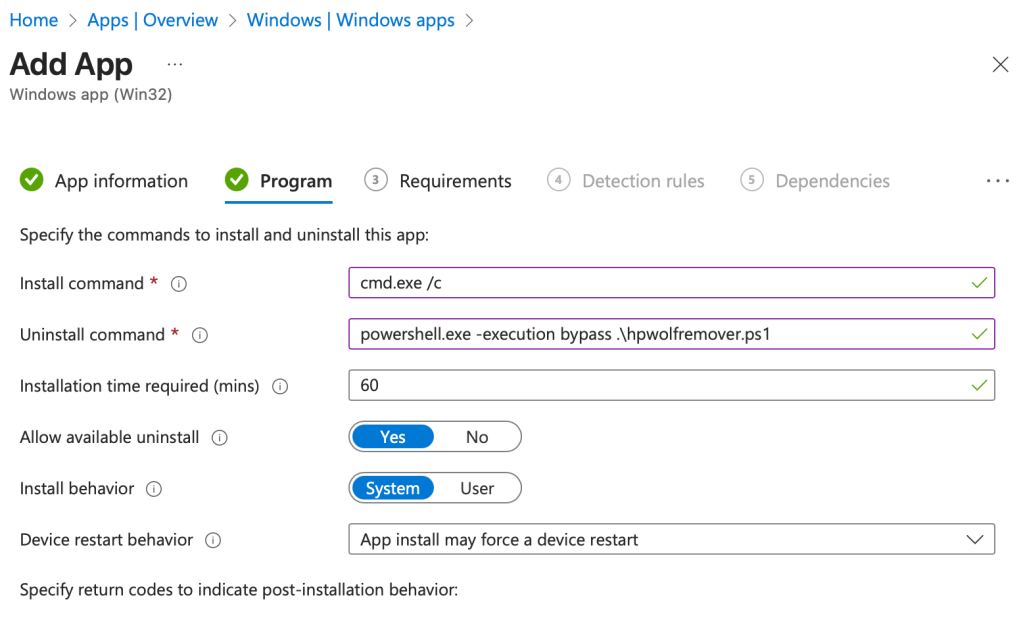
You can also grab the prepackaged Win32 application on my GitHub.
Detection Method with a focus on Accuracy
Since we’re sticking with the uninstall command approach instead of install, because we want to target an actual artifact from a valid HP Wolf Security installation.
Registry Detection Rules – All Keys Exist
HKEY_LOCAL_MACHINE\SOFTWARE\HP\HP Client Security Manager
HKEY_LOCAL_MACHINE\SOFTWARE\HP\Security Update Service
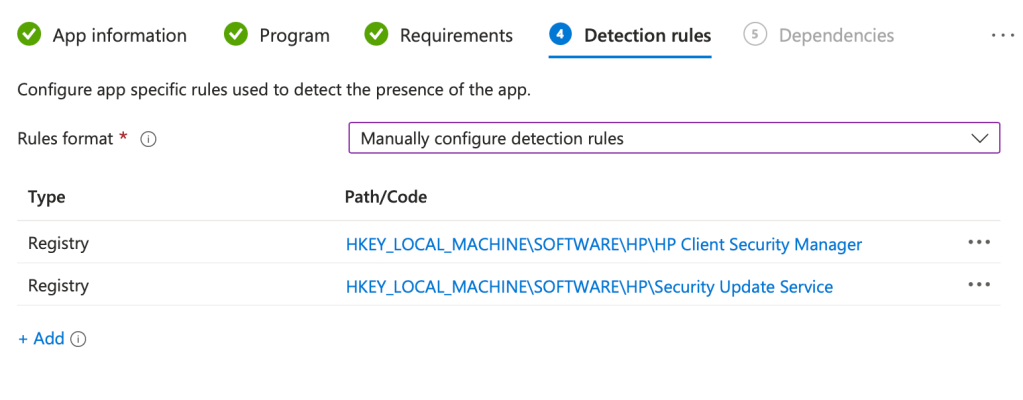
I like this method because, in my experience across different orgs, if you just run a script that manually creates and places your detection file at the end, like a text file named “HPWolfRemoveCompleted.txt”, you don’t validate if the uninstall worked. This is a method that I have seen shared and put into production many times; it’s just not good Intune housekeeping.
Intune Uninstall Assignment
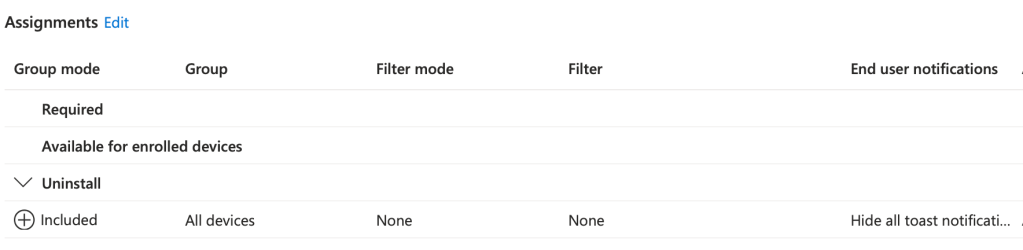
Final thoughts –
Too many times, I’ve seen admins think their removals are working, but in reality nothing actually changes on the endpoints and problems become masked and hidden. Often this drives us to the point of complete exhaustion while solidifying our imposter syndrome. We have all been there and it is not a fun place to be which is why my goal with this blog is to share a little bit, of what I believe, is my unique approach to Intune administration that has allowed to me to regain time and stability in both my work and personal life.
This should give you that true automation confidence around HP Wolf Security removal through Intune. If you’ve got questions or tweaks, hit me up – let’s keep those deployments smooth!


 Kevin Malinoski
Leave a reply to Kevin Malinoski Cancel reply