
Tool Update: Take control of devices from Day-Zero with Intune Preflight
 Kevin Malinoski 5 min read
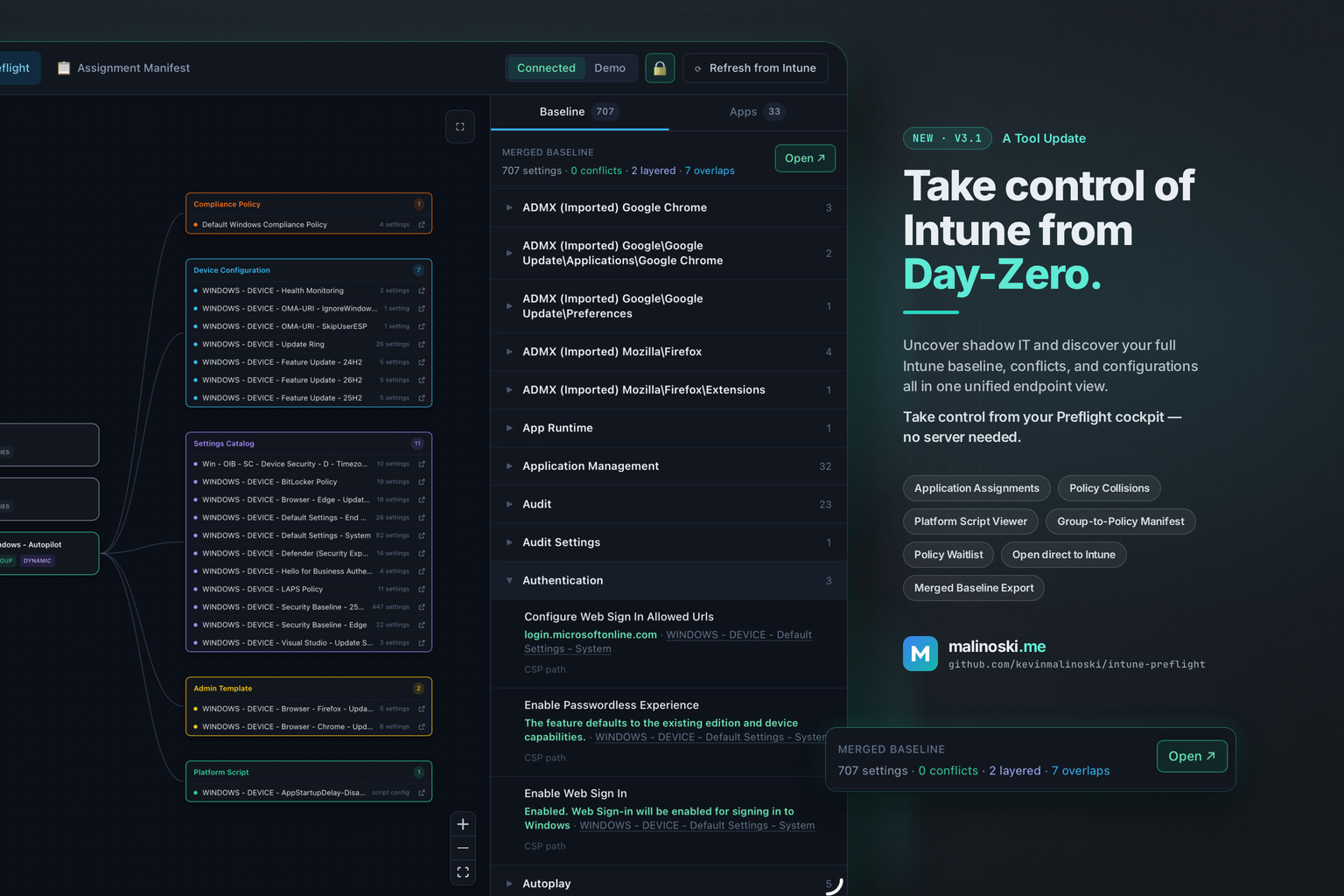
If you’ve ever inherited an Intune tenant — or been asked to tear one down and start again — you know the first week. Policy by policy, assignment by assignment, trying to answer a simple question: what does this device actually get?
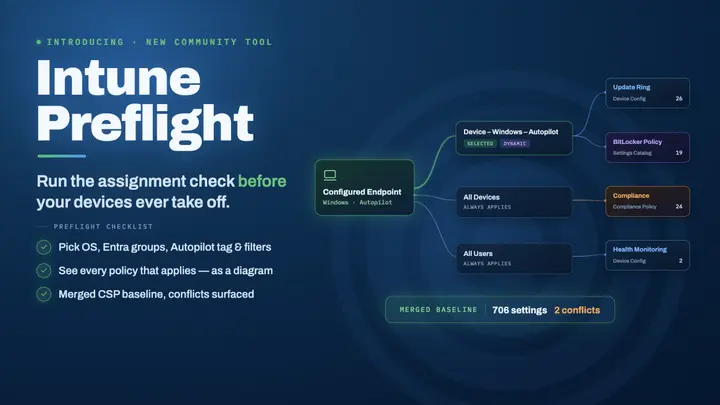
I built Intune Preflight to give you that answer in an instant. Point it at a tenant, simulate an endpoint — OS, Entra groups, Autopilot Group Tag, Assignment Filters — and you get the merged baseline, the apps, and the assignments you didn’t know were there. First look or a full overhaul, Autopilot-aware grouping is built in to help you decide what an endpoint should have — and, more importantly, to uncover the configurations you never knew you had.
That’s the line on the graphic: take control of Intune from Day-Zero. A little play on Zero Trust, and a literal one. You can do this before a single device enrolls.
No server needed
The app now runs in your browser. One Entra app registration, a Single-page application redirect URI, five delegated Graph permissions (every one ends in .Read.All), and no client secret. A public client can’t hold one, and this build has nowhere to put it. Open the live app, paste your tenant ID and client ID, and sign in as yourself. Sign-in is delegated PKCE. Your tenant data goes from Microsoft Graph into the tab, and it leaves when the tab closes.
Connect your tenant with the PowerShell script located here. Paste it into Azure Cloud Shell, approve the five read-only permissions once, and you’re ready to go.
Already configured? Open the lock in the top bar to End session, or choose Change tenant under it to reopen the setup form with your IDs filled in — a mistyped ID, or a different directory. If nobody is signed in, a pencil button sits in the lock’s place. You stay signed in until you save new ones. One tenant at a time.
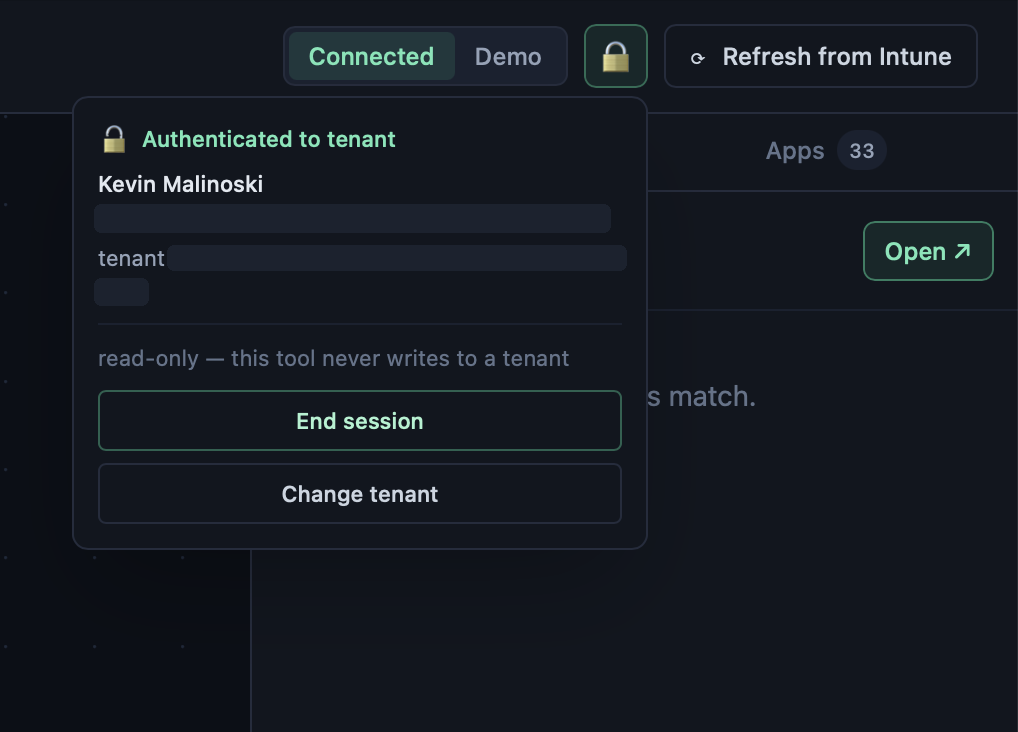
End session or change tenant from the lock.
You can still host it on bare metal or a server — Docker or Node, with a client secret in your own .env. That mode still sees the whole tenant unfiltered, which a scoped admin in the browser does not. Same engine. The browser build is the portable one: securely accessible on any of your devices, no matter where you are.
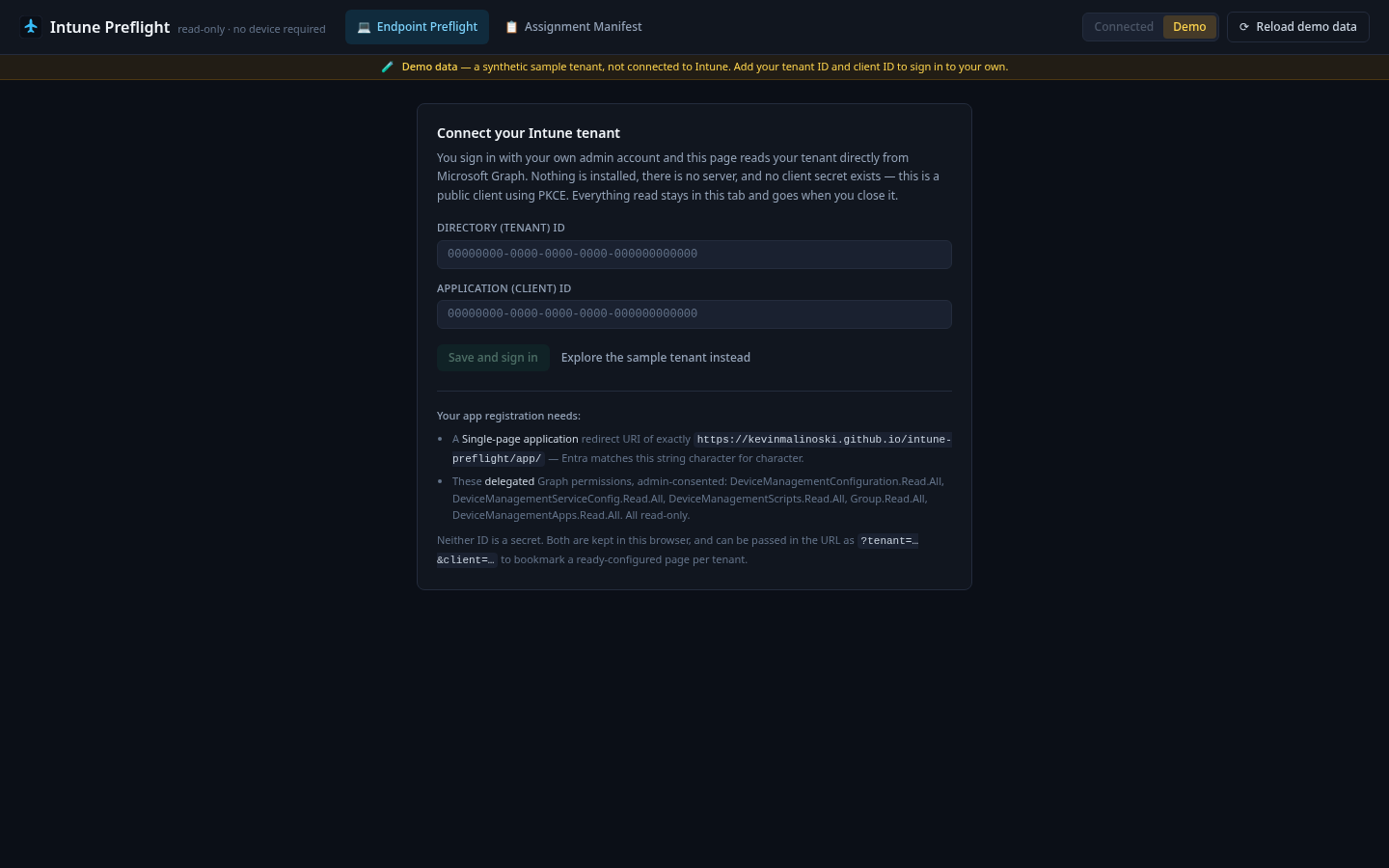
Paste the two IDs and sign in.
Any device
It’s been optimized for a phone. On the go, I can pick the groups, open the baseline or the apps list, and think through a change before I’m back at a desk. There’s the most room on a desktop, but the same app fits in your pocket.
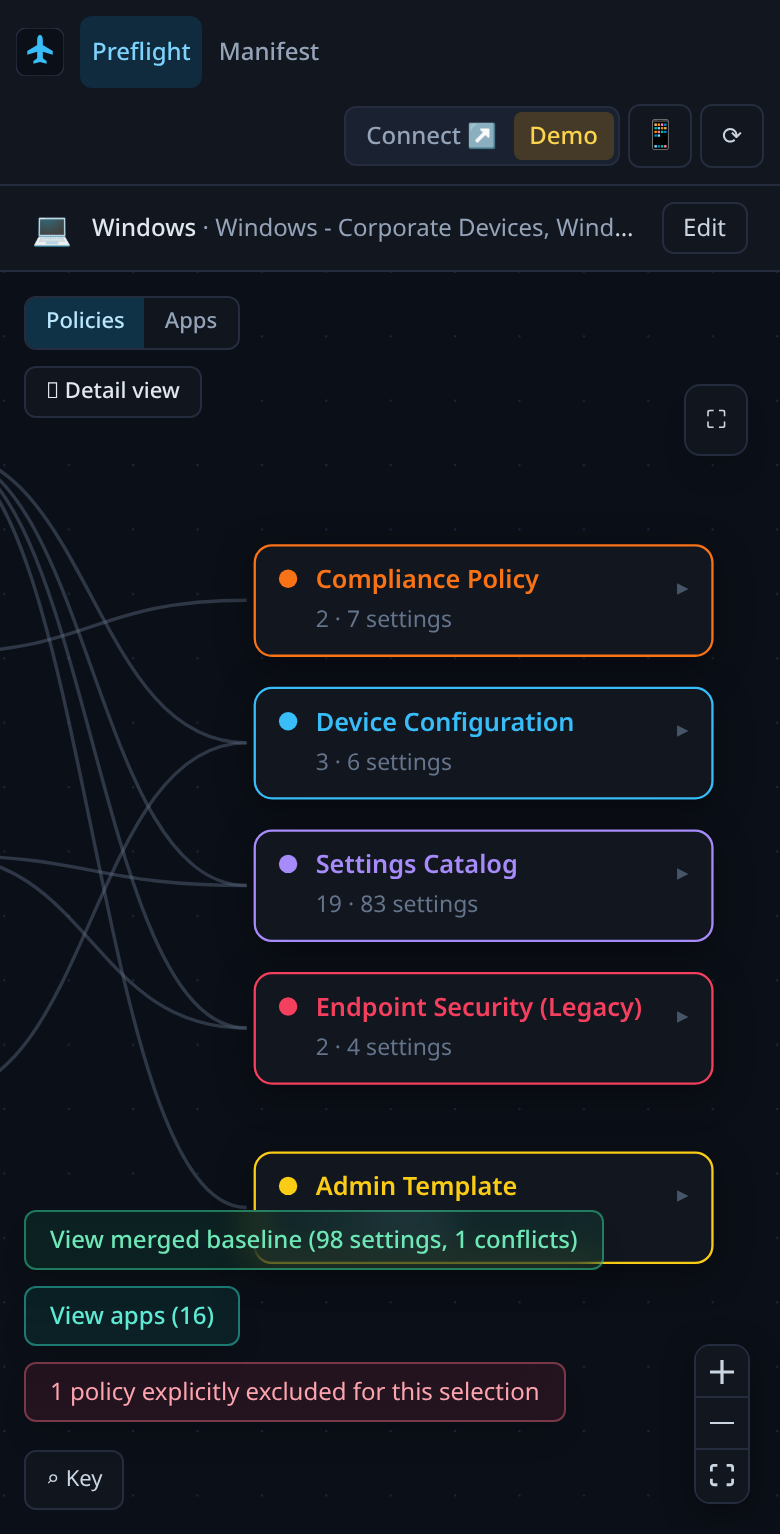
The same app, in your pocket.
Open in Intune
Spot a policy you didn’t realize was assigned? Click the arrow beside it and that exact object pops out in the Intune admin center. From there you can change the assignment, come back, and Refresh from Intune — Keep my setup is the default as of v3.1.2 — to confirm the new merged baseline on the same endpoint.
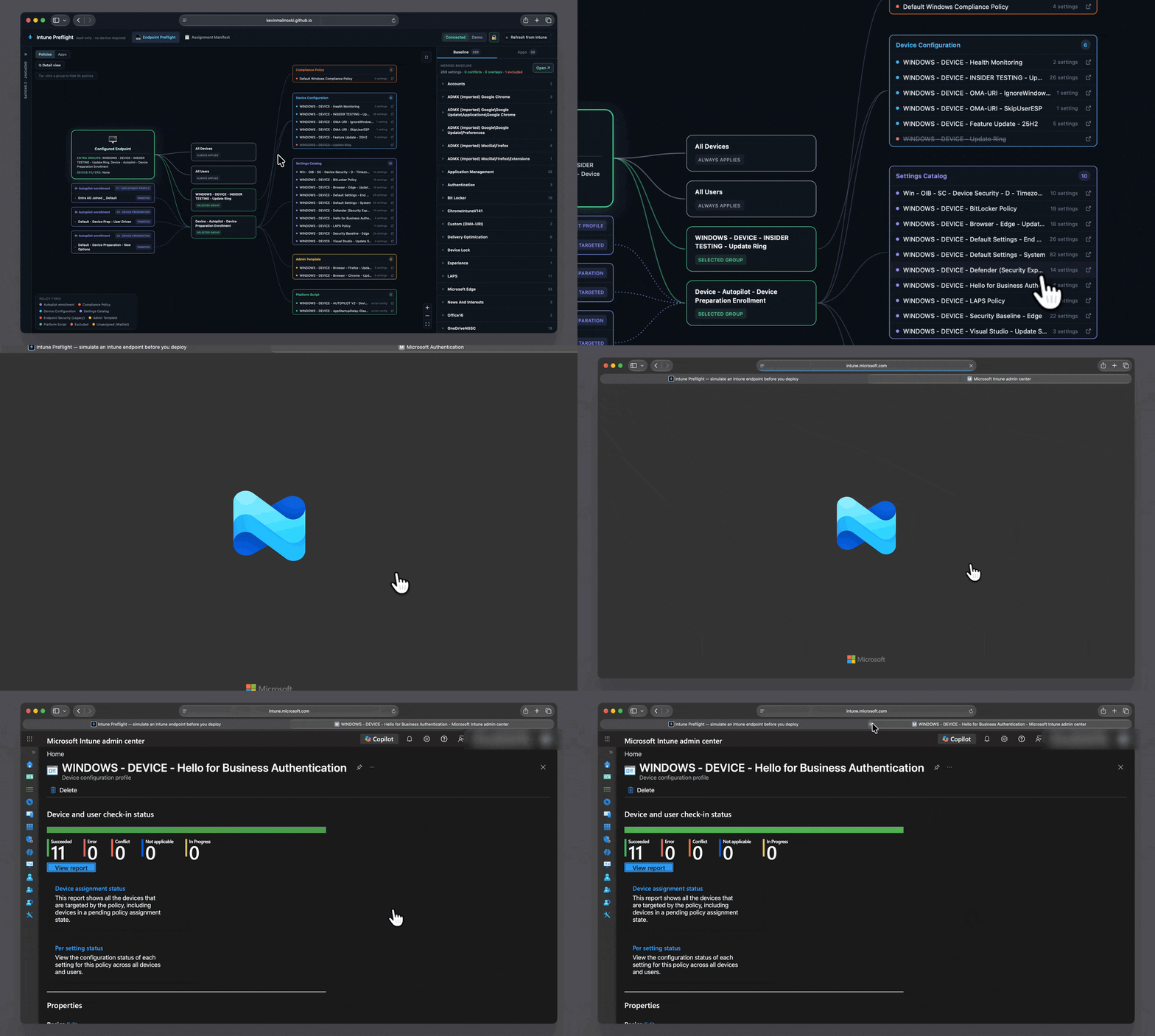
One click, and you’re in Intune.
The arrows only appear for object types whose admin-center address is confirmed, and they stay inactive in the sample tenant until you connect your own.
Apps, conflicts, and the script viewer
The same endpoint has an Apps view: Required, Available, and Uninstall in one list, including an app set to both install and uninstall, or the same product added twice. Export it as an Excel workbook for a review.
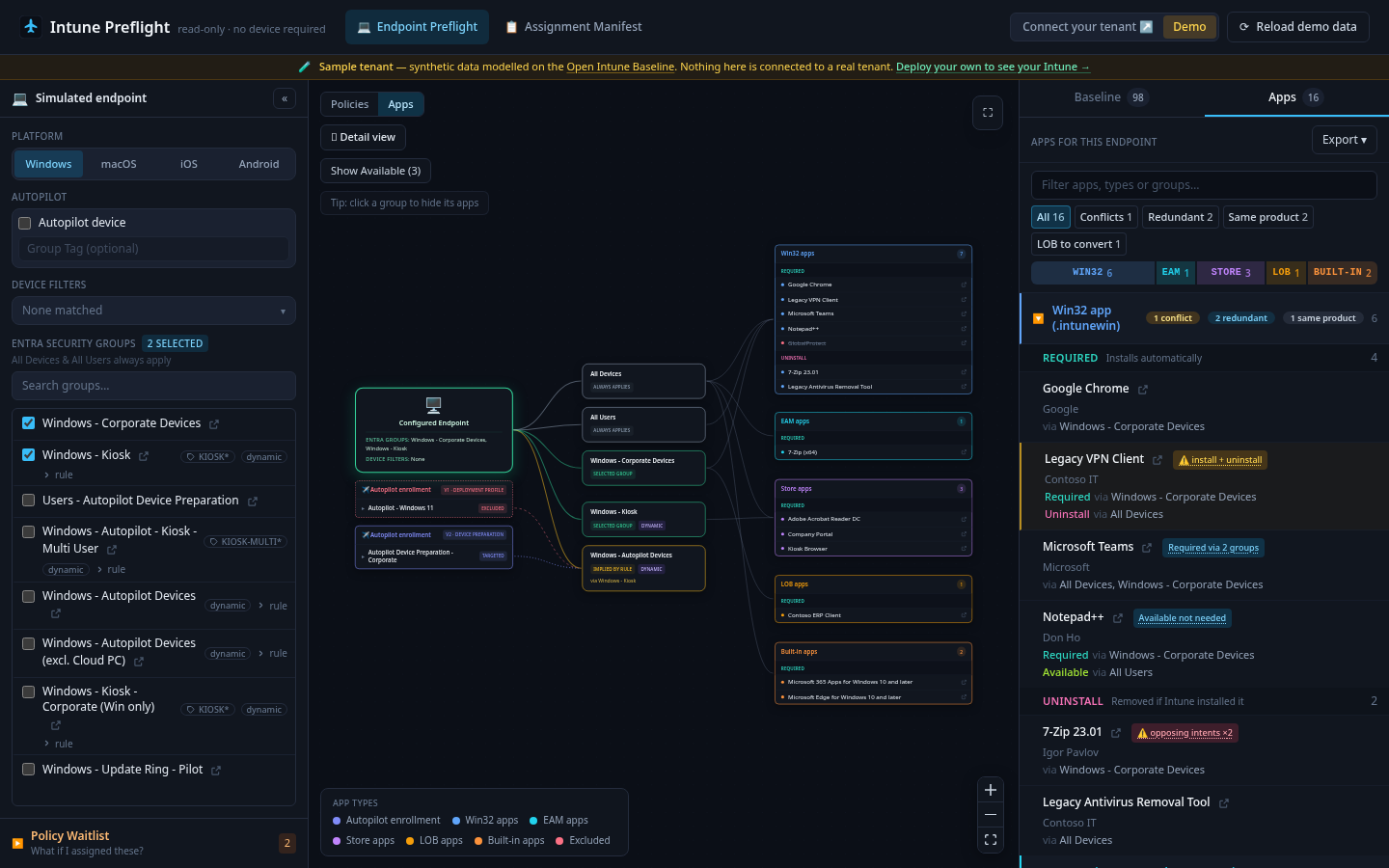
What this endpoint would get installed.
Conflict and overlap detection is Windows-only, and only when the same setting is configured more than once with different values. The merged baseline still shows on macOS, iOS/iPadOS, and Android.
Platform Scripts finally show the script, not just the file name and run options. The app decodes the content in the browser — Graph stores it as base64 — including the UTF-16 files PowerShell ISE saves.
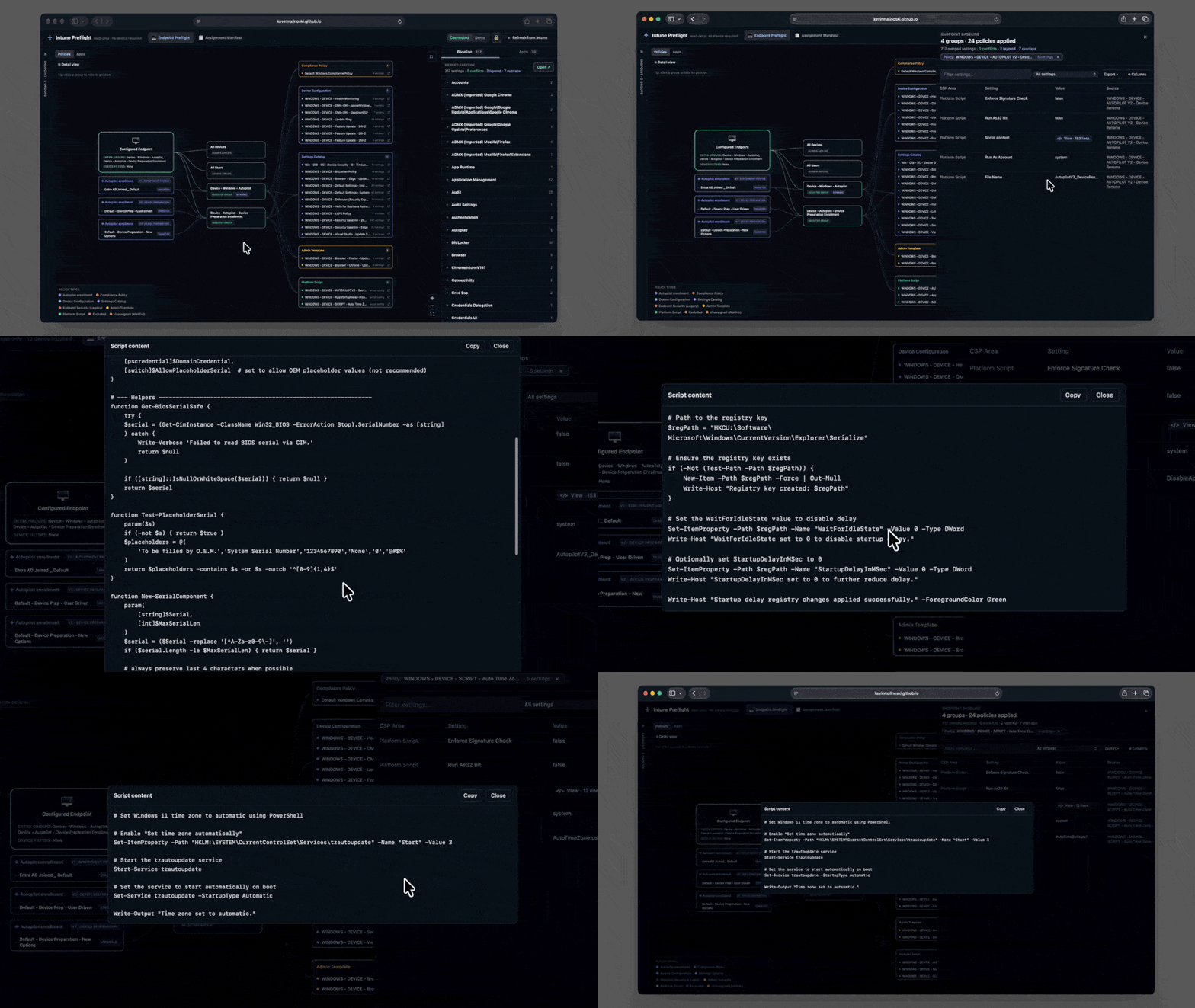
The script, decoded in the browser.
Use case: One of my favorite uses is auditing anything assigned to All Devices or All Users, and re-scoping it to the right Autopilot dynamic groups — or however you manage your corp devices. Those tenant-wide assignments are always in the simulation, tagged so you can see them rather than assume them. If you’re walking into a tenant for the first time, start there.
An honest note on scope
I built this Windows-first and cloud-native, and it is intentionally device-based: it simulates an endpoint, not a named user. User groups and All Users still apply — you can select them — but the tool never evaluates whether a specific person is in a group, and never infers anything from who signed in. Conflict detection is Windows-only and same-setting only.
Take it for a spin
Click around the sign-in-free demo, or open the app, sign in, and point it at your tenant. The connect walkthrough is about three minutes. The code lives in the repo.
If this helps you, share it — with a colleague who just inherited a tenant, or on LinkedIn, Reddit, or X. Leave a comment here, or open an issue on GitHub. This is a community tool, and consistent feedback is what lets us keep improving it.
Final thoughts…
Day-Zero is when you need the picture most. Four months ago this still wanted a server and a client secret. Now it opens in a tab, on a phone, and it takes you from a finding to the policy you need to change.
As always, thanks for reading, and happy deploying!
Kevin

Comments
Sign in with GitHub to join the conversation.