

If you blinked (👀) this week, you might’ve missed it—perfect Read-Only Friday material. The new Windows Autopatch update readiness reports hit general availability, and honestly, these are the kind of insights Intune admins have been asking for forever.
Cassidy Fein at Microsoft announced the welcome addition Intune on the Windows IT Pro Blog—definitely worth a read if you haven’t yet: https://techcommunity.microsoft.com/blog/windows-itpro-blog/windows-autopatch-update-readiness-brings-insights-to-it/4497611
These show up right in your Intune policies (Devices > Windows > Windows updates) as buttons or sections at the top of feature and quality update policies—give it a bit if they’re still propagating in your tenant.
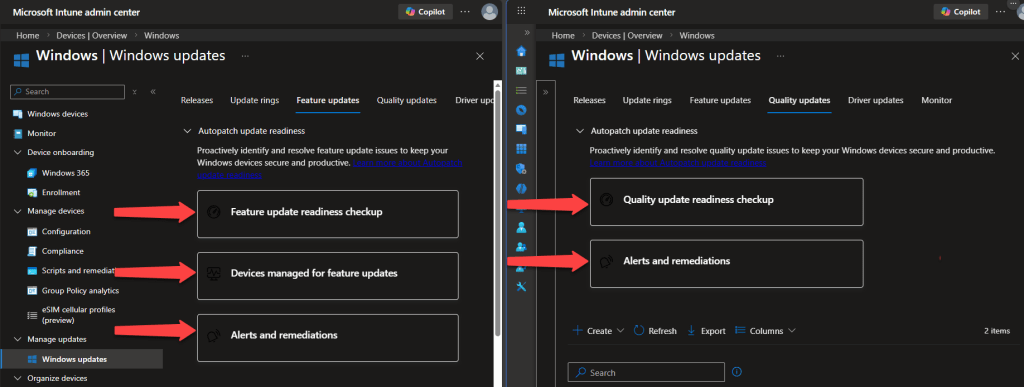
Here are the three big ones that change the game for tracking updates, spotting issues, and keeping the fleet compliant:
Update Journeys – 🔗
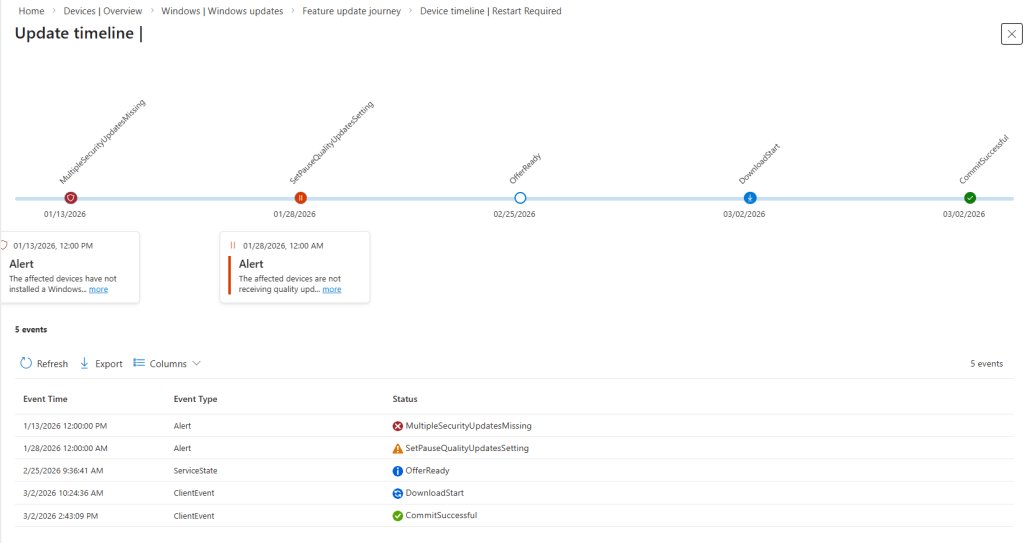
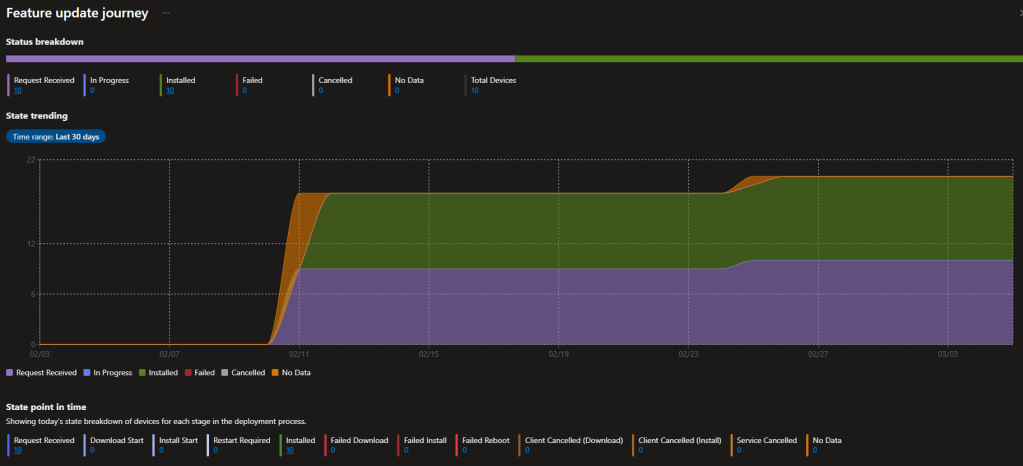
We’ve had point-in-time views of versions and update status forever, but actually following the real timeline of what happened on a device? That usually meant custom scripts, third-party tools ⚙️, or way too much clicking. Now the Devices managed for feature updates delivers a clean, per-device timeline: advertised → downloading → installing → reboot pending → success (or stuck somewhere with alerts). Drill into any endpoint for timestamps and exact state history. Super timely as 24H2 adoption ramps up, 23H2 sunsets, and we gear up for 25H2—gives real confidence in how smoothly those feature updates are progressing, take a look at the reports below.
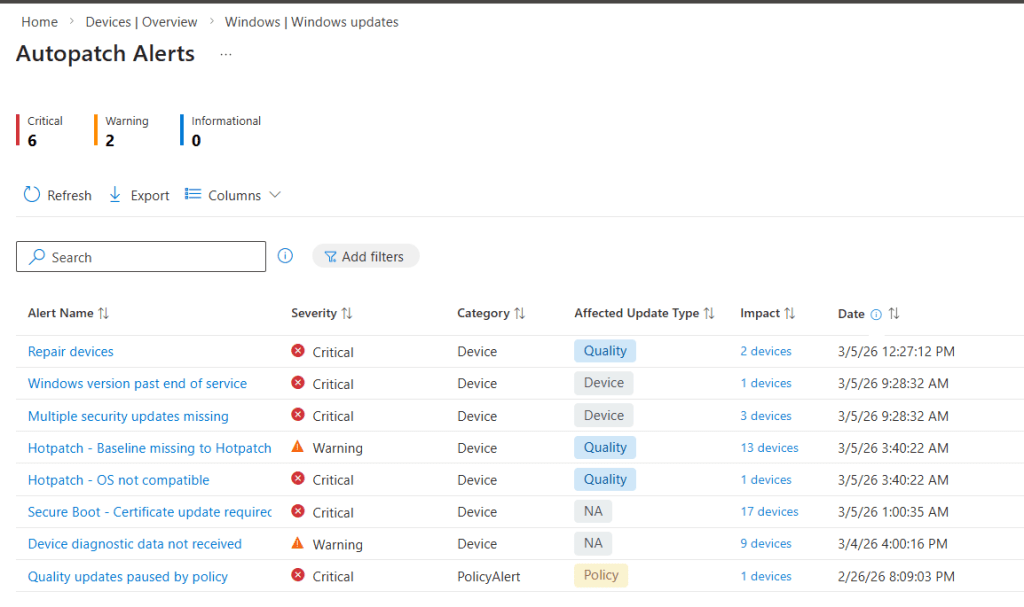
Updates don’t just ✨ magically ✨ apply perfectly every time—endpoints need ongoing TLC to stay on schedule and secure. These alerts surface issues with clear criticality levels, plus remediation guidance (full automation coming soon). Drillable and ticket-ready—great for zero-trust hygiene.
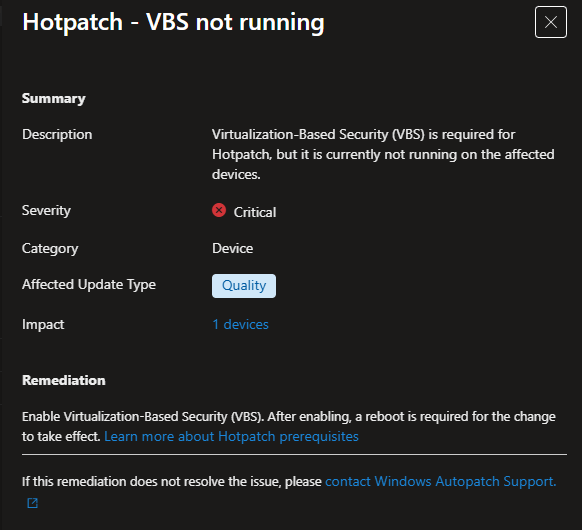
Windows Autopatch Management Status Report – 🔗
Tenant-wide fleet overview: ✔️ who’s enrolled in Autopatch, ✔️ who’s on update rings, ✔️ who’s unmanaged, ✔️ hotpatch status, ✔️ active alerts—all in one spot. Quick way to spot coverage holes.
Check Devices > Monitor for the Autopatch Management Status report and related views (PIM role activation might be needed if you use it). This ties everything together—policies, alerts, journeys.
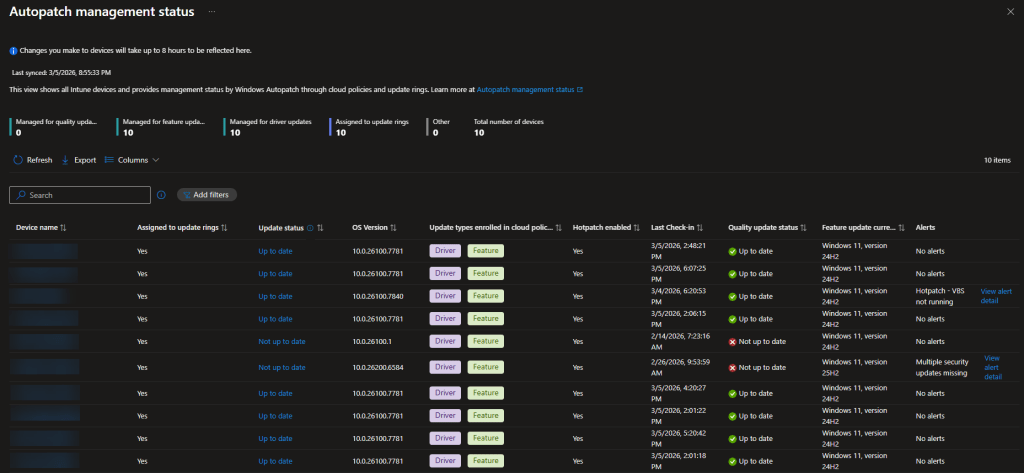
Microsoft nailed the 🧑💻 admin experience here: info that used to scatter across Intune reports now lives in logical, drillable places. Troubleshooting feels way less painful, and we get real visibility into fleet health and update cadence.
Quick heads-up: If data seems thin initially, remember Windows Autopatch uses a ⏱️ five-day reporting period to allow for device check-ins and telemetry processing (as defined in their quality updates overview—see details here: https://learn.microsoft.com/en-us/windows/deployment/windows-autopatch/manage/windows-autopatch-windows-quality-update-overview). Also confirm your Windows diagnostic data settings are set right for full telemetry flow. Give it time or tweak those configs if needed.
These reports are a solid step up for anyone wrangling Windows updates in Intune. I’m excited to dig in deeper—definitely spend some time exploring them this weekend. Weird findings, slow data, or just want to compare notes? Comment below or ping me on LinkedIn.
Stay ahead of the updates.

 Kevin Malinoski
Leave a comment