

Hey folks, yep—that’s right. Autopilot Device Preparation. Or as the community lovingly calls it, Autopilot V2. The thing you definitely have fully configured in your tenant… right? 😅
If you’re like most Intune admins I talk to (including myself a couple years back), you’ve been rocking classic Autopilot V1 for ages because, let’s be honest, it works. It’s battle-tested. You upload hashes, slap on a deployment profile, set your naming convention, block personal devices if you want, and call it a day. Solid. But here’s the kicker: with Windows 11 now everywhere and Microsoft pushing harder on modern provisioning, skipping V2 is starting to cause real headaches.
I’ve seen it in audits more times than I can count—devices popping up with random names like “DESKTOP-ABC123” or “KEVIN-LAPTOP” because nobody uploaded the hash beforehand. The user picks “work or school” during OOBE, skips the corporate choice if it’s not forced, and boom—you lose your one shot at controlling whether they land as admin or standard user, what apps block the desktop until they’re ready, and that beautiful zero-touch experience you spent weeks crafting.
Without V2, you’re missing the chance to enforce your carefully tuned baseline right from the jump. Apps install as required first (just like traditional Autopilot “V1”), scripts apply predictably, fewer random reboots, and the end user gets a polished device instead of “why is this thing still updating?” frustration. I’ve had clients go from “Intune is causing endless tickets” to “this just works” once we flipped the switch on Device Prep. It’s not perfect for every scenario, but for remote-first folks, drop-shipped replacements, or even BYO-ish corporate devices in hard-to-ship regions? It’s gold. 🥇
The goal with Intune is supposed to be zero-touch. If you’re not looking at all the tools available and strategically covering your bases, you end up with the opposite: more touch, more chaos, and admins/end users losing faith fast. Been there, hated it. Let’s fix that.
This post is my no-nonsense baseline recommendation if you haven’t touched V2 yet. Start small—test in a bubble (pilot a few applications, the needed scripts, and validate your configuration).
🚨 A few important notes 🚨
Microsoft’s docs are crystal clear on that Device Preparation does not support:
🚨 App Control for Business / Managed Installer – having an active Managed Installer policy will cause all app installations to be ‘skipped’ until after the user logs into the desktop. If dynamic group processing occurs during the enrollment and Win32 applications are targeted then your enrollment will most likely fail.
🚨 Hybrid Joined Devices NOT supported
Technical Config: Building Your Solid V2 Baseline
Here’s the high-level flow I recommend. We’ll keep this practical—no fluff, just the steps to get you testing confidently.
Step 1 – Entra Device Group Configuration Create a static Entra ID device group for your V2-targeted devices. Set the group owner as the service principal App ID for the Autopilot Device Preparation service (it’s the one Microsoft docs hide in plain sight—search for “f1346770-5b25-470b-88bd-d5744ab7952c” in Entra groups). The name of this service principal can change across tenants, take a look at the screenshot below.
The display name can be whatever makes sense, like “Device – Autopilot – Device Preparation Enrollment”. This group is what you’ll assign everything to downstream.
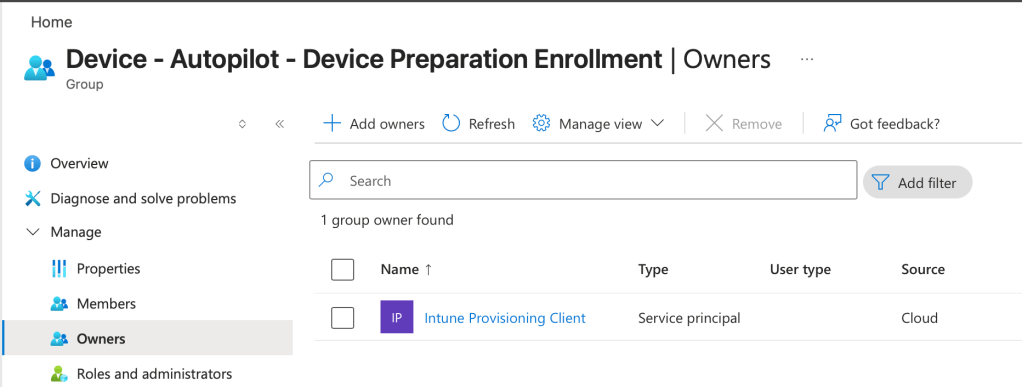
Step 2 – Application & Policy Preparation Assign your required apps, , scripts, and configs to the static group from Step 1. This is where you enforce the experience you want before the desktop ever shows up.
❗Big callout here: device naming.❗
V2 doesn’t give you the prefix/serial suffix option natively like V1. But don’t sweat it—I wrote a PowerShell script specifically to handle this during provisioning. It pulls the BIOS serial (safely via CIM), sanitizes it, preserves the last 4 chars for uniqueness on long serials, and slaps on your corporate prefix. Run it as a user-driven script or Win32 app in your prep profile. The new name will reflect in Intune after the next reboot!
[You can grab the full script here on GitHub] Quick highlights:
- -Prefix ‘YOURCO-V2’
- -MaxTotalLength 15 (default)
- -WhatIf for testing
- -ForceRestart if you want it snappy
param( [string]$Prefix = 'MALO-V2', [int]$MaxTotalLength = 15, [switch]$WhatIf, [switch]$ForceRestart, [pscredential]$DomainCredential, [switch]$AllowPlaceholderSerial # set to allow OEM placeholder values (not recommended))# --- Helpers --------------------------------------------------------------function Get-BiosSerialSafe { try { $serial = (Get-CimInstance -ClassName Win32_BIOS -ErrorAction Stop).SerialNumber -as [string] } catch { Write-Verbose 'Failed to read BIOS serial via CIM.' return $null } if ([string]::IsNullOrWhiteSpace($serial)) { return $null } return $serial}function Test-PlaceholderSerial { param($s) if (-not $s) { return $true } $placeholders = @( 'To be filled by O.E.M.','System Serial Number','1234567890','None','0','@#$%' ) return $placeholders -contains $s -or $s -match '^[0-9]{1,4}$'}function New-SerialComponent { param( [string]$Serial, [int]$MaxSerialLen ) $serial = ($Serial -replace '[^A-Za-z0-9\-]', '') if ($serial.Length -le $MaxSerialLen) { return $serial } # always preserve last 4 characters when possible $last4 = $serial.Substring($serial.Length - 4) $firstPartLen = $MaxSerialLen - 4 if ($firstPartLen -gt 0) { return $serial.Substring(0, $firstPartLen) + $last4 } return $last4}function Test-ComputerName { param($name, $maxTotal) if ($name.Length -gt $maxTotal) { throw "Generated name exceeds maximum length of $maxTotal." } if ($name -notmatch '^[A-Za-z0-9][A-Za-z0-9-]{0,14}$') { throw "Name '$name' contains invalid characters or format. Use only letters, digits and hyphen; do not begin with a hyphen." } return $true}function Test-NameInDns { param($name) try { Resolve-DnsName -Name $name -ErrorAction Stop | Out-Null return $true } catch { return $false }}# --- Main -----------------------------------------------------------------# Basic validationsif ($MaxTotalLength -gt 15 -or $MaxTotalLength -lt 1) { throw 'MaxTotalLength must be between 1 and 15 (NetBIOS/hostname limit).' }$biosSerial = Get-BiosSerialSafeif (-not $biosSerial) { if (-not $AllowPlaceholderSerial) { throw 'BIOS serial not found or empty. Use -AllowPlaceholderSerial to override (not recommended).' } Write-Warning 'BIOS serial is empty; falling back to computer name suffix.' $biosSerial = $env:COMPUTERNAME}if (Test-PlaceholderSerial $biosSerial -and -not $AllowPlaceholderSerial) { throw "BIOS serial appears to be a placeholder value ('$biosSerial'); aborting. Use -AllowPlaceholderSerial to override."}$maxSerialLen = $MaxTotalLength - $Prefix.Lengthif ($maxSerialLen -lt 1) { throw 'Prefix is too long for the configured MaxTotalLength.' }$serialComponent = New-SerialComponent -Serial $biosSerial -MaxSerialLen $maxSerialLen$newName = "$Prefix$serialComponent"# Validate generated nametry { Test-ComputerName -name $newName -maxTotal $MaxTotalLength} catch { throw "Generated computer name is invalid: $_"}$currentName = $env:COMPUTERNAMEWrite-Output "Current name: $currentName"Write-Output "Proposed name: $newName"# DNS collision check (best-effort)if (Test-NameInDns -name $newName) { Write-Warning "A DNS record for '$newName' already exists. This may indicate a naming collision on the network." }if ($currentName -ieq $newName) { Write-Output "Computer name is already correct: $currentName" return 0}if ($WhatIf) { Write-Output "WhatIf: would rename '$currentName' -> '$newName' (no changes made)." return 0}# Prepare parameters for Rename-Computer$renameParams = @{ NewName = $newName; Force = $true; ErrorAction = 'Stop' }if ($DomainCredential) { $renameParams.DomainCredential = $DomainCredential }# Perform renametry { Rename-Computer @renameParams Write-Output "Successfully requested rename: $currentName -> $newName" return 0} catch { Write-Error "Failed to rename computer: $_" return 1}Deploy it as a platform script with the following settings so that the rename happens during enrollment, the device will rotate the hostname at the next reboot. In my testing, it fills the gap perfectly and keeps naming consistent with your V1 fleet, although it may take some time for the expect name to report to Intune.
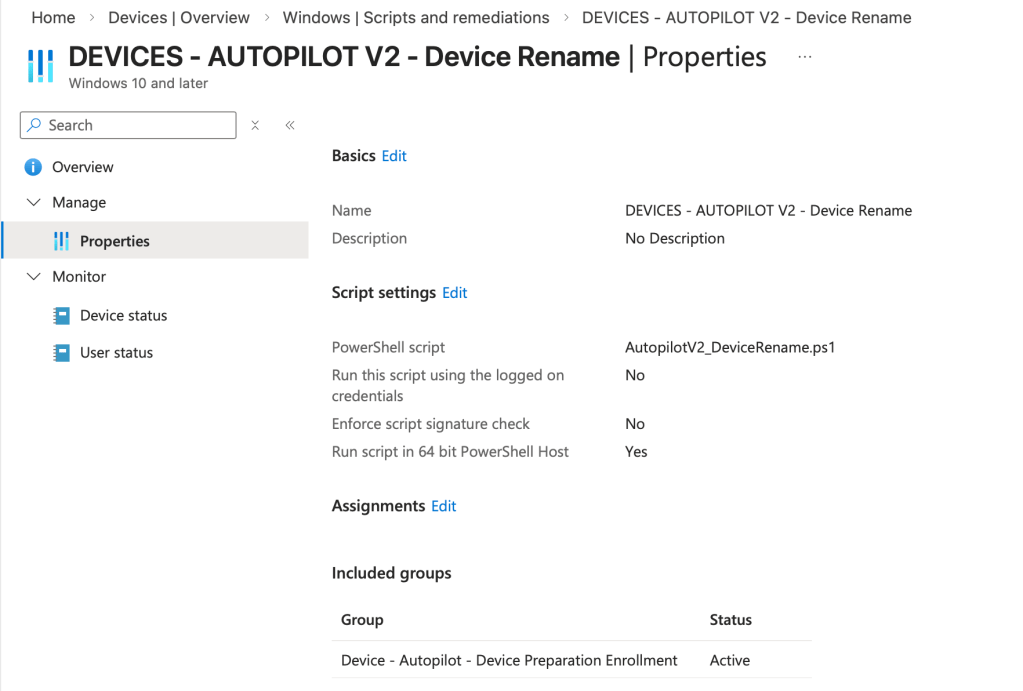
Step 3 – Autopilot Device Preparation Profile Configuration Head to Intune > Devices > Windows > Windows enrollment > Device preparation policies. Create a new one:
- Assign to your Entra device group from Step 1.
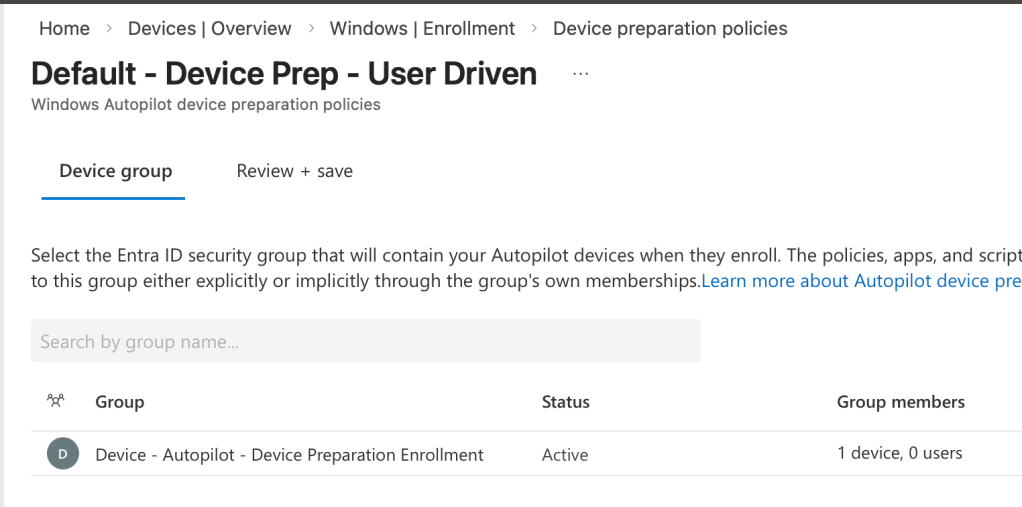
- Out-of-box settings: configure as desired and set if the enrolling user will be a local admin
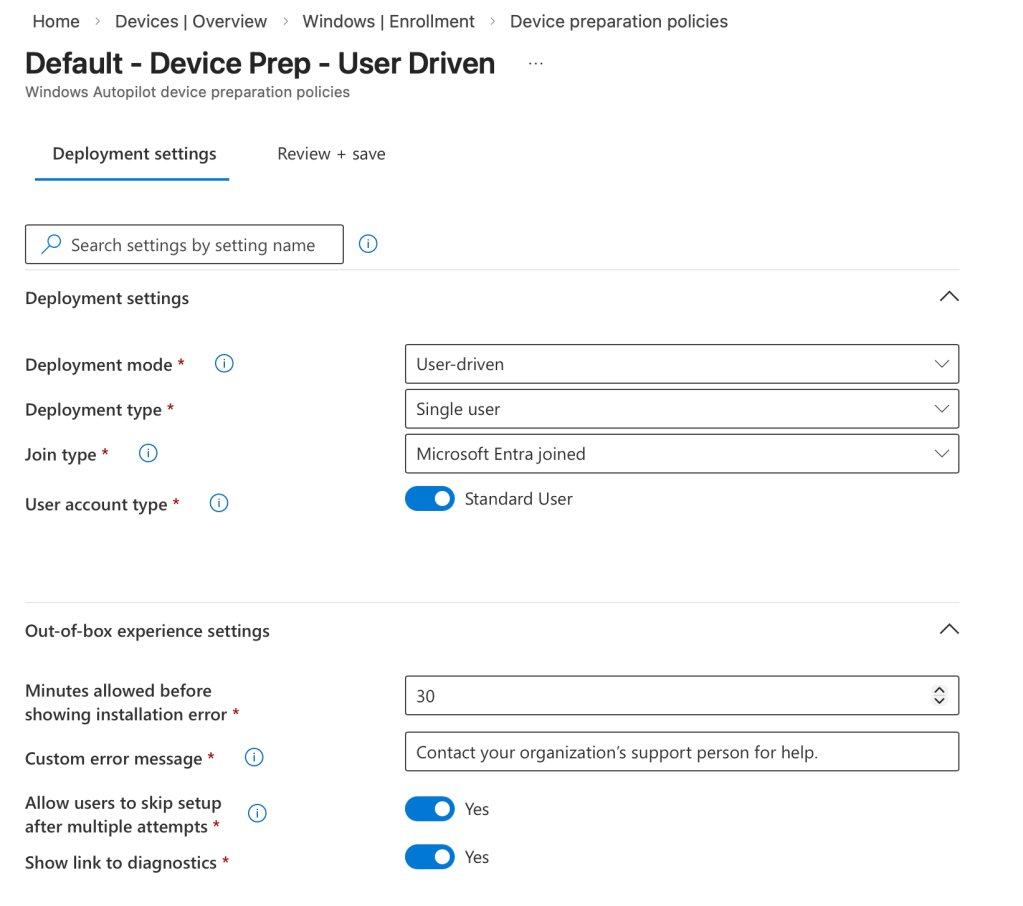
- Apps & scripts: select the apps and scripts that you want enforces during enrollment.
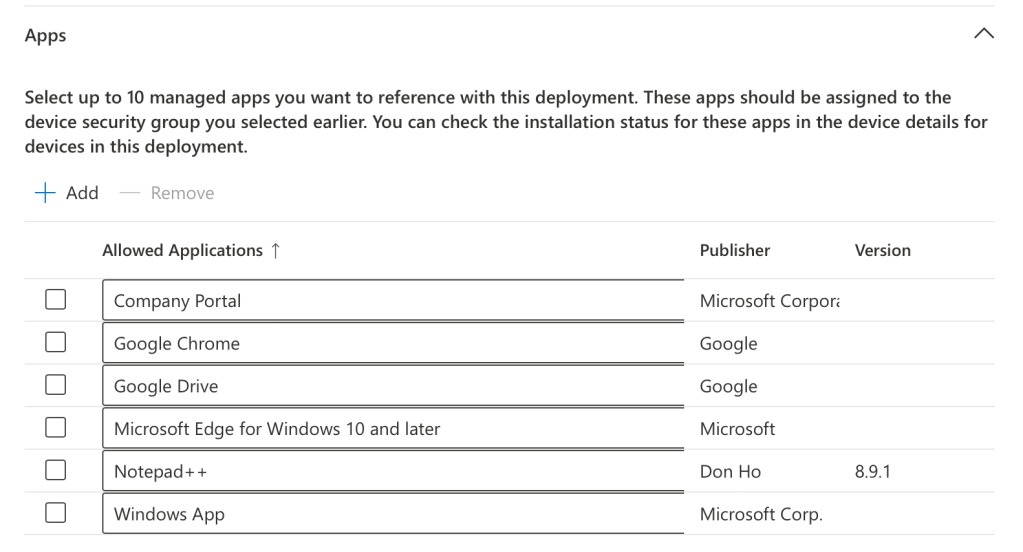
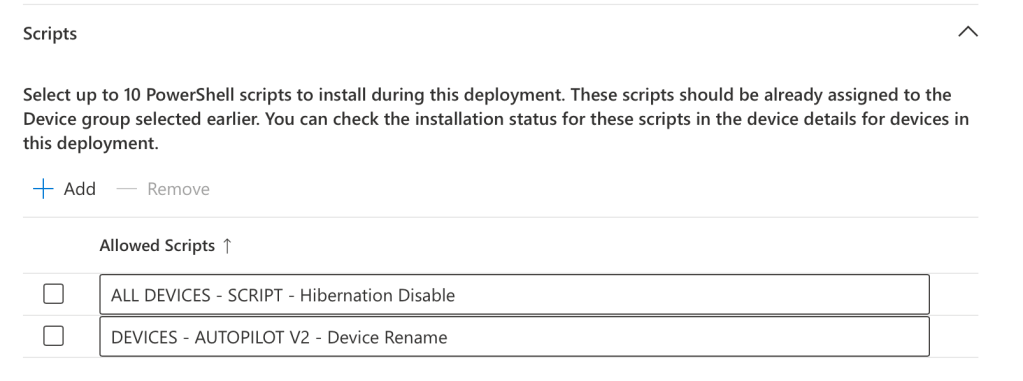
- Targeted Entra user groups: who can enroll with this profile (security groups work great).
Remember—no hybrid join option here, just pure Entra join. Save, assign, and you’re live.
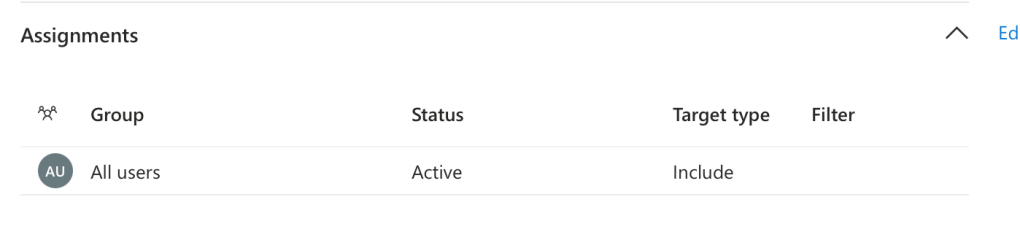
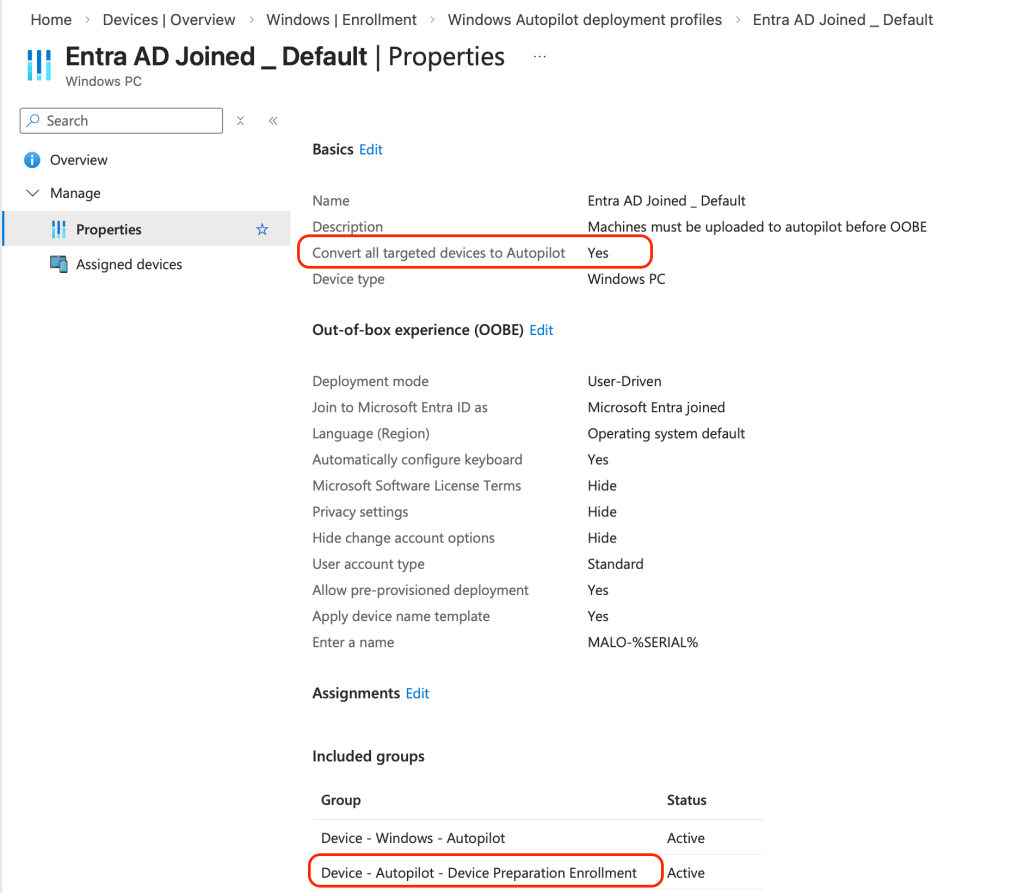
Step 4 (Optional but Recommended) – Retroactive Autopilot V1 Enrollment For ongoing management polish, you can still assign these devices to a classic V1 deployment profile post-enroll. It gives you extra consistency in the device actions that you can perform (Autopilot Reset, Wipe, etc.), but V2 handles the heavy lifting during first initial setup.
Quick Tips Before You Test
- 🚫 If you block personal Windows enrollment in device restrictions, pre-add serials as corporate identifiers in Entra (Devices > Enroll devices > Corporate device identifiers). Way easier than hash uploads for one-offs.
- 📚 Train help desk on what to expect—V2 OOBE looks a little different, but users love the smoother flow.
- 📈 Use the Intune monitors: Devices > Monitor > Windows enrollment. You get 30-day lookback on both V1 and V2 enrollments, drill into failures, and the V2 UI is honestly nicer – take a look below!
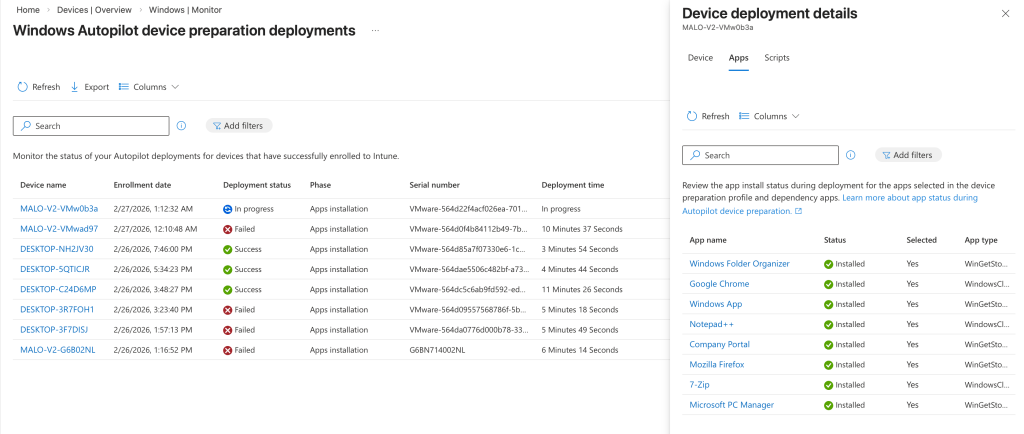
Once you test a few in a lab/pilot, you’ll see why Microsoft’s doubling down (those 2025 Ignite announcements teased more Device Prep love coming). If you’re not running V2 where it fits, you’re probably building technical debt without realizing it—random names, inconsistent admin rights, extra reboots, policies applying out of order. Been there, fixed it, never going back.
So, drop a comment below: Have you jumped into Autopilot Device Prep yet? Run into any gotchas? Did this baseline help get you started? If it did, shoot it over to your team or LinkedIn network—let’s get more orgs off the V1-only train.
Thanks for reading, folks. Go make some zero-touch magic happen. ✨✨

 Kevin Malinoski
Leave a comment