
You didn’t misread the title—that’s right. After what felt like months of back-and-forth (published in the changelog, then yanked, then back again?), we finally have native PowerShell script install support for Win32 apps in Microsoft Intune.

If you’ve been using Intune for any length of time, you know this has been one of the most requested community features forever. Traditionally, Win32 apps give you just one install method: a single command-line string with install arguments. For anything more involved, the go-to workaround has been packaging a PowerShell script inside the .intunewin file and calling it via the install command (powershell.exe -ExecutionPolicy Bypass -File .\MyScript.ps1, etc.).
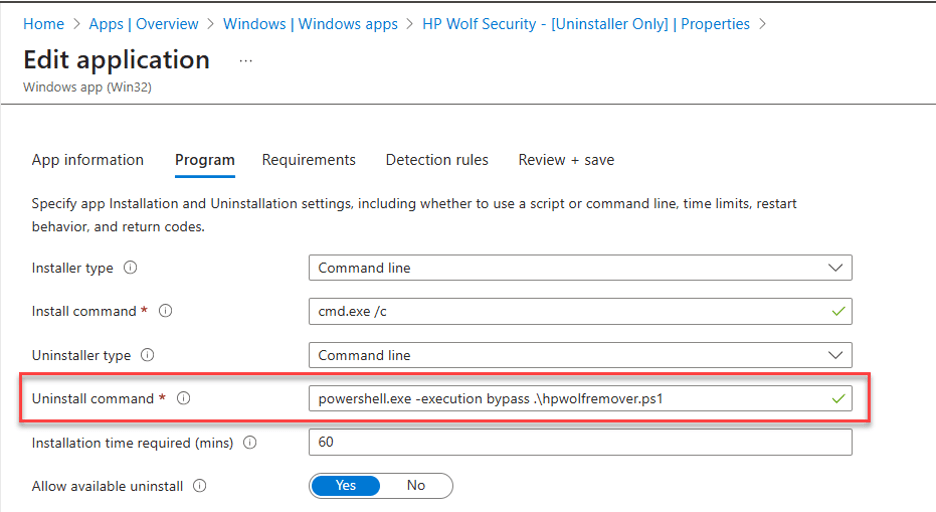
It works—sometimes—but it’s never been a recommended best practice. Here’s why most of us have grumbled about it over the years:
- No native syntax highlighting or easy viewing of the PowerShell code in the Intune portal → leads to shadow IT risks when folks can’t quickly review what’s running.
- Extra overhead for testing, repackaging, and updating: every script tweak means rebuilding and reuploading the entire .intunewin payload.
- Incomplete or bloated app packages when you’re forced to bundle everything together.
- Temptation to abstract the script logic into unmanaged cloud storage (GitHub, Azure blobs, etc.) for sourcing → hello, unmanaged dependencies.
If you’re newer to Intune, it might seem clever at first to wrap everything in a script. But fast-forward a year or two, and you’ll probably hit a painful wall when you need to troubleshoot or update at scale.
So when Microsoft quietly rolled this out to all tenants earlier this week (after the on-again/off-again changelog drama), it was a huge win for day-to-day management.
Here’s our quick first look at the new PowerShell script configuration options in the Win32 app wizard:
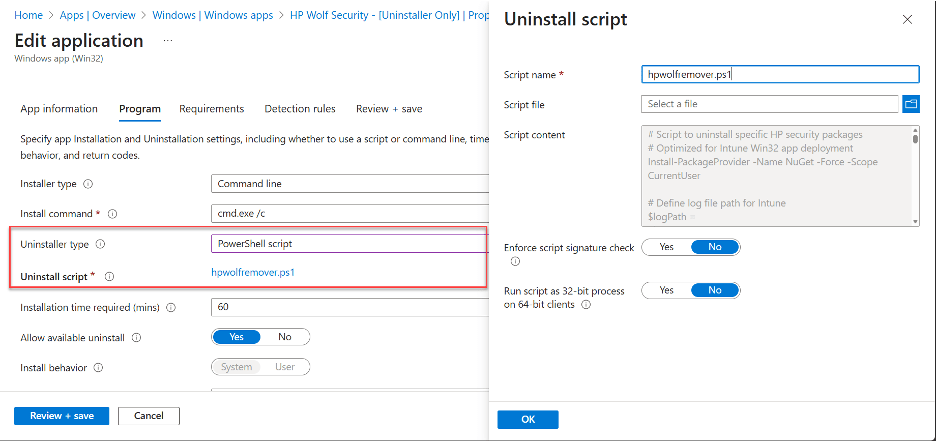
Key improvements right out of the gate:
- Clear separation between your app payload (.intunewin) and the installation logic (.ps1).
- Native upload and visibility of the script in the portal—no more buried-in-the-package black box.
- Better documentation and change tracking for the install process.
A couple of quick notes from the docs:
- Max script size is 50 KB (so keep it lean—complex stuff might still want PSADT or similar wrappers).
- If Multi-Admin Approval (MAA) is enabled in your tenant, you can’t upload scripts during initial app creation—you’ll add/edit them afterward.
- As always, test thoroughly on a small pilot group before going wide. New features can have quirks, especially around retry logic or detection.
Have you had a chance to spin this up in your lab or tenant yet? Drop your early wins, gotchas, or questions in the comments—I’d love to hear how it’s behaving in the real world.

 Kevin Malinoski
Leave a comment