
Hey folks, if you’ve ever banged your head against the wall trying to get Assigned Access (aka Kiosk mode) working smoothly on Windows 11 via Intune, you’re not alone. Microsoft’s documentation is… let’s call it “sparse” when it comes to the unique differences from Windows 10. The current Intune Kiosk templates? They were built for Windows 10, and while single-app mode kinda-sorta works on 11, multi-app is where things get real interesting—and real frustrating.
I’ve spent way too much time in the trenches with this lately, especially after running into some nasty AppLocker pop-ups with Microsoft Edge. So here’s the no-fluff rundown of the gotchas I’ve hit, plus some practical fixes to get you moving forward as we head into 2026.
Common Pain Points Everyone Asks About
- No icons in the multi-app Start menu?
- Custom Start layouts (JSON) not applying?
- How do I set a friendly display name without juggling local/service accounts?
- AppLocker errors popping up randomly when running Edge in kiosk mode?
If any of these sound familiar, keep reading.
That Annoying AppLocker Error with Edge
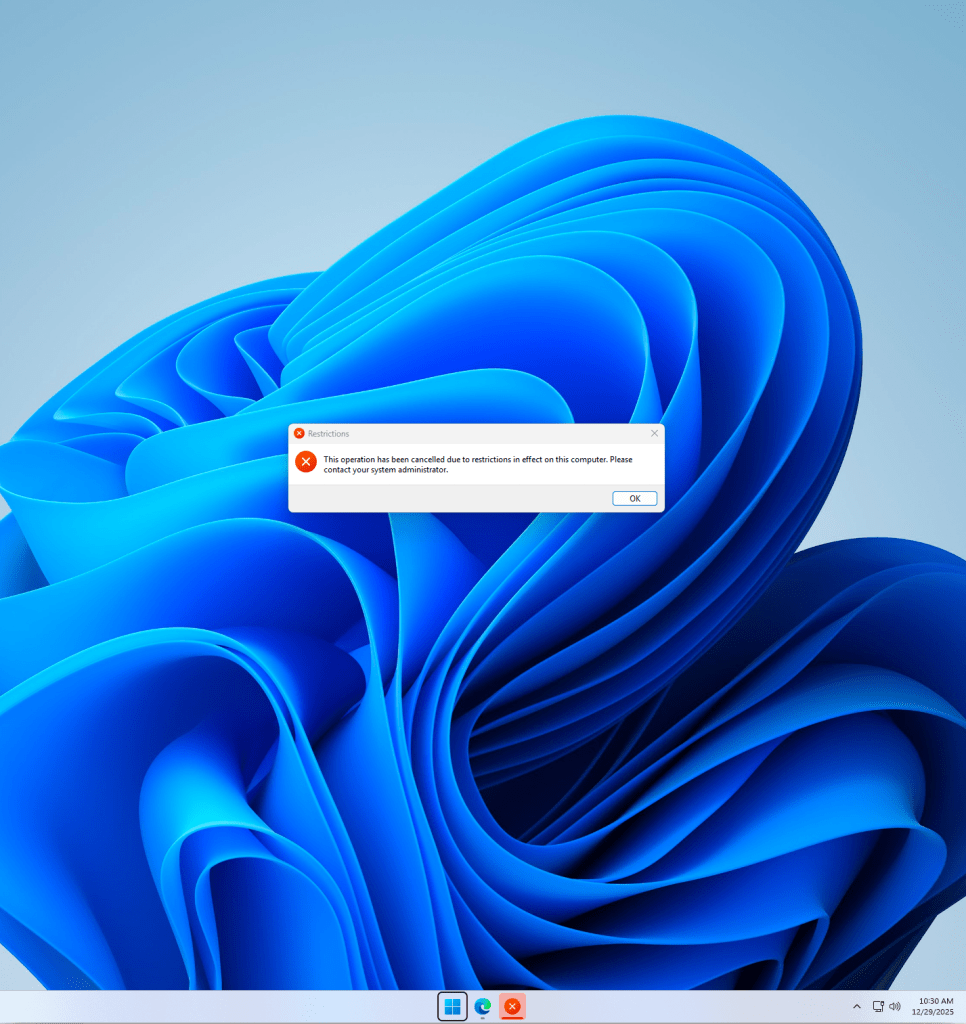
This one started popping up more in 2025: random “This app has been blocked by your system administrator” messages when using Microsoft Edge in kiosk mode—sometimes in the foreground, sometimes lurking in the background.
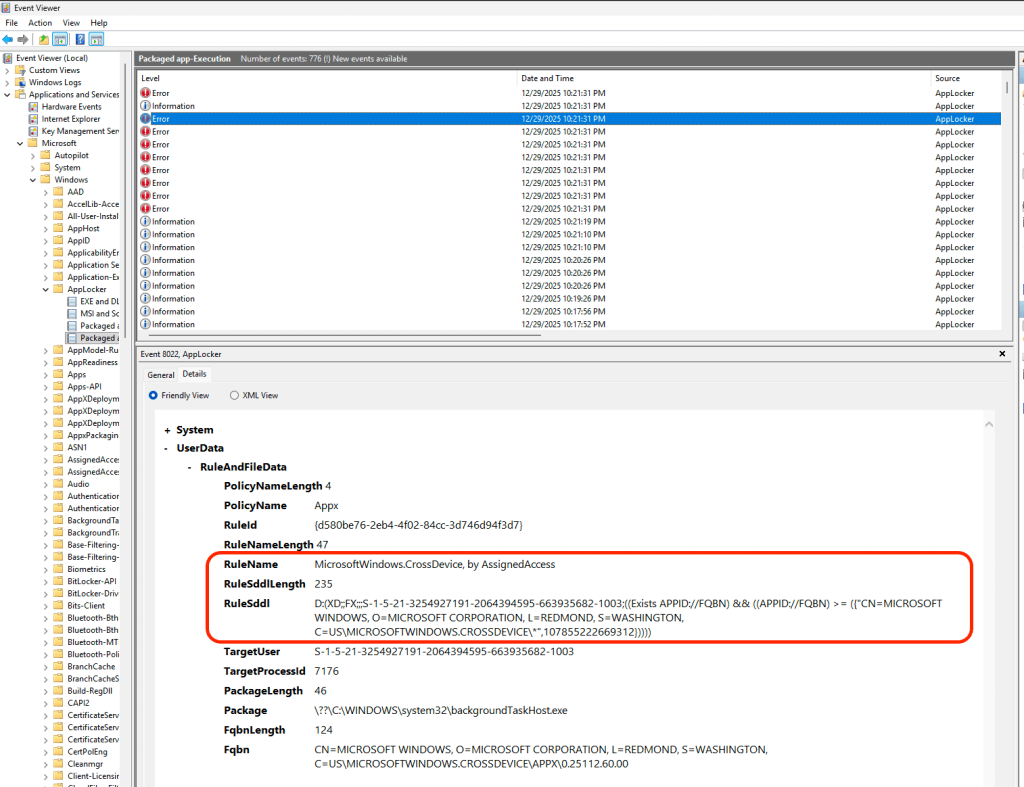
Turns out Assigned Access leans heavily on AppLocker to lock things down. In single-app mode, you don’t get useful Event Viewer logs, but multi-app mode does provide us with the needed logs.
After digging through AppLocker events (Applications and Services Logs > Microsoft > Windows > AppLocker), the culprit turned out to be related to the component of Windows 11, MicrosoftWindows.Client.CBS_cw5n1h2txyewy, more specifically CrossDeviceResume.exe
Honestly there is not much documented about this component – so we have reported this directly with Microsoft and are early awaiting validation regarding this behavior with Assigned Access.
*UPDATE* Microsoft has confirmed this error in behavior and is pushing a fix in 2026, “[The team] team has made a fix for that message. It will finish rolling out to all users by the January preview update (February update for users who don’t take previews)…“
Fix: Preferably deploy this via your Assigned Access XML rather than the old kiosk template. Once added, the pop-ups vanish. Add it to your allowed apps in the XML (multi-app mode lets you do this easily; single-app doesn’t…).
Multi App XML Configuration
<App DesktopAppPath="%windir%\SystemApps\MicrosoftWindows.Client.CBS_cw5n1h2txyewy\CrossDeviceResume.exe" />
Multi App Kiosk Intune Templates (NOT RECCOMENDED)
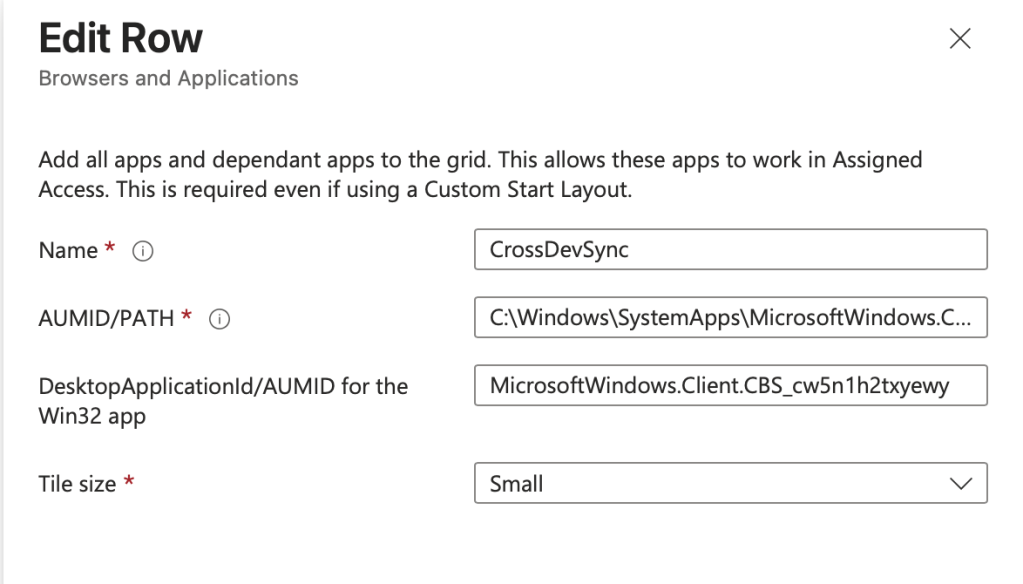
AUMID/PATH: C:\Windows\SystemApps\MicrosoftWindows.Client.CBS\_cw5n1h2txyewy\CrossDeviceResume.exe

DesktopApplicationID/AUMID for the Win32 app: MicrosoftWindows.Client.CBS_cw5n1h2txyewy
The Big Shift: Ditch the Old Kiosk Templates for Windows 11 and Embrace Assigned Access XML Profiles
The Intune “Kiosk” profiles you’re used to? They’re legacy Windows 10 tech. On Windows 11, multi-app Assigned Access behaves differently—Start menu customization requires the use of the XML, auto-pinning of applications has been removed, and some restrictions (like File Explorer namespaces) were buggy until recent cumulative updates.
Sticking with the old templates introduces technical debt and blocks you from true zero-touch deployment. The future-proof way? Switch to the AssignedAccess CSP with a custom XML configuration.
Yes, it’s a bit more work upfront, but it gives you full control—and it’s the only way to reliably handle multi-app on Windows 11. Below we are going to discuss four very common use cases and how to deploy them with the Assigned Access XML profiles.
Example Configurations
Example 1: Single-App Edge Kiosk
Disclaimer: I’m holding off recommending this for production until Microsoft patches the lingering AppLocker quirks with Edge & the CrossDeviceResume windows 11 component. I’ve escalated this concern, and I’m optimistic we’ll see a fix soon.
THAT WAS FAST! *UPDATE* Microsoft has confirmed this error in behavior and is pushing a fix in 2026, “[The team] team has made a fix for that message. It will finish rolling out to all users by the January preview update (February update for users who don’t take previews)…“
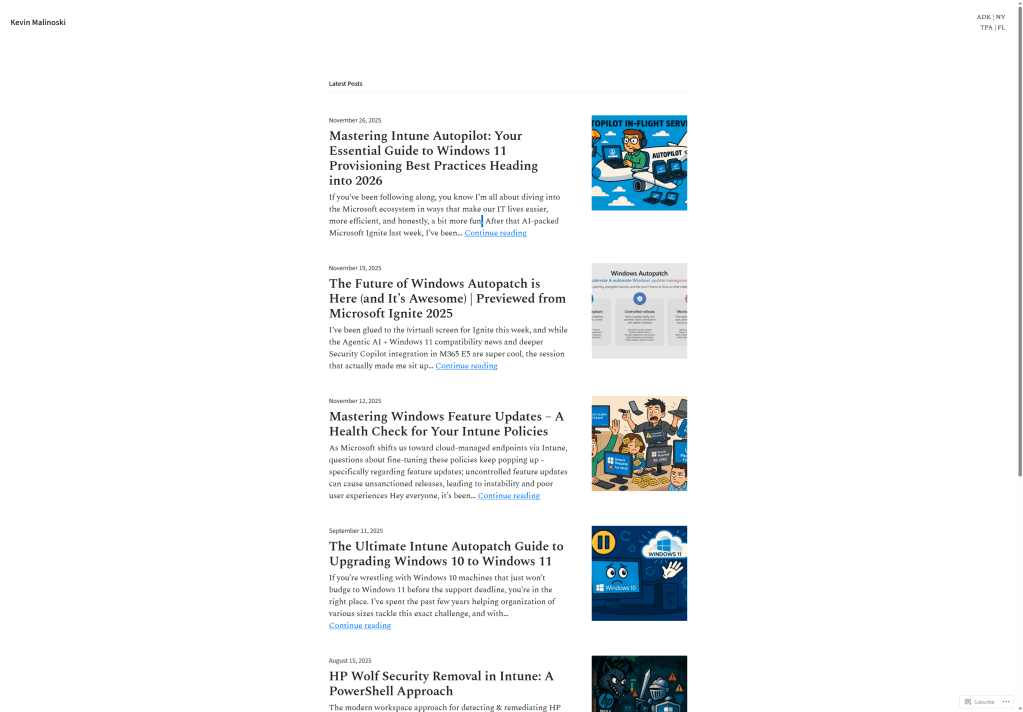
<?xml version="1.0" encoding="utf-8"?>
<AssignedAccessConfiguration xmlns="http://schemas.microsoft.com/AssignedAccess/2017/config" xmlns:rs5="http://schemas.microsoft.com/AssignedAccess/201810/config" xmlns:v4="http://schemas.microsoft.com/AssignedAccess/2021/config">
  <Profiles>
    <Profile Id="{EDB3036B-780D-487D-A375-69369D8A8F78}">
      <KioskModeApp v4:ClassicAppPath="%ProgramFiles(x86)%\Microsoft\Edge\Application\msedge.exe" v4:ClassicAppArguments="--kiosk https://www.malinoski.me/ --edge-kiosk-type=fullscreen --kiosk-idle-timeout-minutes=5" />
      <v4:BreakoutSequence Key="Ctrl+A" />
    </Profile>
  </Profiles>
  <Configs>
    <Config>
      <AutoLogonAccount rs5:DisplayName="Single App Kiosk Account" />
      <DefaultProfile Id="{EDB3036B-780D-487D-A375-69369D8A8F78}" />
    </Config>
  </Configs>
</AssignedAccessConfiguration>
Example 2: Multi-App with Edge (Recommended for Web-Focused Kiosks)
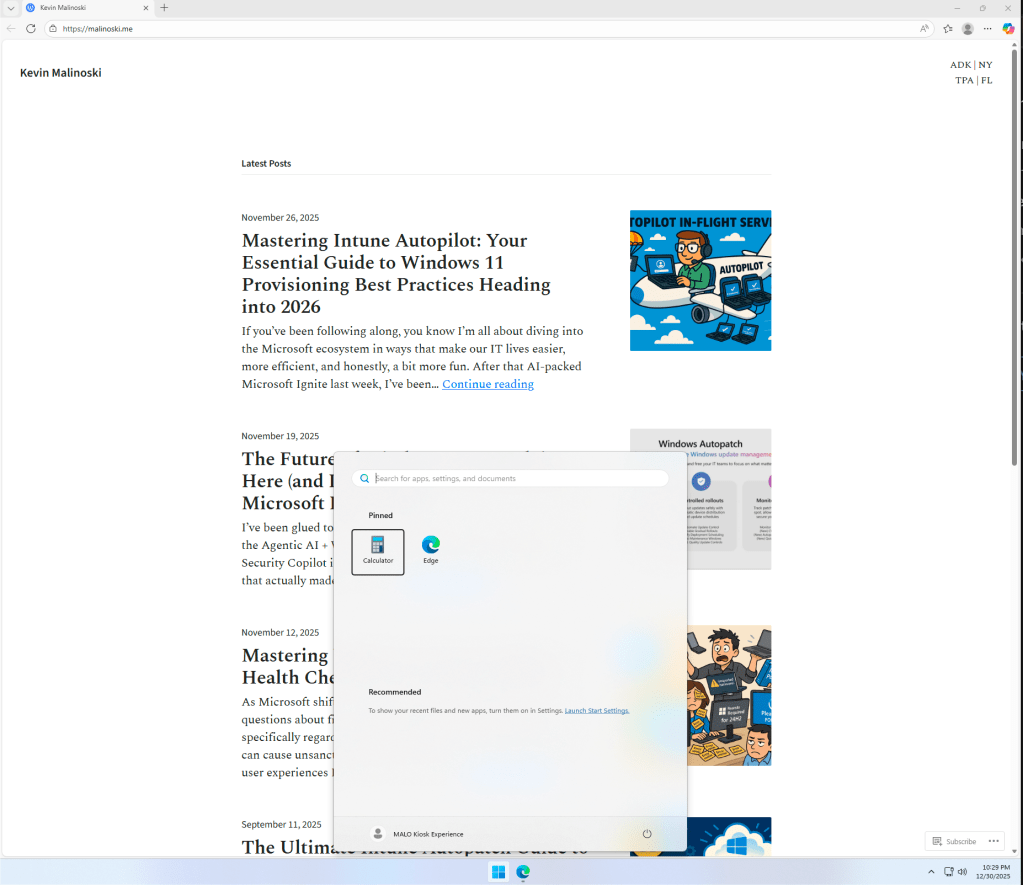
<?xml version="1.0" encoding="utf-8"?>
<AssignedAccessConfiguration xmlns:xs="http://www.w3.org/2001/XMLSchema" xmlns="http://schemas.microsoft.com/AssignedAccess/2017/config" xmlns:default="http://schemas.microsoft.com/AssignedAccess/2017/config" xmlns:rs5="http://schemas.microsoft.com/AssignedAccess/201810/config" xmlns:v3="http://schemas.microsoft.com/AssignedAccess/2020/config" xmlns:v5="http://schemas.microsoft.com/AssignedAccess/2022/config">
  <Profiles>
    <Profile Id="{9A2A490F-10F6-4764-974A-43B19E722C23}">
      <AllAppsList>
        <AllowedApps>
          <App DesktopAppPath="%ProgramFiles(x86)%\Microsoft\Edge\Application\msedge.exe" rs5:AutoLaunch="true" />
          <App DesktopAppPath="C:\Windows\SystemApps\MicrosoftWindows.Client.CBS\_cw5n1h2txyewy\CrossDeviceResume.exe" />
        </AllowedApps>
      </AllAppsList>
      <rs5:FileExplorerNamespaceRestrictions>
        <rs5:AllowedNamespace Name="Downloads" />
        <v3:AllowRemovableDrives />
      </rs5:FileExplorerNamespaceRestrictions>
      <v5:StartPins><![CDATA[{
                    "pinnedList":[
                        {"desktopAppLink": "%ALLUSERSPROFILE%\\Microsoft\\Windows\\Start Menu\\Programs\\Microsoft Edge.lnk"}
                    ]
                }]]></v5:StartPins>
      <Taskbar ShowTaskbar="true" />
    </Profile>
  </Profiles>
  <Configs>
    <Config>
      <AutoLogonAccount rs5:DisplayName="Multi App Kiosk Experience" />
      <DefaultProfile Id="{9A2A490F-10F6-4764-974A-43B19E722C23}" />
    </Config>
  </Configs>
</AssignedAccessConfiguration>
Example 3: Restricted User Experience
Taken direct from Microsoft documentation (https://learn.microsoft.com/en-us/windows/configuration/assigned-access/quickstart-restricted-user-experience?tabs=intune&pivots=windows-11#configure-a-restricted-user-experience)
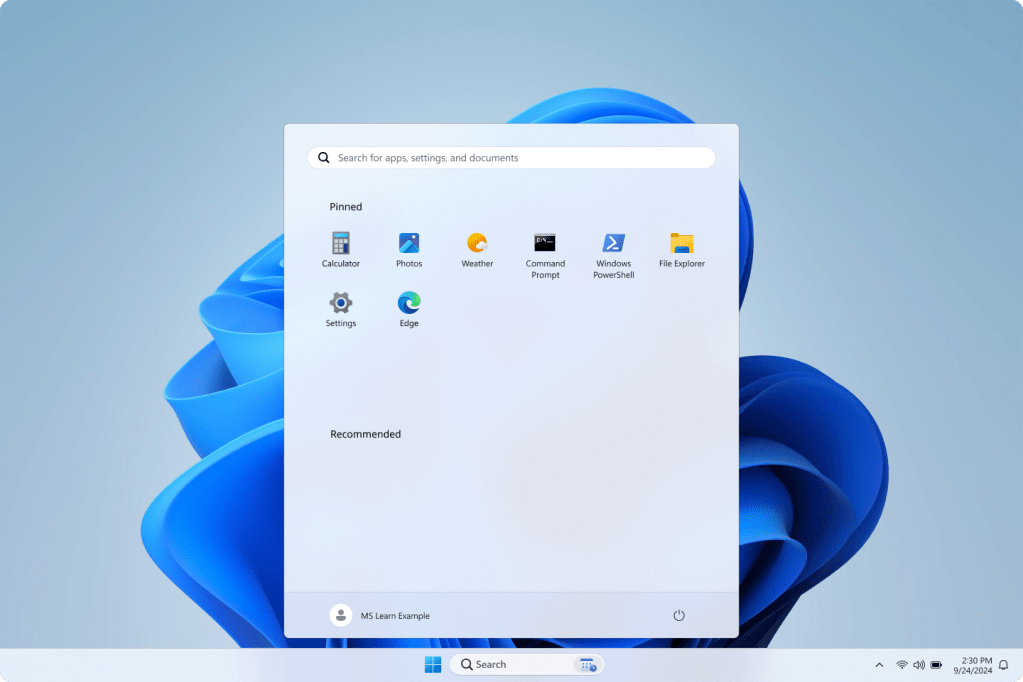
<?xml version="1.0" encoding="utf-8"?>
<AssignedAccessConfiguration xmlns="http://schemas.microsoft.com/AssignedAccess/2017/config" xmlns:rs5="http://schemas.microsoft.com/AssignedAccess/201810/config" xmlns:v3="http://schemas.microsoft.com/AssignedAccess/2020/config" xmlns:v4="http://schemas.microsoft.com/AssignedAccess/2021/config" xmlns:v5="http://schemas.microsoft.com/AssignedAccess/2022/config">
  <Profiles>
    <Profile Id="{9A2A490F-10F6-4764-974A-43B19E722C23}">
    <AllAppsList>
        <AllowedApps>
          <App AppUserModelId="Microsoft.WindowsCalculator_8wekyb3d8bbwe!App" />
          <App AppUserModelId="Microsoft.Windows.Photos_8wekyb3d8bbwe!App" />
          <App AppUserModelId="Microsoft.BingWeather_8wekyb3d8bbwe!App" />
          <App DesktopAppPath="C:\Windows\system32\cmd.exe" />
          <App DesktopAppPath="%windir%\System32\WindowsPowerShell\v1.0\Powershell.exe" />
          <App DesktopAppPath="%windir%\explorer.exe" />
          <App AppUserModelId="windows.immersivecontrolpanel_cw5n1h2txyewy!microsoft.windows.immersivecontrolpanel" />
          <App DesktopAppPath="%ProgramFiles(x86)%\Microsoft\Edge\Application\msedge.exe" />
          <App DesktopAppPath="C:\Windows\SystemApps\MicrosoftWindows.Client.CBS\_cw5n1h2txyewy\CrossDeviceResume.exe" />
        </AllowedApps>
      </AllAppsList>
      <rs5:FileExplorerNamespaceRestrictions>
        <rs5:AllowedNamespace Name="Downloads" />
        <v3:AllowRemovableDrives />
      </rs5:FileExplorerNamespaceRestrictions>
      <v5:StartPins><![CDATA[{
                    "pinnedList":[
                        {"packagedAppId":"Microsoft.WindowsCalculator_8wekyb3d8bbwe!App"},
                        {"packagedAppId":"Microsoft.Windows.Photos_8wekyb3d8bbwe!App"},
                        {"packagedAppId":"Microsoft.BingWeather_8wekyb3d8bbwe!App"},
                        {"desktopAppLink":"%APPDATA%\\Microsoft\\Windows\\Start Menu\\Programs\\System Tools\\Command Prompt.lnk"},
                        {"desktopAppLink":"%APPDATA%\\Microsoft\\Windows\\Start Menu\\Programs\\Windows PowerShell\\Windows PowerShell.lnk"},
                        {"desktopAppLink":"%APPDATA%\\Microsoft\\Windows\\Start Menu\\Programs\\File Explorer.lnk"},
                        {"packagedAppId": "windows.immersivecontrolpanel_cw5n1h2txyewy!microsoft.windows.immersivecontrolpanel"},
                        {"desktopAppLink": "%ALLUSERSPROFILE%\\Microsoft\\Windows\\Start Menu\\Programs\\Microsoft Edge.lnk"}
                    ]
                }]]></v5:StartPins>
      <Taskbar ShowTaskbar="true" />
    </Profile>
  </Profiles>
  <Configs>
    <Config>
      <AutoLogonAccount rs5:DisplayName="MALINOSKI Web Browser" />
      <DefaultProfile Id="{9A2A490F-10F6-4764-974A-43B19E722C23}" />
    </Config>
  </Configs>
</AssignedAccessConfiguration>
Example 4: Multi-User Kiosk via Restricted User Experience
Yes, It’s Possible! This is the profile you want to try. Too often I have heard the request, “How do we restrict users from logging into the kiosk?” Here’s the thing – if you have seen that scene from Men-in-Black where Will Smith’s character exhibits out-of-the-ordinary reasoning and critical thinking skills….

We need start asking ourselves a different question – how do we control the access that our end users gain to the system if they were to decide to log into a public kiosk?
The answer is to extend the Assigned Access restrictions to all user accounts, not just the targeted “kioskuser0” builtin account.

Use the XML code below to test this out in your environment! There are some minor restrictions with this approach to keep in mind:
- You can ONLY have one single app config, but you can have multiple multi app configs in the multi user XML
- Keep in mind that the following terms are (basically) interchangeable when we are talking about Windows 11 Kiosks
- Assigned Access – Kiosk Mode
- Single App Kiosk – KioskModeApp
- Multi App Kiosk – AllAppList – Restricted User Experience
- User groups can only use a Restricted User Experience profile
- Restricted User Experience profiles only work with Standard user accounts, they should NOT be targeted at Administrator accounts
- User logins CANNOT be tied to Conditional Access Policies that require user interaction – https://learn.microsoft.com/en-us/troubleshoot/mem/intune/device-configuration/users-cannot-logon-windows-multi-app-kiosk
Without further ado…. the XML profile that you have been waiting to test out!
<?xml version="1.0" encoding="utf-8"?>
<AssignedAccessConfiguration xmlns="http://schemas.microsoft.com/AssignedAccess/2017/config" xmlns:rs5="http://schemas.microsoft.com/AssignedAccess/201810/config" xmlns:v3="http://schemas.microsoft.com/AssignedAccess/2020/config" xmlns:v4="http://schemas.microsoft.com/AssignedAccess/2021/config" xmlns:v5="http://schemas.microsoft.com/AssignedAccess/2022/config">
  <Profiles>
    <Profile Id="{EDB3036B-780D-487D-A375-69369D8A8F78}">
      <KioskModeApp v4:ClassicAppPath="%ProgramFiles(x86)%\Microsoft\Edge\Application\msedge.exe" v4:ClassicAppArguments="--kiosk https://www.malinoski.me/ --edge-kiosk-type=public-browsing --kiosk-idle-timeout-minutes=15" />
      <v4:BreakoutSequence Key="Ctrl+A" />
    </Profile>
    <Profile Id="{9A2A490F-10F6-4764-974A-43B19E722C23}">
    <AllAppsList>
        <AllowedApps>
          <App AppUserModelId="Microsoft.WindowsCalculator_8wekyb3d8bbwe!App" />
          <App AppUserModelId="Microsoft.Windows.Photos_8wekyb3d8bbwe!App" />
          <App AppUserModelId="Microsoft.BingWeather_8wekyb3d8bbwe!App" />
          <App DesktopAppPath="C:\Windows\system32\cmd.exe" />
          <App DesktopAppPath="%windir%\System32\WindowsPowerShell\v1.0\Powershell.exe" />
          <App DesktopAppPath="%windir%\explorer.exe" />
          <App AppUserModelId="windows.immersivecontrolpanel_cw5n1h2txyewy!microsoft.windows.immersivecontrolpanel" />
          <App DesktopAppPath="%ProgramFiles(x86)%\Microsoft\Edge\Application\msedge.exe" />
          <App DesktopAppPath="C:\Windows\SystemApps\MicrosoftWindows.Client.CBS\_cw5n1h2txyewy\CrossDeviceResume.exe" />
        </AllowedApps>
      </AllAppsList>
      <rs5:FileExplorerNamespaceRestrictions>
        <rs5:AllowedNamespace Name="Downloads" />
        <v3:AllowRemovableDrives />
      </rs5:FileExplorerNamespaceRestrictions>
      <v5:StartPins><![CDATA[{
                    "pinnedList":[
                        {"packagedAppId":"Microsoft.WindowsCalculator_8wekyb3d8bbwe!App"},
                        {"packagedAppId":"Microsoft.Windows.Photos_8wekyb3d8bbwe!App"},
                        {"packagedAppId":"Microsoft.BingWeather_8wekyb3d8bbwe!App"},
                        {"desktopAppLink":"%APPDATA%\\Microsoft\\Windows\\Start Menu\\Programs\\System Tools\\Command Prompt.lnk"},
                        {"desktopAppLink":"%APPDATA%\\Microsoft\\Windows\\Start Menu\\Programs\\Windows PowerShell\\Windows PowerShell.lnk"},
                        {"desktopAppLink":"%APPDATA%\\Microsoft\\Windows\\Start Menu\\Programs\\File Explorer.lnk"},
                        {"packagedAppId": "windows.immersivecontrolpanel_cw5n1h2txyewy!microsoft.windows.immersivecontrolpanel"},
                        {"desktopAppLink": "%ALLUSERSPROFILE%\\Microsoft\\Windows\\Start Menu\\Programs\\Microsoft Edge.lnk"}
                    ]
                }]]></v5:StartPins>
      <Taskbar ShowTaskbar="true" />
    </Profile>
  </Profiles>
  <Configs>
    <Config>
      <AutoLogonAccount rs5:DisplayName="MALINOSKI Web Browser" />
      <DefaultProfile Id="{EDB3036B-780D-487D-A375-69369D8A8F78}" />
    </Config>
    <Config>
      <UserGroup Type="LocalGroup" Name="Users" />
      <DefaultProfile Id="{9A2A490F-10F6-4764-974A-43B19E722C23}" />
    </Config>
  </Configs>
</AssignedAccessConfiguration>
Assigning the XML configuration through Intune
Once you have picked an XML format that you want to try – follow the steps below to publish the configuration through a Custom OMA-URI Intune config. You can download the above XML files from my GitHub repo – https://github.com/kevinmalinoski/Intune-Blog-Resources/tree/main/Assigned%20Access%20Windows%2011%20Kiosk%20Templates
- Navigate to Intune Admin Center > Devices > Windows > Configuration > + Create > New Policy
- Platform: Windows 10 and later
Profile Type: Templates
Template Name: Custom - Click Create

- Choose and Name and provide a description for your policy
- Under OMA-URI Settings click Add
- Add the following values
- Name
- Description
- OMA-URI: ./Vendor/MSFT/AssignedAccess/Configuration
- Data Type: String (XML file) – Upload your custom XML Assigned Access config file
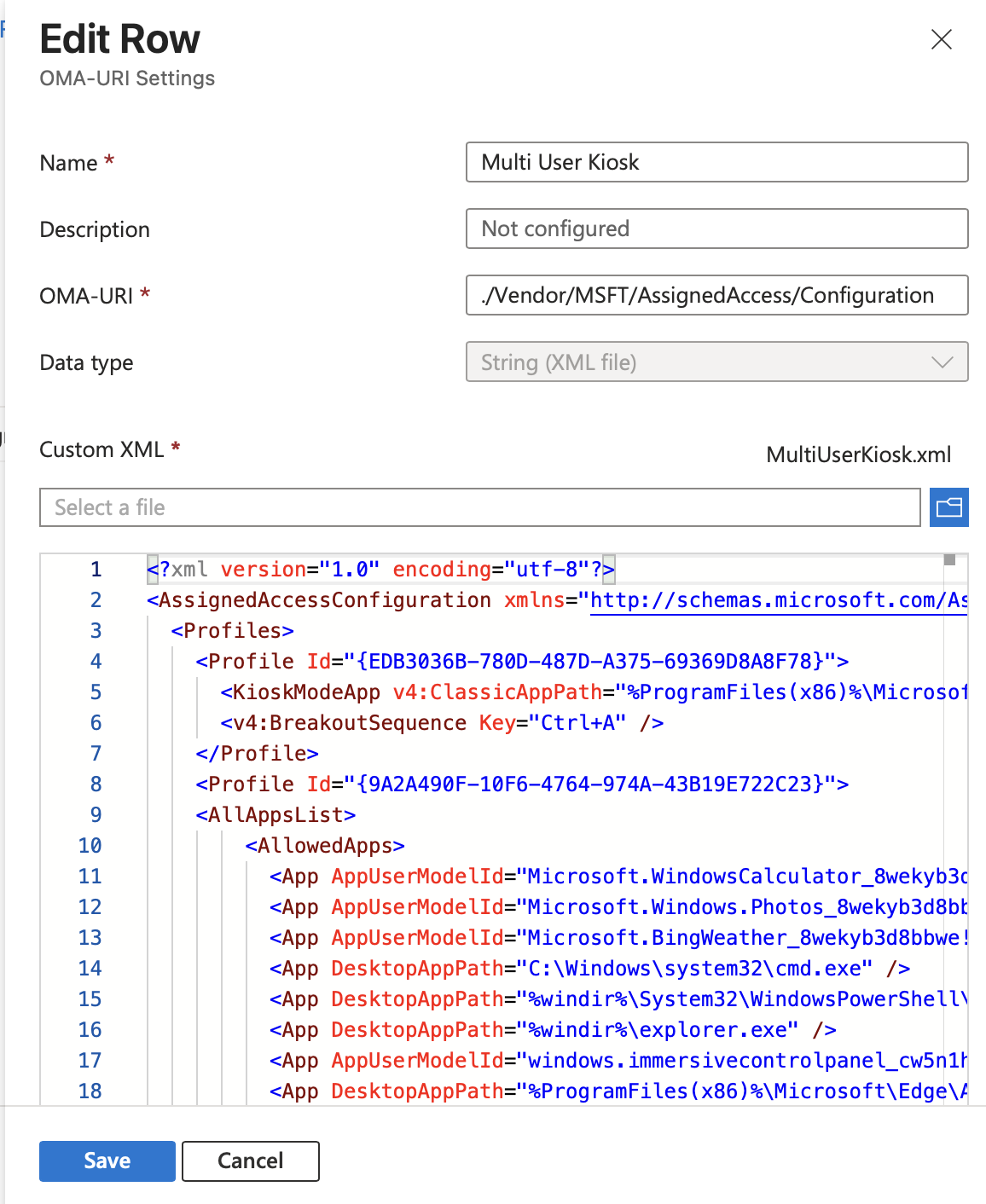
- Click Save and assign to a device group for testing in your environment
Wrapping Up
Assigned Access on Windows 11 is legitimately a game-changer—way beyond basic “kiosk” mode. It lets you build dedicated production terminals, controlled single-app machines, or locked-down frontline worker desktops with real flexibility.
Once you nail the fundamentals (and switch to XML configs), the possibilities are endless.
What’s your experience been like? Are you already using Assigned Access in creative ways, or did this post answer (or miss) a burning question? Drop it in the comments—I’d love to hear how you’re tackling Windows 11 kiosks as we kick off 2026 with a ton of new Intune features on the horizon.
Let’s make endpoint management a little less painful together! 🚀


 Kevin Malinoski
Leave a comment