
As Microsoft shifts us toward cloud-managed endpoints via Intune, questions about fine-tuning these policies keep popping up – specifically regarding feature updates; uncontrolled feature updates can cause unsanctioned releases, leading to instability and poor user experiences
Hey everyone, it’s been a bit since my last post on leveraging Autopatch to smoothly transition from Windows 10 to Windows 11 (if you missed it, check it out here). Many of you have nailed those Windows 10 to 11 in-place upgrades and are now eyeing the future—specifically, how to handle upcoming feature updates like 25H2 in a controlled, reliable way.
So today, we’re diving into best practices for managing Windows Feature Updates. This isn’t just lab-tested advice; it’s drawn from real-world scenarios across various environments. Whether you’re new to Intune or refining your setup, let’s ensure your policies are healthy and ready for what’s next.
1. Optimizing the Update Ring Policy & Enhancing the User Experience
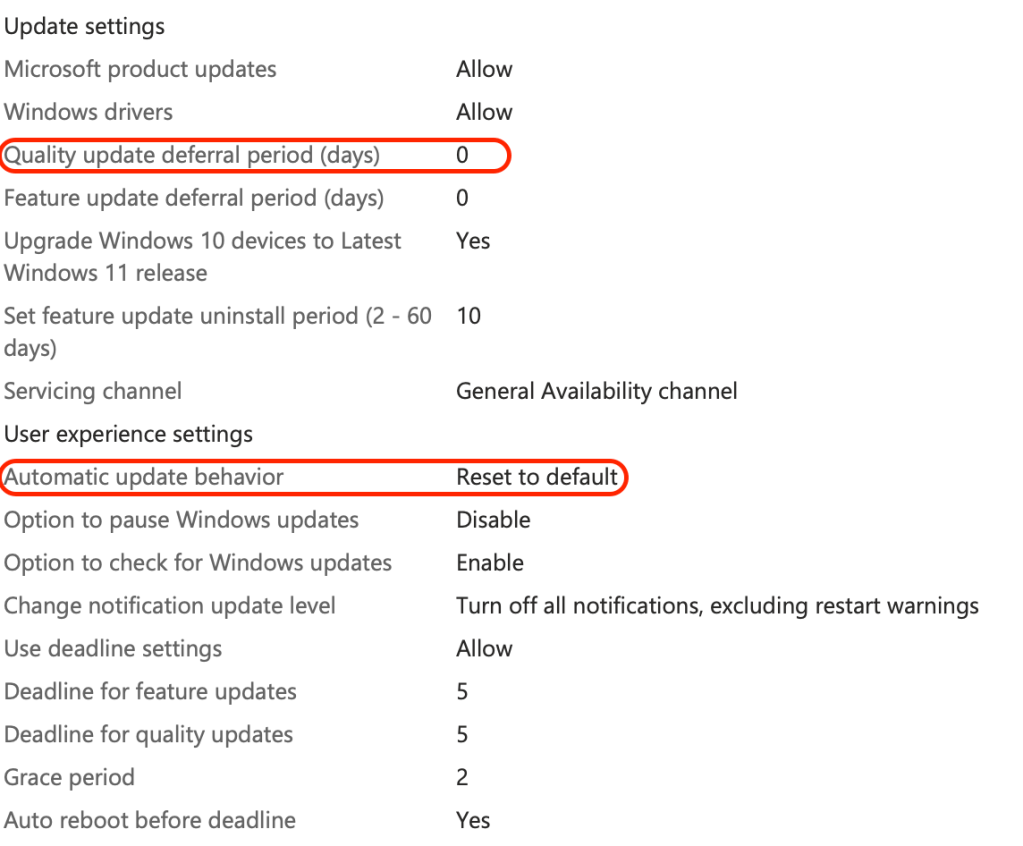
Start with the basics: the client-side update ring policy, which directly impacts how users interact with updates. If you’re migrating or testing Intune management for the first time on a group of devices then I strongly recommend you configure the automatic update behavior Reset to default, here’s why….
If you consider our update practices before the work-from-anywhere era, we used to configure our local Active Directory to manage the device power, sleep, and update policies in order to service our updates at a regular and expected cadence. Now our end users’ devices are leaving the office perimeter regularly – and in some cases never returning for our remote workers!
Sticking to these legacy practices can cause missed update cycles, non-compliant devices, and end user problems that create a large backlog for our service desks. If you haven’t tried this setting I highly recommend testing it out to some extent in your environment.
Here’s my go-to policy that I find to be a great starting place for building your client Update Ring Policy – it is worth noting that Feature update deferral period (days) is required to be set to a value of 0.
Pro tip! Delivery Optimization – Align with Active Hours for Bandwidth Efficiency
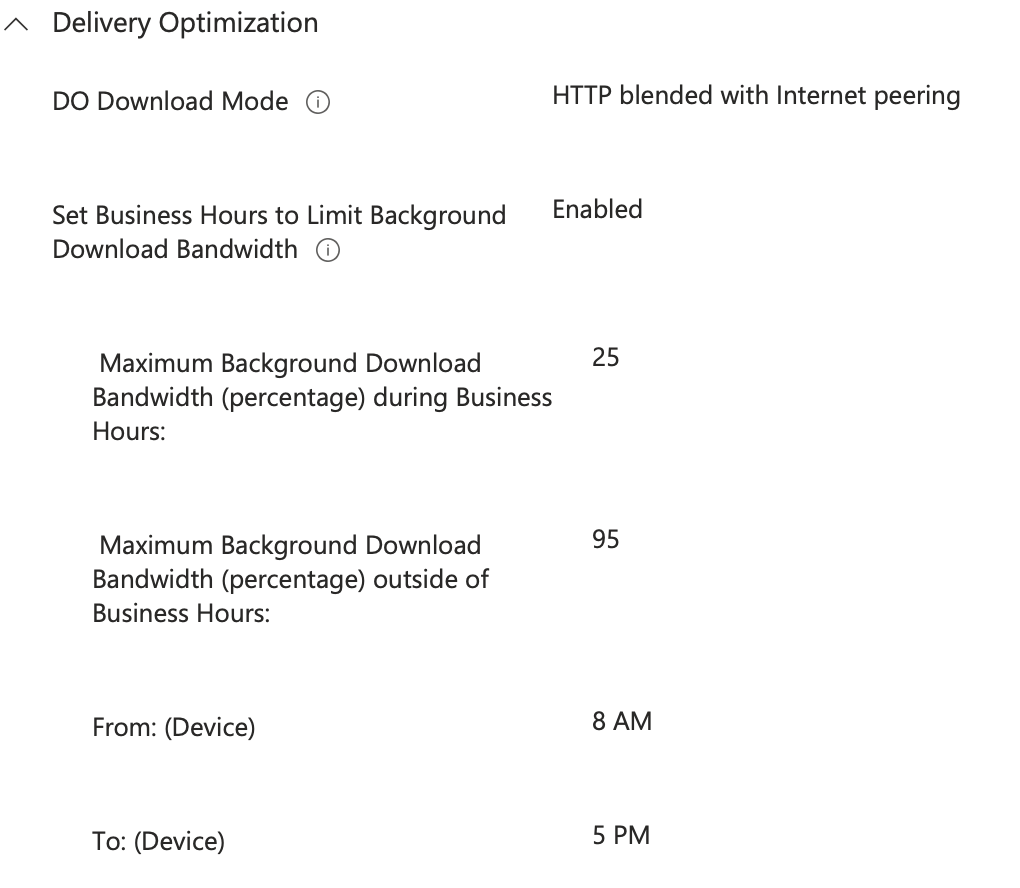
While setting up your client update policy, don’t overlook Delivery Optimization —it’s crucial for managing how updates are downloaded without overwhelming your network. In today’s distributed workforces, large feature updates can strain bandwidth, especially during peak hours, leading to slower internet for video calls or cloud apps.
For a minimum configuration, create a new Settings Catalog profile enable background downloads and set business hours similar to below – this will also allow your devices to share and seed the update over the LAN to improve our bandwidth efficiency.
2. Feature Updates – Set Your Baseline Version
Don’t let Microsoft dictate your rollout timeline. Without a defined policy, even Intune-managed devices might grab the latest update automatically—like my lab machines snagging 25H2 within a week of release!
Establish a preferred feature update baseline ASAP. For most environments, I recommend starting with 24H2—it’s stable, (mostly) bug-free, and widely adopted. This is what gives you the control over when devices see new feature releases – and unlike Update Ring policies, devices can have multiple Feature Update policies assigned.
**It is important to note that the highest feature update version will take precedence on the device in most cases**
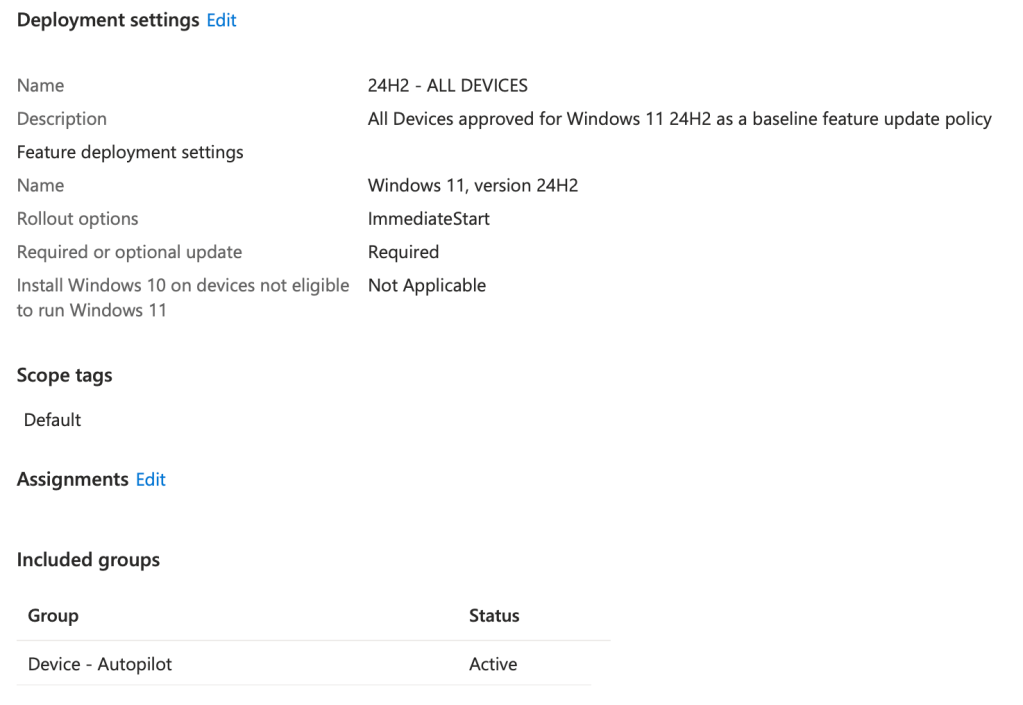
Scope this policy to all Intune devices, preferably with a dynamic group. I generally suggest aligning this group with your Autopilot Registration Entra Group; ensuring our machines will be locked to our baseline feature update version from the start of OOBE provisioning. If you do not have any dynamic groups configured below are some helpful examples to consider:
All Intune-managed Windows Devices:
(device.deviceOSType -startsWith “Windows”) and (device.deviceManagementAppId -eq “0000000a-0000-0000-c000-000000000000”)
All SCCM Co-Managed Devices:
(device.deviceManagementAppId -eq “54b943f8-d761-4f8d-951e-9cea1846db5a”)
All Autopilot Devices:
(device.devicePhysicalIDs -any (_ -startsWith “[ZTDid]”))
3. Reporting and Validation – Keep Tabs on Your Environment
Once policies are deployed, visibility is key. Ensure Windows Health Monitoring and telemetry settings are configured to ensure devices report diagnostic data accurately back to Intune.
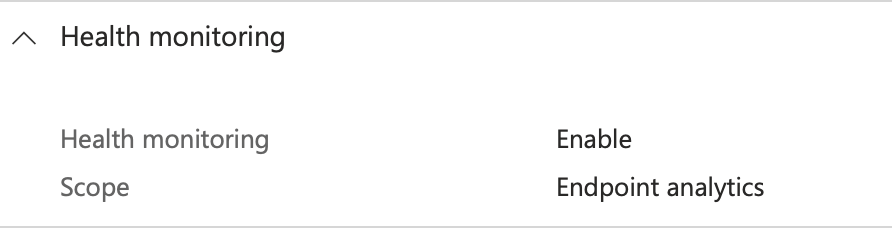
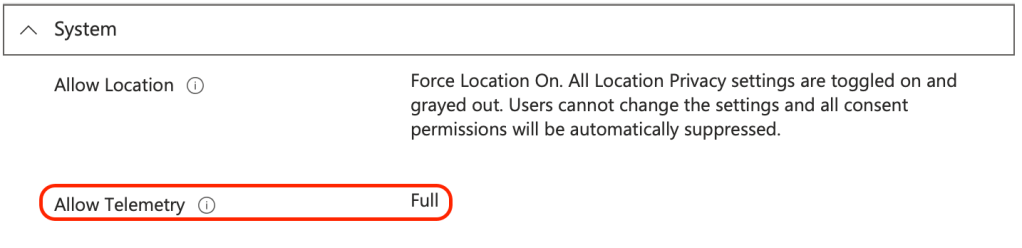
These two configurations unlock a few invaluable reports through Intune
Feature update failures report – This shows you granular information as to why a feature update is failing on a device, with detailed information.
Find it here: Intune admin center > Devices > Monitor > Feature update policies with alerts
Windows Feature Update report — This tracks update scan & download times, offer status, installation progress, and even user rollbacks.
Find it here: Intune admin center > Reports > Windows updates > Reports > Windows feature update report
Utilize both of these reports to validate your policy configuration and endpoint enforcement. Regular monitoring helps spot issues early, turning potential chaos into manageable insights if you encounter problem machines.
4. Tackling Common Issues & Remediations
Typically at this point we will run into some stubborn machines…. Inconsistent or missing feature update behavior on endpoints often stems from a few culprits:
- Orphaned Update Policy Registry Keys: There can be various registry keys that will block the ability for Intune to manage devices that may remain from other patch management systems – refer to the remediation script published in my GitHub & referenced in the Autopatch post from last month –
https://github.com/kevinmalinoski/Intune-Blog-Resources/blob/main/Feature%20Update%20Tookit/2%20-%20Conflict%20Registry%20Keys/remediation-updateregistryconflict.ps1 - Orphaned Safeguard Holds in Registry: Removing the following registry key can resolve appraisal service permission errors for the feature update evaluation service –
Computer\HKEY_LOCAL_MACHINE\SOFTWARE\Microsoft\Windows NT\CurrentVersion\AppCompatFlags\TargetVersionUpgradeExperienceIndicators
Once removed, run the following command to manually trigger the appraisal service:Compattelrunner.exe -m:appraiser.dll -f:DoScheduledTelemetryRun
This is also serviced by the scheduled task located at Task Scheduler Library > Microsoft > Windows Application Experience > Microsoft Compatibility Appraiser Exp - Disabled System Services: The following services are required
Microsoft Account sign-in Assistant service (Manual)
Connected User Experiences and Telemetry service (Automatic)
More troubleshooting related information can be found at the following article provided by Luke Ramsdale (Sr Security Customer Escalation Engineer) at Microsoft Intune – a fantastic resource I highly recommend that you save in your favorites!
https://techcommunity.microsoft.com/blog/intunecustomersuccess/troubleshooting-windows-feature-updates-in-microsoft-intune/4401828
Wrapping Up – Stay Ahead with Controlled Updates
Managing feature updates in Intune isn’t about perfection; it’s about control and consistency. By focusing on user-friendly policies, baselines, reporting, and quick remediations, you’ll create a stable environment ready for 25H2 and beyond.
If this resonates or helps resolve an issue in your setup, drop a comment below—I’d love to hear your experiences. Still stuck? Reach out; community insights make us all better. Let’s keep pushing toward zero-touch!


 Kevin Malinoski
Leave a comment