
Device check-ins are the backbone of Intune ensuring policies and apps stay in sync
But when latency creeps in, it can throw a wrench in your plans.
As an Intune admin, you know the stakes: keeping devices compliant, secure, and up to date across a sprawling enterprise is no small feat…
Drawing from insights shared by Albert Cabello at the Microsoft Technical Takeoff (YouTube) and additional research, this post breaks down how Intune check-ins work, what causes delays, and how to optimize your environment with practical tips—including telemetry and reporting best practices—to keep things running smoothly.
How Intune Check-Ins Work
Intune device check-ins are the mechanism that keeps your organization’s devices aligned with security policies, compliance settings, and app deployments. There are multiple check-in types, each serving a distinct and important purpose with keeping our Intune endpoints aligned with our organizational baseline.
Maintenance Updates: The Routine Check-In
This update happens every 8 hours & handles essential tasks like:
- Refreshing device compliance status
- Updating client certificates
- Pushing reporting updates to Intune
- Applying endpoint policy updates
Intune Tech Tip!
According to Microsoft, about 80% of all Intune check-ins are Maintenance Updates, which typically do not result in any configuration changes for the endpoint!
‘Fast Lane’ Updates: The Priority Check-In Push
Fast Lane, or change-based updates, occur automatically when there is a detected change in the system configuration for Intune. Below are some examples of what actions will trigger this check-In:
- Admin assigns payloads (apps, policies & resources) to new groups
- Admin modifies contents and settings of payload
- Modified Entra group memberships linked to payload
- In-store app version updates pushed from developers
Intune Tech Tip!
These updates are prioritized to ensure critical changes are applied quickly, but they’re not immune to delays.
What Causes Latency?
Latency in check-ins can be a headache, slowing down policy enforcement and app deployments. Here are the main culprits:
Organizational and Device Check-In Limits
Intune is globally distributed over a vast network of data centers, providing a globally redundant MDM solution. There are many external factors that can result in perceived latency on the Intune platform:
- Third-party platforms: Integration with Apple or Google can introduce delays due to their notification systems.
- User-related issues: Interrupted installations, absent users, or pending reboots can stall updates.
- Network constraints: Unreliable LAN connections or limited bandwidth can hinder communication with Intune.
However, Microsoft may purposefully throttle check-ins when a device or organization hits its tenant check-in quota for the day – causing frustration for Intune administrators, the service desk, and the end-user.
This is a lose-lose-lose scenario – however, understanding what Microsoft has planned to address these latency challenges and why they are occurring can help us adjust our practices of Intune administration to create win-win-win scenarios while saving time for all involved.
Microsoft’s Efforts to Reduce Latency
Capacity Management and Load Balancing
Microsoft leverages global data centers to manage Intune’s workload, and is actively working to implement Dynamic Quality-of-Service. This is planned to allow check-in quotas to be based on overall utilization of Intune server resources, which aims to maintain consistent performance and payload changes, even during peak usage.
Smarter Maintenance Check-Ins
Microsoft is shifting from fixed maintenance schedules to on-demand check-ins, using device check-in patterns to determine optimal update times, reducing unnecessary check-ins.
Declarative Device Management (DDM)
The current OMA-DM protocol, over 15 years old, is showing its age. Declarative Device Management (DDM) is Microsoft’s modern solution, sending the complete desired endpoint state in a single communication to improve efficiency and scalability.
Inside Intune’s Change Notification Process
Understanding the server-side workflow for change notifications sheds light on where latency can occur:
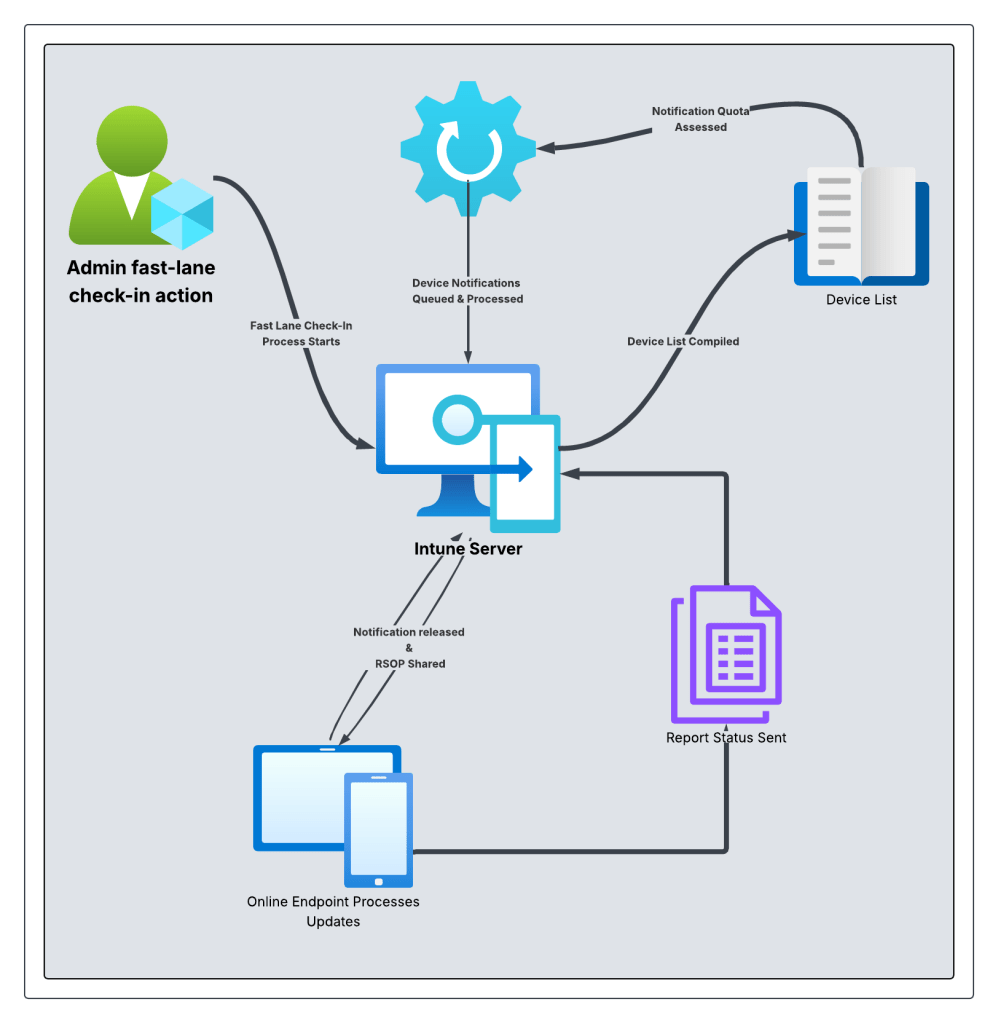
Delays often stem from quota assessments or notification queuing, but Microsoft’s optimizations are streamlining this process.
Actionable Tips for Intune Admins
To minimize latency and keep your Intune environment humming, consider these strategies:
- Dedicated Testing System – Always test your Intune payload changes on (at least) a singular test system before any wide-scale deployments.
- Wait the “Microsoft Minute”: Better known as 24-48 hours, this allows machines to fully report their status back to the Intune Admin console.
- Utilize Pilot Groups for Payload Changes: Once your payload is validated on your dedicated testing endpoint(s), test on a pilot group to ensure no errors or conflicts will occur on production endpoints.
- Prioritize Critical Updates: Use change-based updates for urgent payloads to leverage the “fast lane.”
- Optimize LAN & Network Reliability: Ensure devices have stable network access to reduce external latency.
- Ensure systems are regularly rebooted: Regular system restarts will clear pending machines actions that are known to cause delayed check-ins.
- Stay Updated: Keep an eye on Microsoft’s progress with DDM and notification improvements to adopt new features early!
https://learn.microsoft.com/en-us/intune/intune-service/fundamentals/whats-new
Enhancing Visibility with Telemetry and Reporting
For deeper insights into your Intune environment, fine-tuning telemetry and reporting settings is a game-changer. Here are key recommendations to boost visibility and control:
- Configure Windows Diagnostic Data: Set telemetry to at least “Required” via device restriction policies to support features like Windows driver updates.
- Activate Windows Data in Tenant Settings: Enable Windows data collection in Intune tenant settings to enhance reporting capabilities.
- Use Intune Reports Effectively: Leverage built-in reports for compliance and app status, ensuring exported data retains search filters for consistency.
Final Thoughts
Managing Intune device check-ins and latency is about staying one step ahead. By understanding the mechanics of check-ins, pinpointing sources of delays, and leveraging Microsoft’s ongoing improvements like DDM, you can keep your environment responsive and secure. Add in robust telemetry and reporting, and you’ve got the tools to troubleshoot issues and maintain visibility like a pro. Stay proactive, keep learning, and your Intune setup will be ready for anything.
Source: Intune ‘Fast Lane’ – Let’s Talk About All Things Latency – Microsoft Technical Takeoff by Albert Cabello.

 Kevin Malinoski
Leave a comment